
Previously we discussed Manually changing a grade in the Moodle Grader report. In this tutorial, a Grade Scale will created for giving personal feedback when students answer questions in the Forum, Assignment, and Glossary modules of the courses.
Moodle 2.3 has Scales for making custom grades in the Forum, Glossary and Assignment modules. This allows the teacher to be more personable when grading these particular modules. For example, if a student answers a question, depending on whether the answer is correct or not, the teacher can set the answer response to say “Not even close” if the question was completely wrong or the answer response can say “Perfect Job!” if the question was correct. Let go over the Moodle Custom Scale to see how it works.
Adding a custom Grade scale
- Log into the Moodle Dashboard
Important! Keep in mind that Editing must be turned on in the Settings section in order to edit some of these options in this tutorial.
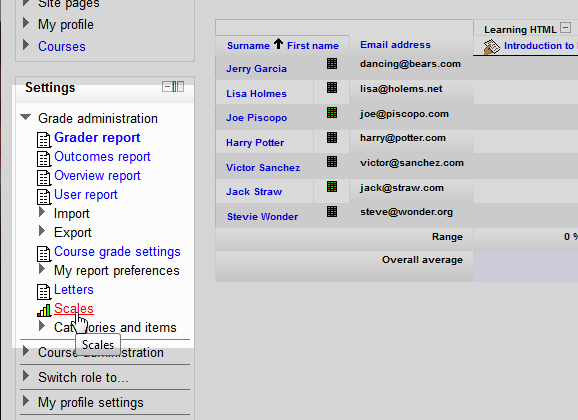
Select the Course for the specific Grader Report. In the Course administration section, select Grades. In the Grade administration, select Scales.
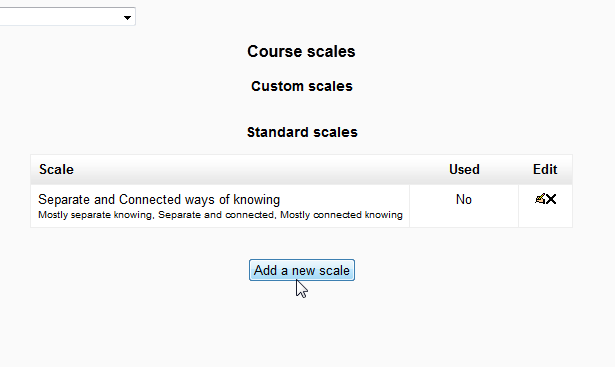
Next is the Course scales page. Here, the Standard scales can be edited or a Custom scale can be created. The Standard scale that comes with Moodle just has filler information for reference. If the scale is used in any of the Forums, Assignments or Glossaries, then the Used scale column will display yes in the column for that scale. In this case, select Add a new scale.
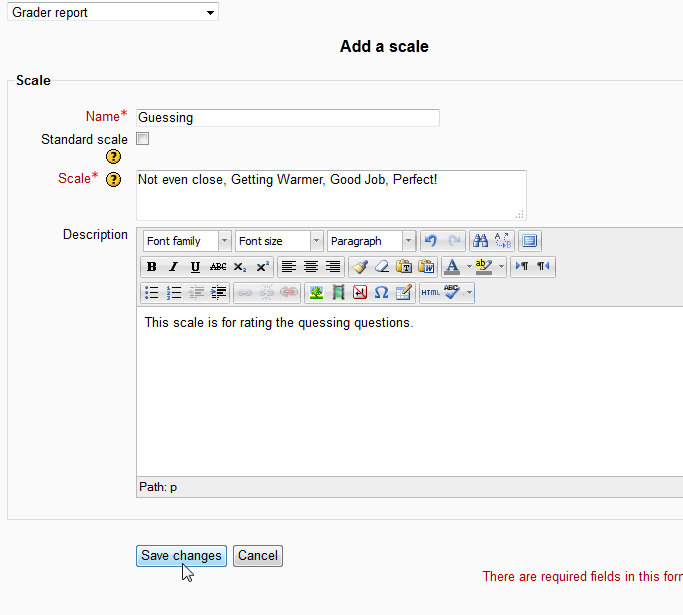
The Add a scalepage is where the scale will be created. The name is not terribly critical. This is only for identifying the scale when selecting it in the Grade section of an Assignment, Glossary or Forum. The Scale box is where the scale is created. In this tutorial, the following will be entered into the Scale box.
Not even close, Getting Warmer, Good Job, Perfect!
Important! The scale must be separated by commas. The scale will range from bad to good.
In the description, give a brief explanation of the scale for future reference. Once done, click Save changes.
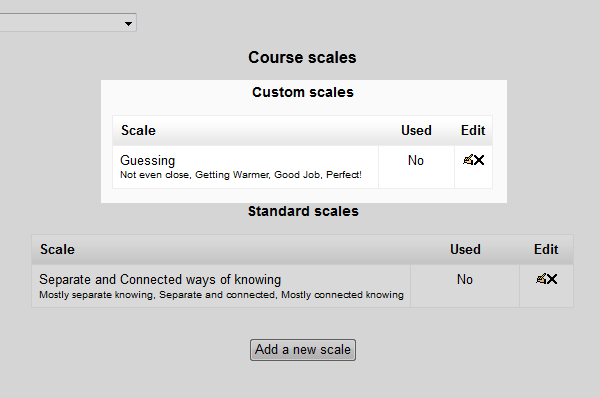
Now the Scale that was created will list in the Custom Scales list on the Course scales page.
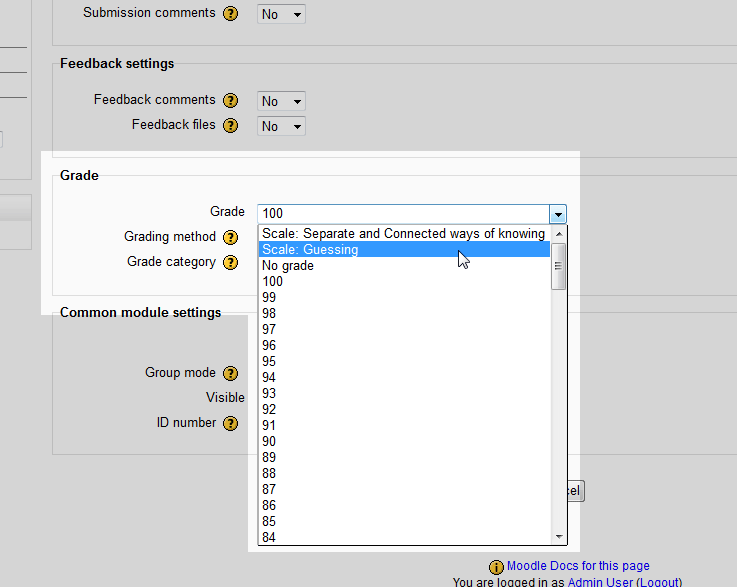
To use the scale, create an Assignment in one of the Course Sections. When creating the Assignment, for example, the new Scale will be included in the list when entering the Grading Method.
This concludes the article for Creating a Custom Grade Scale in Moodle. Please check the next article on Creating a Custom Grade Scale in Moodle. For more information about articles with a similar topic, please visit Moodle Grading and Reports .