
The previous article discussed How to edit the News Forum in a Moodle 2.3 Course. Once the News Forum is set up, the forum will need to be populated with the news information for the class. In some cases, more than one teacher may use the same Moodle Course for different schools or Campuses. In this case, each teacher or administrator has the capability of adding posts to the News Forum.
Important! Only Managers, Teachers, and Non-editing teachers can add posts to this forum. For a forum the students participate in, the Forum module will need to be used.
This Forum is not the same as the Forum module, where students have the capability to add their own discussion. The following will discuss how to add posts to a News forum in Moodle 2.3.
Adding a new post in the Moodle Course News forum
- Log into the Moodle Dashboard
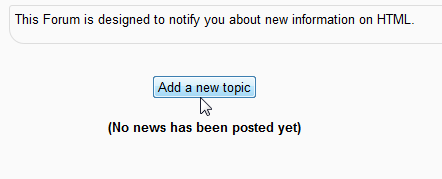
Navigate the News Forum in the Course to add a post. Select the text of the News forum and then click, Add a new topic.
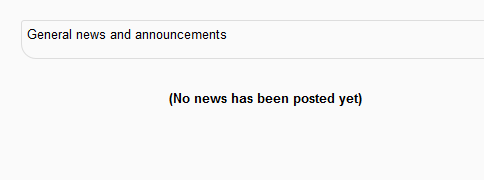
Important! If logged in as a normal user, the option to Add a new topic will not be available. “(No news has been posted yet)” will display for users that do not have the permission to create new topics. Make sure you are logged in as the correct user.
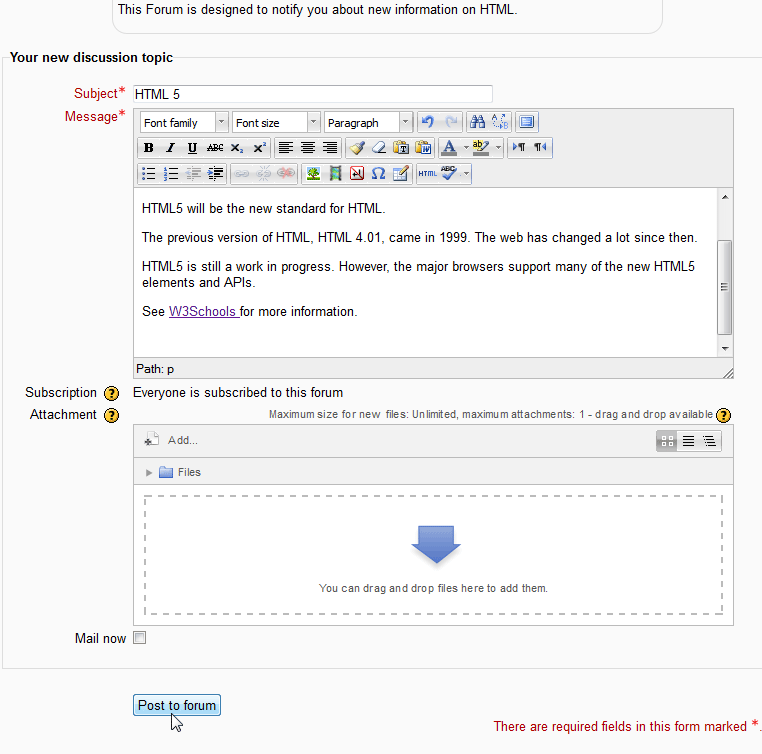
The Your new discussion topic page will display. Enter the Subject, Message and any attachment that is needed and click Post to forum.
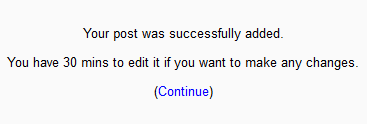
Next the Your post was successfully added page will show. Click Continue.
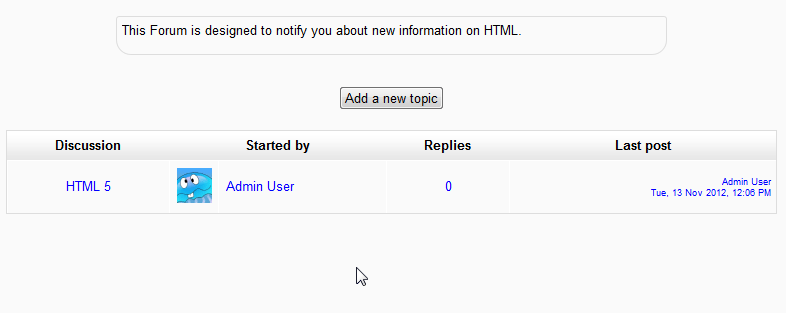
Now when visiting the News Forum, the topic will be listed as available for discussion.
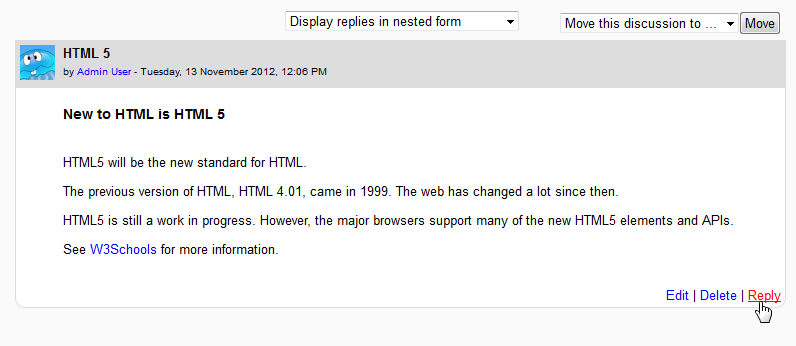
When viewing the topic, the discussion will look similar to the snapshot. Here the Teacher or Administrator can click Reply and add their discussion to the specific topic.
This concludes the article on Adding posts to the News Forum in Moodle. For more information about articles on Activities in Moodle, please visit Creating Courses in Moodle.