
The RSS feed capability in Moodle 2.3 is a great addition to the sites navigation. In Moodle 2.3, RSS feeds can be configured in the Remote RSS Feed Block. This is a good way to display feeds from important and relevant sites on the Course pages. In this tutorial, a feed to W3Schools will be inserted into the HTML course. Lets add an RSS feed to the Moodle Course.
Adding a Remote RSS Feed block
- Log into the Moodle Dashboard
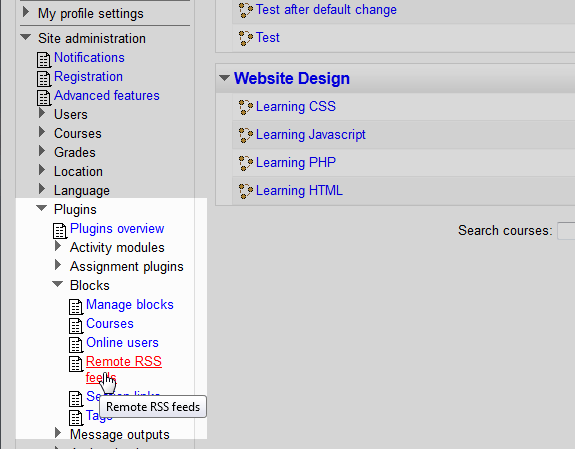
Navigate to Site administration > Plugins > Blocks > Remote RSS feeds in the Settings section.
Important! Keep in mind that Editing must be turned on in the Settings section in order to edit any of these options.
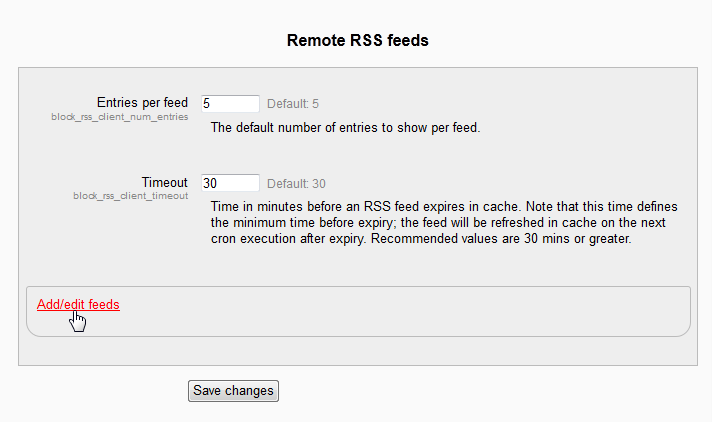
On the RSS feeds page, click Add/Edit feeds.
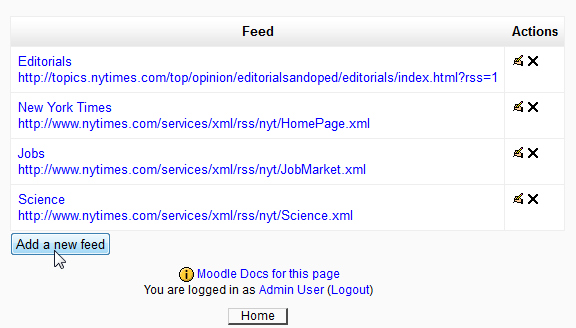
The Feeds in the system will display in a list. In this case there are 4 feeds. Click the Add a new feed button.
Next the Add a new feedpage will load. Enter the Feed URL, the Custom title, and select if the feed will be shared and click Add a new feed.
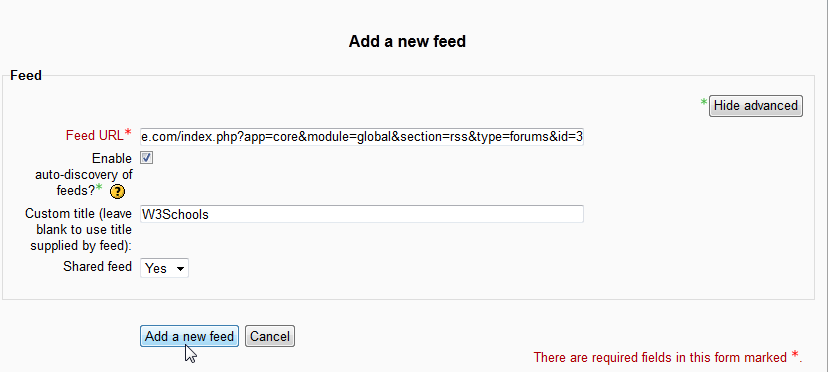
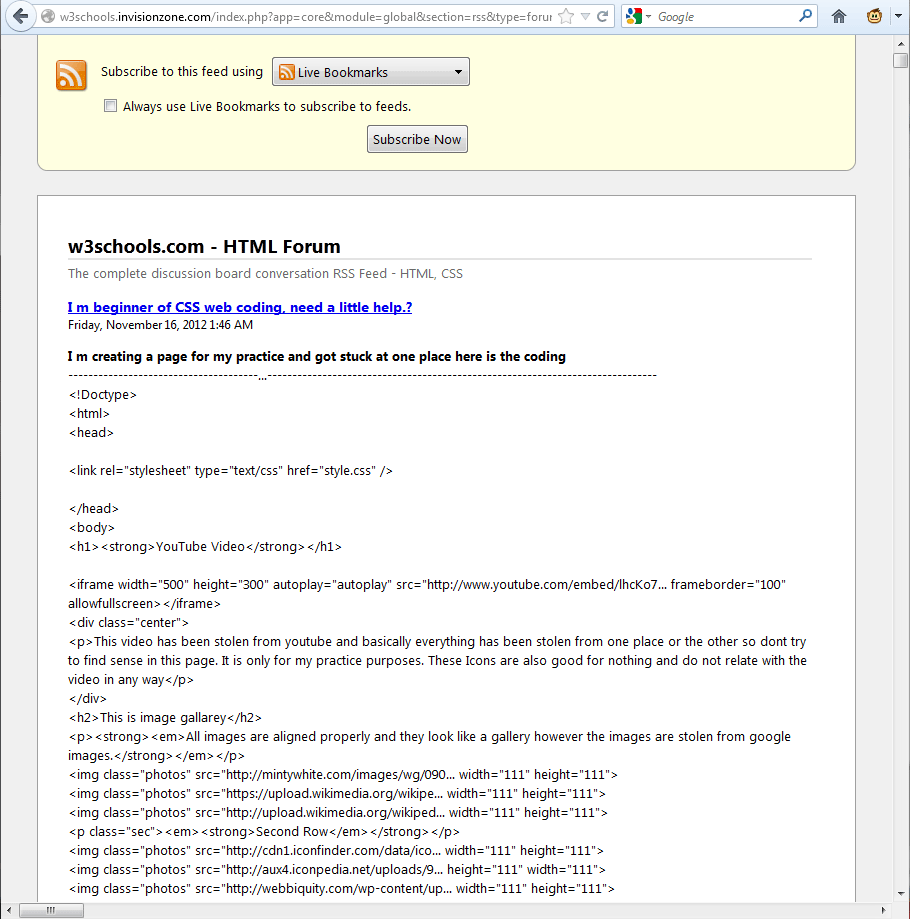
The RSS feed url will need to be the exact url to the feed. An RSS feed page will look like the snapshot to the right. Copy the url for the feed from the address bar.
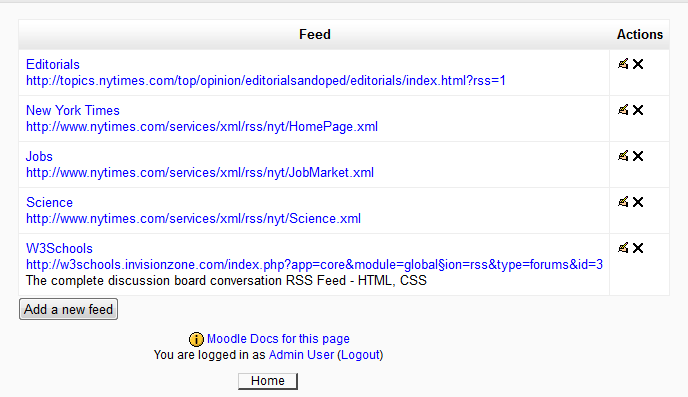
The News feed will display in the Feed list. Now the Remote Feed block will need to be added. For information on adding a block click HERE.
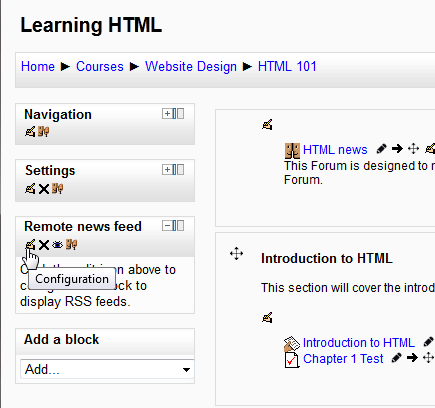
Edit the Remote News Feed block.
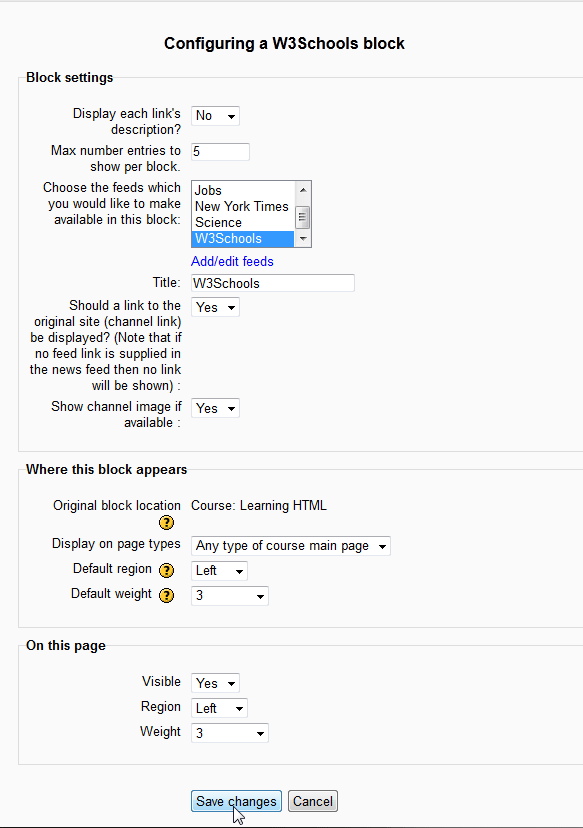
This is where the Remote Feed Block will be edited. Configure the following for the feed:
– Select the News Feed from the drop box
– Enter the Title
– Should a link to the original site be display = Yes
– Show Channel image if available = YesClick Save changes.
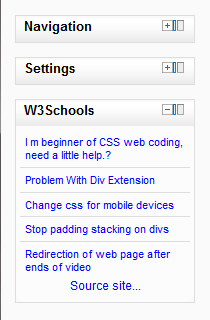
Now the RSS feed will display in the Navigation bar.
Congratulations, the RSS feed was added to the Moodle navigation. This concludes the article for Adding a Remote RSS feed to the Moodle navigation. To review the last article Adding and Deleting blocks from the Moodle sidebar For more information about Moodle blocks, please visit Changing the Appearance of Moodle.