
Now that the courses can have questions added to the Lesson module in Moodle from the previous tutorial, a Glossary may be needed for giving access to the terms of the course. This article will walk through the process of adding Vocabulary words necessary for the course through Glossary module.
Important! Keep in mind that Editing must be turned on in the Settings section in order to edit any of these options.
Adding a new Glossary to the course
- Log into the Moodle Dashboard
- Select the course on the left in the Navigation. Click the Add an activity or resource link, for the course section, to access the module list.
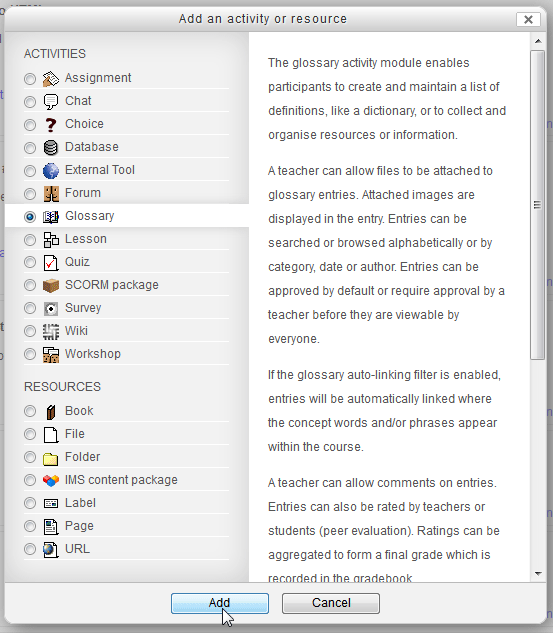
Select the Glossary module and click Add.
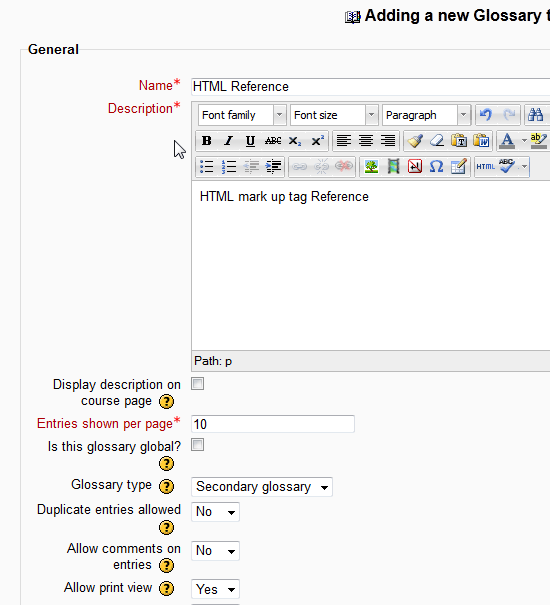
The required entries for this section are the Name, Description, and Entries shown per page. General: The General settings for the Glossary includes the name and description, also, the amount of pages the Glossary needs to display the definitions, the Glossary format, links and Comments can be set there and
Grade: If there is any grading required for the Glossary, usually not the case, the value can be set here.
Ratings: The Rating settings can be added if the instructor needs the users input on the Glossary terms.
Common module settings: The visibility of the Glossary can be hidden or visible with this setting.
- After entering the required fields, click Save and return to course.
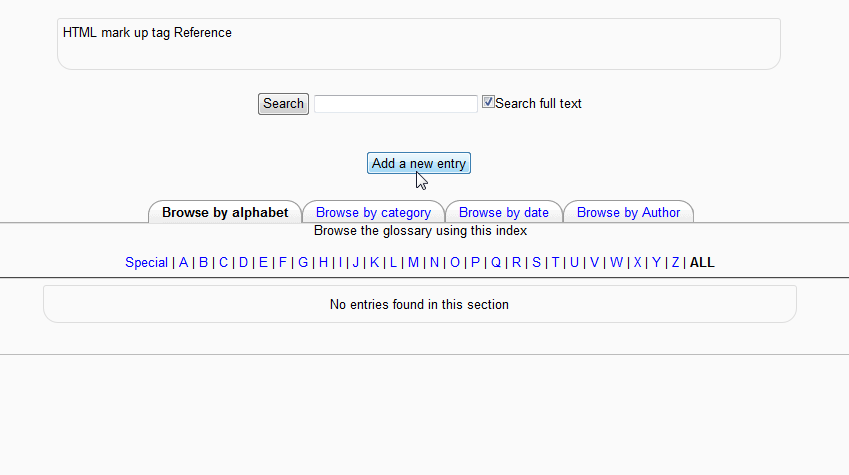
Next, select the course on the left and select the new Glossary module title in the Course section where the Glossary was inserted. There will be a button titled Add a new entry. Click that button to begin adding definitions to the Glossary.
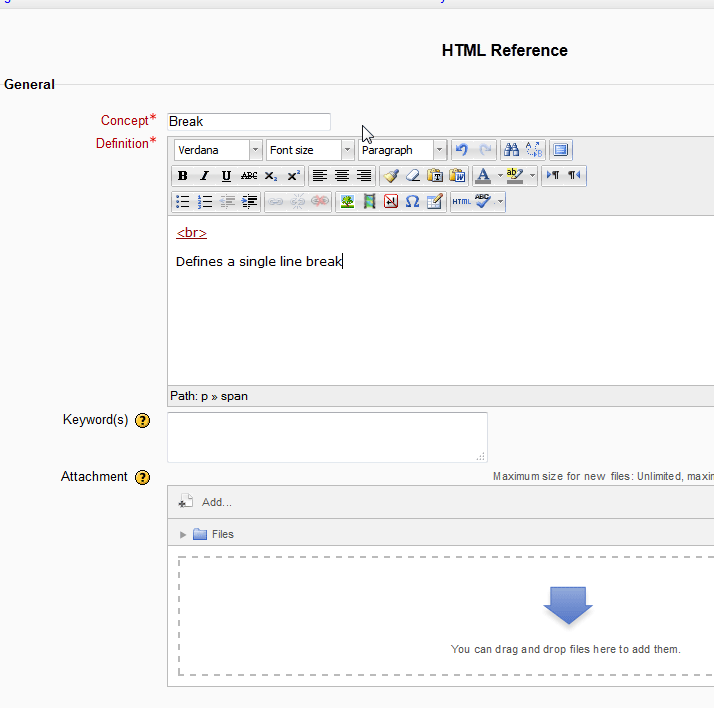
After clicking Add New Entry on the Glossary page, In the Concept box, type the term that will be defined. Add the Definition for the word and click Save Changes.
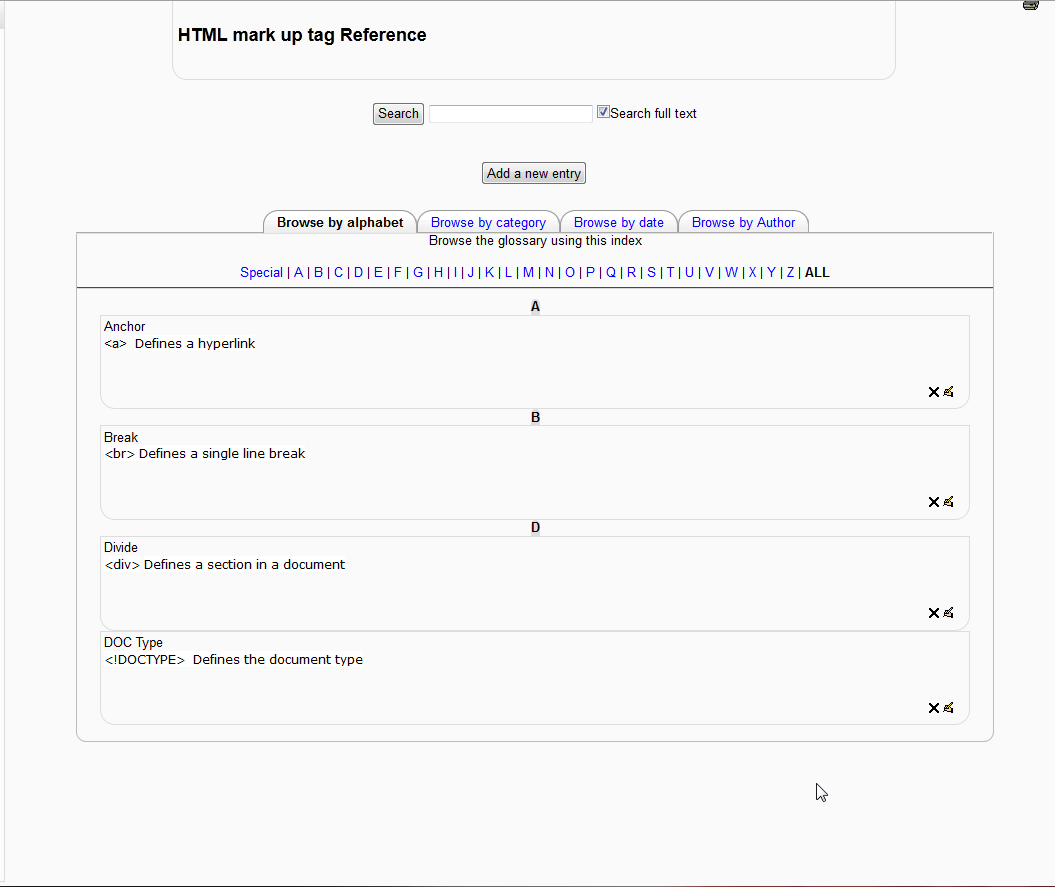
Once the Terms and Definitions are added to the glossary, the page should look like the following image..
This concludes the overview for the Moodle Creating a Glossary for a Moodle Course Section. Please check the next article on How to add the Quiz Module in Moodle. For more information on this Education Channel please visit Adding an activity or resource to a course.