It’s best to test major changes on a duplicate WordPress website before doing so on a live website. There are multiple ways to accomplish this including the Softaculous Staging option or the TotalUpkeep Backup plugin.
Below we’ll outline how to manually create a copy of a WordPress site for testing.
Warning: This tutorial is made for single-site installations. If you are using the multisite option, this method will create TWO SEPARATE MULTISITE installations. When you duplicate a multisite installation, the duplicated structures and data will fall under the respective multi-site installation database and WordPress files. This can be confusing. If you are not familiar with the differences between multisite and single-site, please only use these directions for duplicating a single-site WordPress installation.
Psst! Check out our Nginx-powered WordPress Hosting for enhanced performance capable of handling multiple WordPress websites with ease.
Copy a WordPress Site to Another Location
- Log into cPanel.
- Create a subdomain for the testing site – e.g. testsite.example.com.
- Open cPanel File Manager and make sure that Show Hidden Files is enabled.
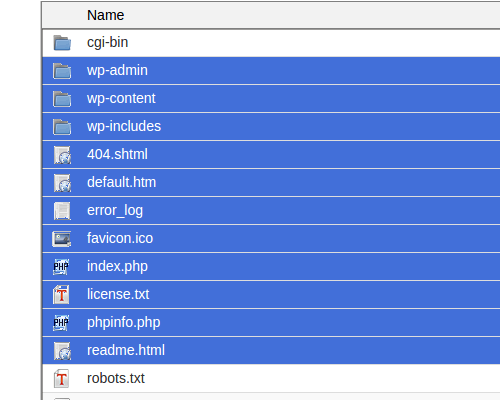 Navigate to your WordPress root directory and copy your WordPress files from your current directory to the subdomain root directory you created, usually the same name as the subdomain itself.
- Select all WordPress files.
Warning! When selecting your WordPress files, make sure the folders for the subdomains/addon domains, or any other non WordPress folders, are not selected. After clicking Select All, hold the
Ctrlkeyboard key and click the folders that are not being moved so they are not highlighted before copying the files. If you’re on an Apple computer you would use the Command key to do the same thing. 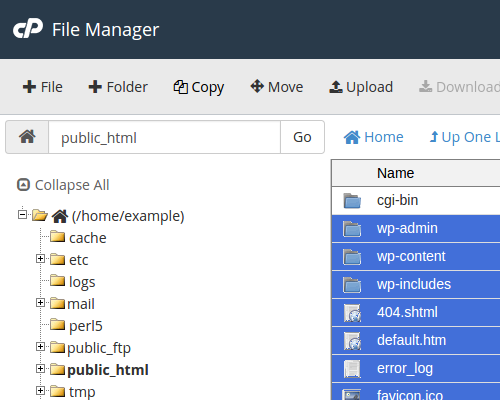 Click Copy on the top of File Manager.
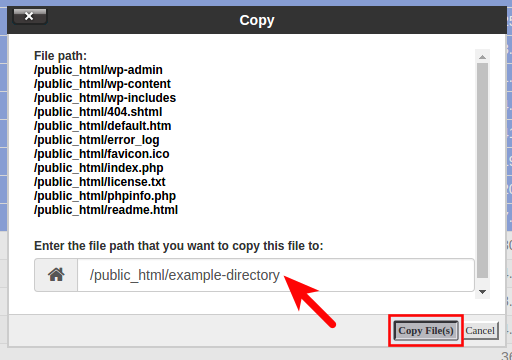 Type the path to the new subdomain document root folder.
- Copy the .htaccess file. This file needs to reside in the same location you have copied your WordPress files or at the root of the new location. The .htaccess file may contain important references to your current WordPress installation. Depending on your installation setup, you may need to look for this file in the root of the account. For example, InMotion Hosting normally uses a document root of “public_html.” Check this location for the .htaccess file if you did not find one in the original installation location for your WordPress site.
- Create a database. This will be used to separate the test site from your main site. If you use the same database for the test site, the live site will reflect made on the test site. Using a new test site database prevents this.
- Export your current database.
- Import your database to the new database you created.
Configure Test Site
- Configure the Test WordPress wp-config.php file for the test site. This ensures it uses the new database.
- Change the site and home URL for the test site to the test subdomain to update the WordPress database.
- Correct image links as these are in the database but not connected to the site URL.
Enhance WordPress with security plugins and fix mixed content errors for SSL (HTTPS) usage with Really Simple SSL.
