If you need to upload files to your hosting account, you will need to know to which directory to upload them. The specific directory you will upload them to will depend on whether you are working with the main domain, an addon domain, or a subdomain. In this guide, we discuss how to determine the document root of your website. (No hosting account? No problem- we’ve got you covered! Our VPS Hosting option takes the guesswork out of website hosting.)
Finding the Document Root
A domain’s document root, also known as the home folder, is the main folder that contains all of the files for either a domain or a subdomain.
Main Domain
The document root for your main domain name is your public_html folder. This means when someone visits your main domain, the server returns files that are located in the public_html folder.
Subdomains
The document root for a subdomain is a bit different. If your subdomain is https://store.example.com, then the document root folder would be public_html/store.
Addon Domains
Addon domain document roots are very similar to subdomains. If there is an addon domain on your account, you will need to look at the >cPanel Addon Domains section in order to see where the root folder has been set. Below is a charted explanation as well.
| Domain type | URL path | File Structure |
|---|---|---|
| Main domain | https://example.com | public_html |
| Subdomain | https://store.example.com | public_html/store |
| Addon domain | https://example2.com | add_on_domains/example2.com |
How do I find the document root of an addon / subdomain?
If you are unsure of the document root folder for an addon or a subdomain because you did not go with the defaults, you can find it by using the following steps:
- Log into cPanel
 Click Addon domains
 You will see a list of addon domains configured in your account and the document root will be listed here.

Finding a subdomain’s document root
- Log into cPanel
 Click Subdomains
 You will see a list of addon domains configured in your account and the document root will be listed here.
What file loads first?
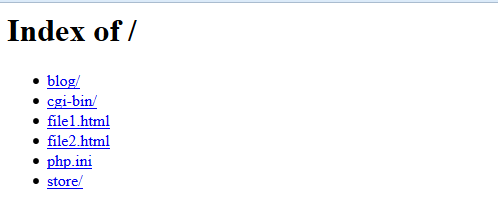
If no particular file is specified, the directory index file will be the first file the server loads from a folder. For example, if you type in example.com/contact_us.php, the server will return the contact_us.php page. If you type in simply example.com, the server will load the directory’s index file. The server looks for these specific files in the following order:
- index.htm
- index.html
- index.php
If the server does not find any of these files, it will display a default screen with a list of the files in the folder as shown to the right. This can be a security risk so you always want to ensure that a file will be served instead.
Can I change the directory index file?
Some website design applications name the home page something other than the standard index.htm, index.html or index.php. For example, the application may name your homepage Welcome.html, or Home.html. If your application does this, you will need to modify your .htaccess file and set your Directory Index setting to match that of website’s first page.
How do I change the directory index?
To change your directory index, edit your .htaccess file and add the following line:
DirectoryIndex some-file.html
For example:
Let’s assume that the homepage for your website is named Welcome.html. We need to update the .htaccess file so that the server knows to load Welcome.html first, instead of index.htm. Open (or create) the .htaccess file in your domain’s document root and add the following line:
DirectoryIndex Welcome.html
Yes, it is that easy! Please note that the server is case sensitive, so be sure to use the proper case. For example, Welcome.html is different than welcome.html.