
Connecting to your server is fast and easy when using FTP access. InMotion Hosting has the cPanel File Manager that you can use to upload files to your server; however, the File Manager requires you to upload one file at a time. With FTP, you can upload all your files to your server at once.
Introduction to FTP
What is FTP?
FTP stands for File Transfer Protocol, and is used to upload and download files from your hosting account. FTP is a good way to transfer your files to the server because you can drag all your files at once to the folder on your server instead of uploading each file one at a time.
Connecting to FTP can be done in several ways. You can connect to your server using a program like FileZilla, WP_FTP, or CyberDuck, or you can use an HTML editor like DreamWeaver or Notepad++. No matter what way you are connecting to your server, you will need to use the correct credentials to connect. The following sections will explain how to connect to your server using FTP.
Different Available FTP Programs
To connect to your account via FTP, you need to use an FTP client. There are many free FTP clients available, such as Filezilla (Windows and Mac) and Cyberduck (Mac). The exact steps to configure each FTP client vary. For more information regarding setting up specific FTP clients, please see the following links:
FTP Programs
- FileZilla
- Smart FTP
- WS_FTP
- CyberDuck
- Related Reading: Free Alternatives to FTP
HTML Editors that use FTP
Related Reading: Free Alternatives to FTP
Getting Connected to Your Server
Important: You do not have to create an FTP account to connect to your server. If you use the cPanel username and password, you can connect directly to your servers “Home” directory. If you are not sure what the “Home” directory is, please see our article on What directory should I put my files in?
Quick Start Guide to Using FTP
| Setting | Example Value |
|---|---|
| Hostname | domain.com |
| Username | cPanel Username (For example: userna99) |
| Password | cPanel Password |
| Port | 21 |
How to View Your FTP Settings in cPanel
- Login to cPanel.
- Under Files click the FTP Accounts button.
- In the Special FTP Accounts section, you will see an icon of a little person
 , click the Configure FTP Client link to the right, and you will see your settings displayed: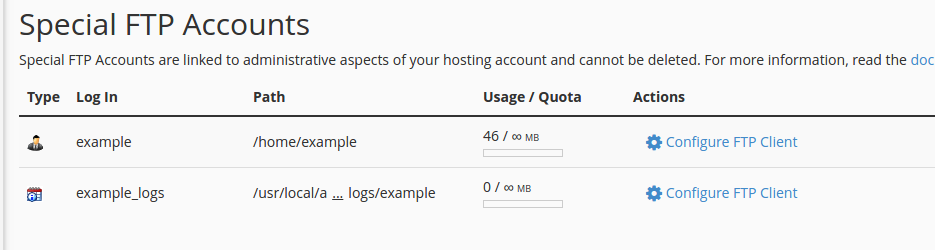
Connecting to FTP with Your cPanel User
To connect to your account via FTP using your cPanel user credentials, you need to use the username and password for your cPanel. you can get your username by Viewing Your Account’s technical information in AMP.
| Hostname | The FTP host is what your program uses to find your server. You have several options for your FTP host, and all will work the same. An example of what your host name looks like are as follows:
Note! If your domain is not pointing to our server (See What is a name server? and Updating your domain’s DNS / nameservers), you can use the Server hostname or the server IP address to connect with FTP. Otherwise you will get an error when trying to connect using FTP. |
| Username | Connecting with the cPanel user will use your cPanel username. This is the Username found in your AMP Technical Details. |
| Password | Your FTP password can also be your cPanel username’s password, unless you never reset your cPanel password. If you never reset your cPanel password, then the cPanel password should be the same as the AMP password. If not, you can reset your password. Please see our article Resetting your cPanel password using AMP. |
| Port | This is the port you connect to your server through. For standard FTP, you will use port 21. VPS and Dedicated Servers will connect to SFTP via port 22. Shared servers will connect to SFTP via port 2222. |
| Directory | The main directory for your domain will be public_html. If you are using the cPanel username, you will use “public_html“ if your program requires a directory to be specified. |
FTP Account Management
Creating Additional FTP Accounts
There may be times when you need to provide FTP access, but do not want to share your cPanel credentials. For example, a temporary developer might need to upload images. Please see the following on how to create an FTP account in your cPanel.
Your “Home” directory stores all your emails and other personal information on your server. You may want to restrict access to the specific folder location for a web developer to access your files without accessing your mail folder. You can set up an FTP account to do this. If you want to restrict access for a web developer to just a specific folder, you can create an FTP account to limit access.
Using a Created FTP Account
You can connect using a “Created FTP” account or an Addon/Subdomain. When an Addon domain or Subdomain is created, an FTP account is also created. You don’t have to use your cPanel username to connect to your server. Please see Using FTP with your Addon Domain. Addon domains are domains that you add to your website other than your main domain. If you want to learn about addon domains, please see New Domains: Add-on, Parked, and Subdomains.
Troubleshooting: Using Passive Mode
If you are having trouble connecting via ftp and you have the option to enable passive mode, please try doing so. Passive mode is a security related setting, and if you are behind a firewall, you may need to use it. If you ever get stuck with connecting for whatever reason, please do not hesitate to contact tech support.
While the above guide will work with most popular FTP programs, specialized FTP clients like WS_FTP may require additional configuration.