
Occasionally when administering a Moodle site, several different teachers or administrators may need to be added as a Site Administrator for editing capabilities. Moodle Admin permissions can be added to existing users allowing more admin roles. In the last article, Configuring the User Permission policies in Moodle, user permissions and roles were outlined. In This tutorial, the focus is on the Administrator user permission and role.
Adding and changing Admin User roles and permissions
- Log into the Moodle Dashboard
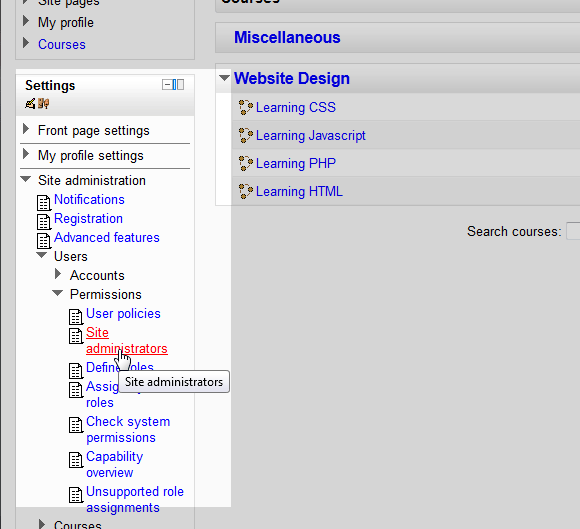
In the Settings on the left, navigate to Site administration > Users > Permissions > Site administrators.
Important! Keep in mind that Editing must be turned on in the Settings section in order to edit any of these options.
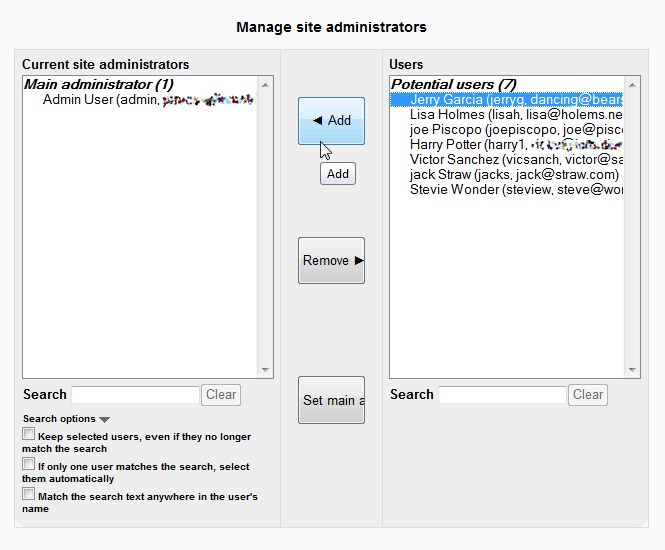
The Manage site administrators page should display. To create additional Administrators for the Moodle site, select the Potential user that will become an administrator and click add.
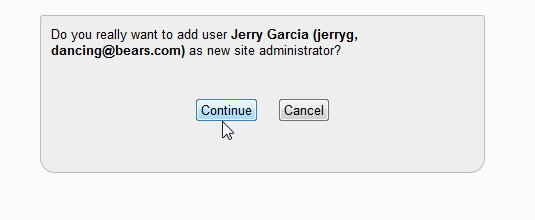
Click Continue in the “Do you really want to add user . . .” page.
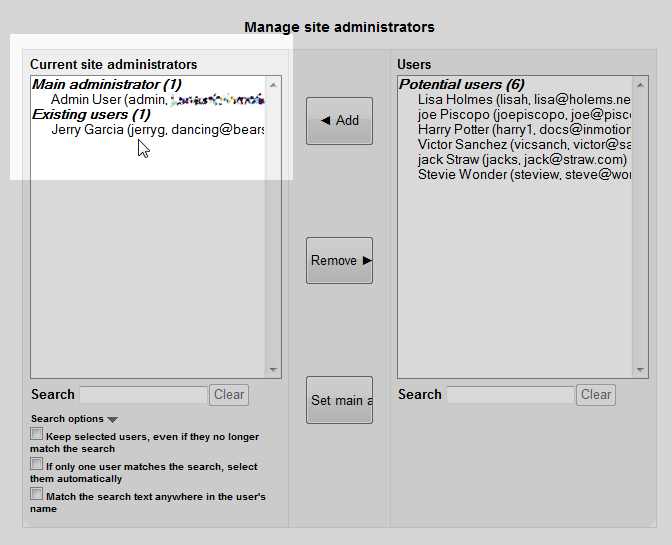
In the Current site administrators box to the left, the user will show up with the label Existing users.
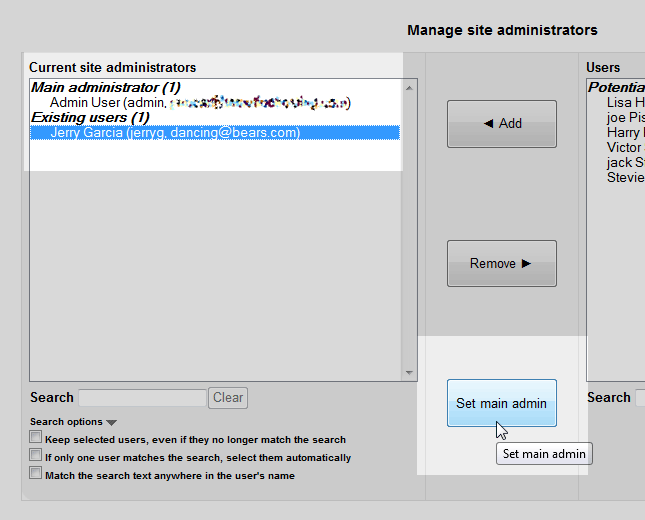
To change the Main admin to a new administrator, select the Existing User in the list and click Set Main user.
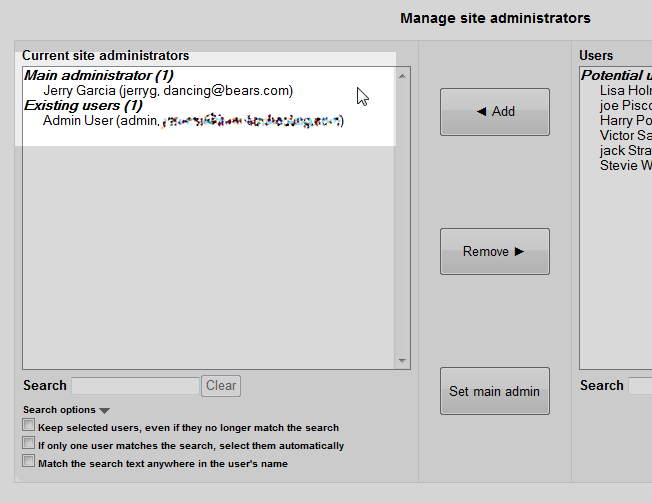
Now the user is set as the Main Administrator and the previous user is set in the Existing users.
This concludes the article for Modifying Site Administrators in the User permissions section of Moodle. Please check the next article on Defining Roles in Moodle . For more information on this Education Channel please visit Managing users and roles in Moodle