
The previous tutorial in the Getting Started with Moodle course was what to do when the username or password is lost. For security reasons, the Moodle administrator may want to change the Username and Password. This tutorial will explain how the username and password can be changed through the Moodle dashboard.

Resetting the Moodle Admin Login within the Moodle Dashboard

  1. Log into your Moodle.
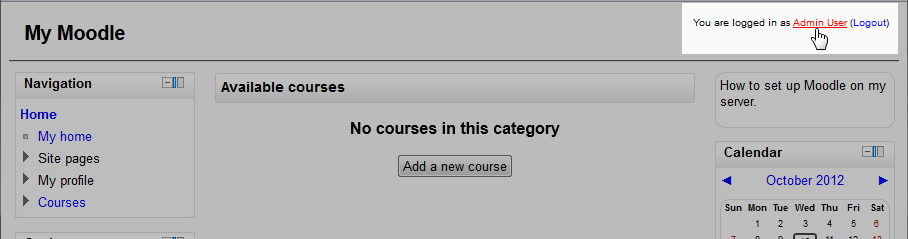
  2. moodle-reset-password-username-admin-userNavigate to the Admin User link towards the top right side of the Moodle site.
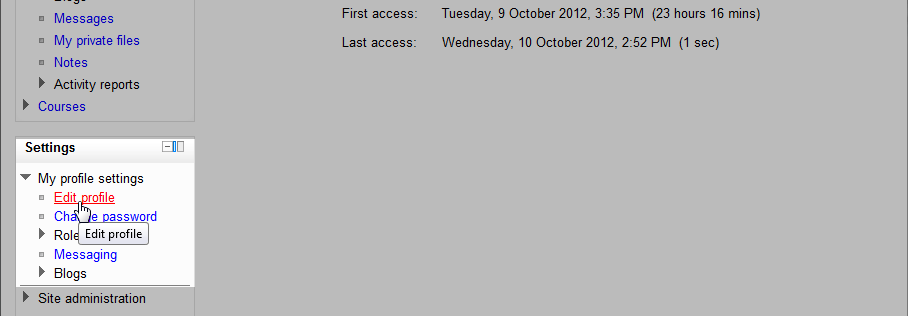
  3. moodle-reset-password-username-edit-profileClick Edit profile in the Settings section of the left.
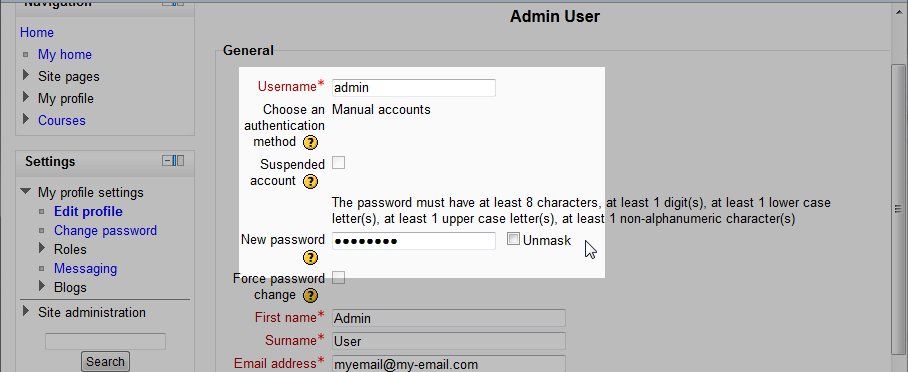
  4. moodle-reset-password-username-password-changeIn the General settings of the Admin User Section, enter the new user name and/or password.
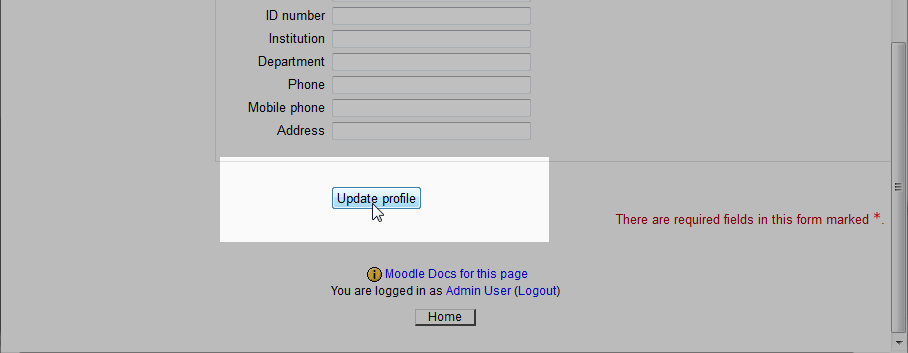
  5. moodle-reset-password-username-update-profileAfter the New Username and Password are entered click Update Profile.
Another way to change the password for Moodle is through the database. Next is on how to change the password through PhpMyAdmin on cPanel Hosting servers.

Like this Article?

Login to comment.

Your Opinion Matters

... but we need to know what you're thinking!

I'm James Richardson, your friendly Community Support technician, and I wrote the article you're looking at now. I like to think it's perfect, but I'm sure you have some suggestions. Please, let me know what they are!

Feedback
Your Email Address
Because we'd like to talk with you!

Need more Help?

Search

Ask the Community!

Get help with your questions from our community of like-minded hosting users and InMotion Hosting Staff.

Current Customers

Chat: Click to Chat Now E-mail: support@InMotionHosting.com
Call: 888-321-HOST (4678) Ticket: Submit a Support Ticket

Not a Customer?

Get web hosting from a company that is here to help. Sign up today!