
When managing plugins on a Moodle 2.3 site, there may be a need to completely remove a plugin from the Moodle site. This is necessary when plugins are not used anymore, out of date, or not compatible. In the previous article, installing a plugin was discussed. In this article, we will remove or uninstall a plugin from the Moodle 2.3 site. For tutorial purposes, the plugin that will be removed is the same plugin from the previous article. Now we will look at how to delete a plugin from Moodle.
Removing a plugin from Moodle
- Log into the Moodle Dashboard
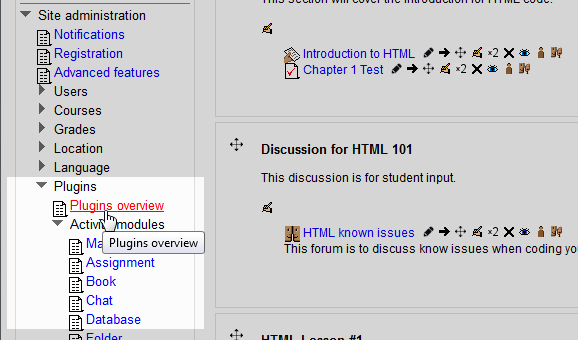
Navigate the Site administration > Plugins > Plugins overview page in the Settings on the left.
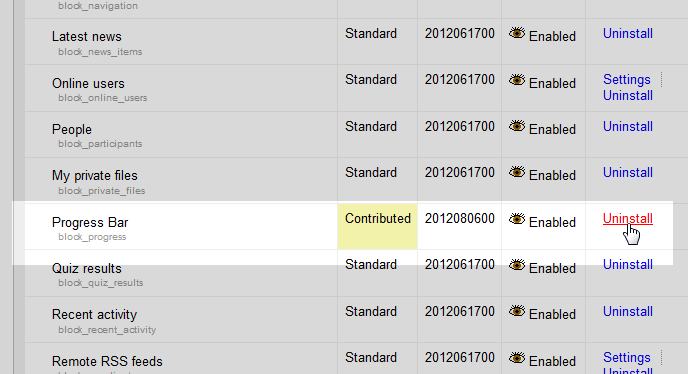
Find the plugin that will be removed from the Moodle site. In this case the Progress bar plugin will be removed. Click Uninstall for the plugin to be removed
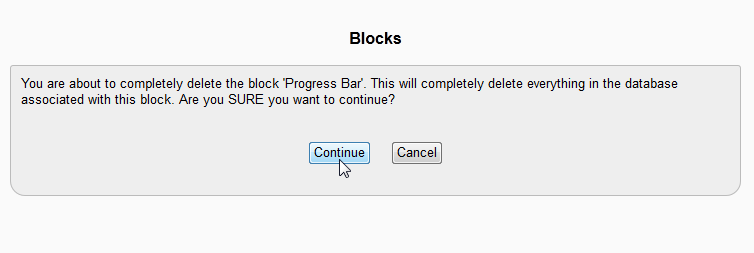
The Blocks page will load stating:
You are about to completely delete the block ‘Progress bar’. This will completely delete everything in the database associated with this block. Are you SURE you want to continue?
Click Continue.
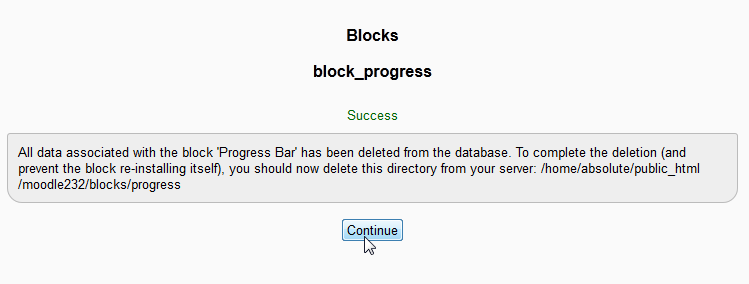
Now the block progress should show Success.
Important! When uninstalling a plugin, theme or other function in Moodle, you will need to go to the folder location where the plugin resides and delete the plugin folder from the server. Otherwise, the plugin will be reinstalled when logging back into the Site administrator section.
To remove the plugin permanently from Moodle, Log into cPanel or use an FTP client and find the plugin folder on the server. Delete the plugin folder. At this time, when logging into Moodle, Moodle will not prompt to install the plugin again.
This concludes the article for Uninstalling or removing a Moodle plugin.