
Moodle 2.3 has the capability of enabling, disabling, installing and uninstalling plugins that are used for the Moodle site to function. Plugins are used in the activities and resourcres, assignments, and many more functions within the Moodle site. Before installing any new plugins that are not in the original Moodle installation, lets overview what the default Moodle 2.3 plugins contain.
Default Moodle plugins overview
- Log into the Moodle Dashboard
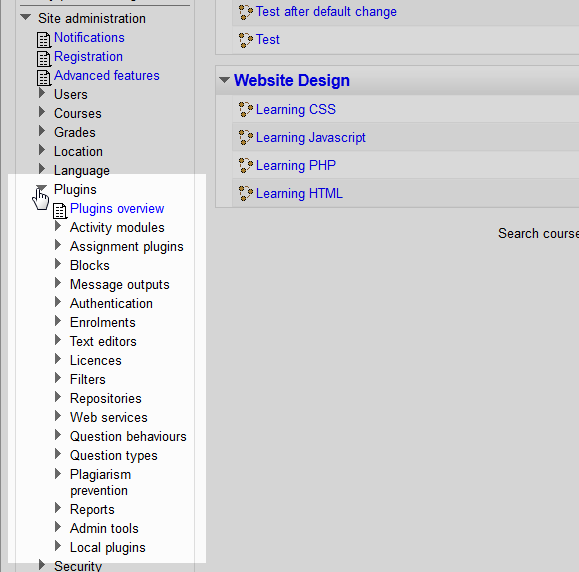
Navigate to Site administration > Plugins in the settings section to the left.
Note! Not all plugins are installed by default. The installed plugins will appear in the list of the plugins section in the Site administrators Settings. The install directories are referenced from the location where Moodle was installed.
For Example, on a cPanel server the Moodle installation directory may look like:
/home/username/public_html/moodleAny reference to a directory like:
/blocksWill reference the directory like the following:
/home/username/public_html/moodle/blocksPlugins can be updated through the Plugin Overview if the plugin has an available update. The following table overviews the default installed plugins.
Default installed plugins Activity modules The activities module is used for adding different user interactive behaviours in course sections such as Quizzes, Assignments, Glossaries, and so forth.
Directory location: /mod.Assignment plugins The default Moodle 2.3 Assignment plugins are:
Submission plugin: Generates forms for assignment submissions.
Directory location: /mod/assign/submissionFeedback plugin: Generates forms for assignment feedback.
Directory location: /mod/assign/feedbackBlocks The blocks plugin allows for blocks to be configured in the navigation.
Directory location: /blocksMessage outputs This plugin allows the Messaging to work over different forms such as email or jabber.
Directory location: /message/outputAuthentication Enables authentication for the users.
Directory location: /authEnrolments Allows the enrolment of users into courses.
Directory location: /enrolText editors Enables HTML editors.
Directory location: /lib/editorLicences Stores any license required for plugins.
Directory location: path unknownFilters This plugin coverts text. Text can be highlighted or transformed.
Directory location: /filterRepositories This plugin allows users to connect to external sources.
Directory location: /repositoryWeb services Allows different coding languages like JSON or SOAP to have code added to their functionality.
Directory location: /webserviceQuestion behaviours This plugin controls the interaction between the user and the questions.
Directory location: /question/behaviourQuestion types Adds a variety of different question types available for quizzes.
Directory location: /question/typePlagiarism prevention This plugin will match user or student submitted material to Plagiarism prevention programs.
Directory location: /plagiarismReports Provides reports for the site administrator.
Directory location: /reportAdmin tools This plugin enables scripts for the administrator to edit the site.
Directory location: /admin/toolLocal plugins Provides local customization.
Directory location: /local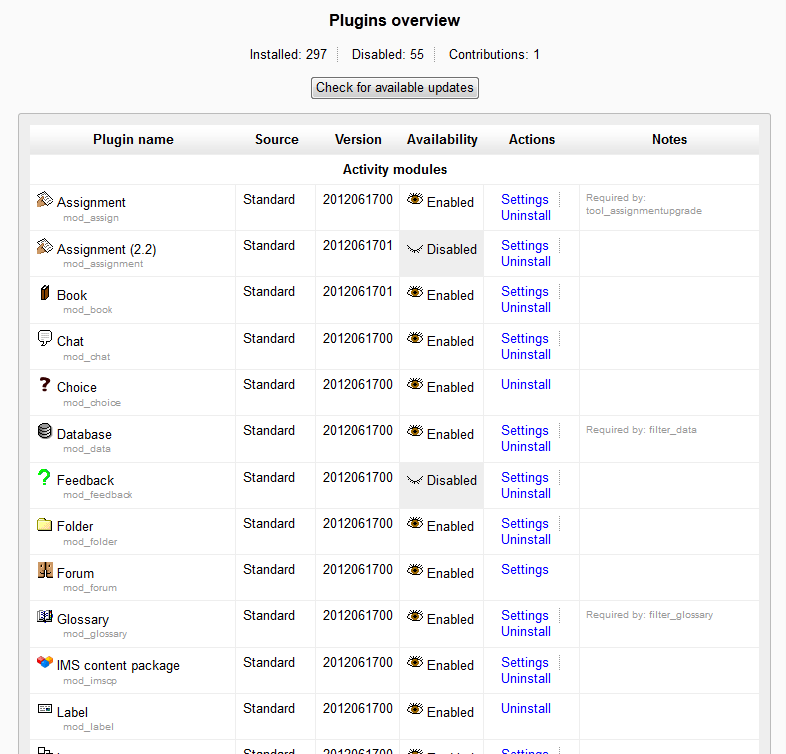
Click Plugins overview. This section will list the installed and available plugins for the Moodle site. Plugins that can be uninstalled will look like the snapshot to the right.
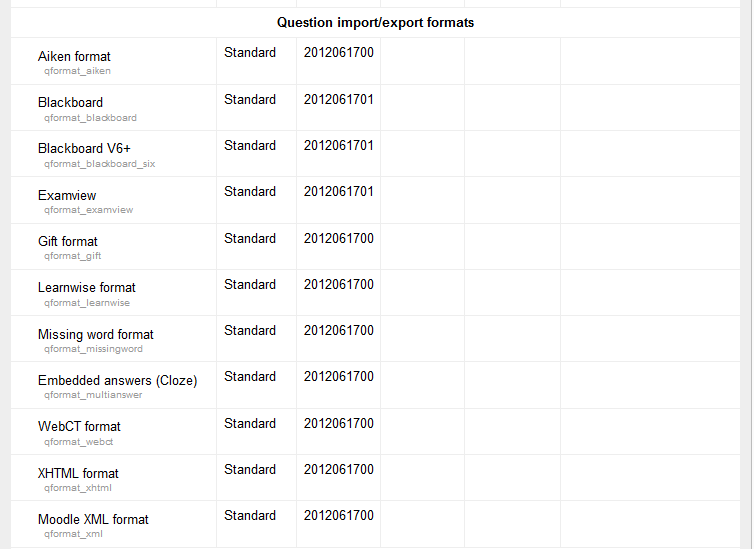
Plugins that are a part of the Moodle software are shown like the snapshot to the right. These cannot be uninstalled in this section.
The plugins overview will display the plugins that are installed in the Moodle site. The following table will show what the overview will show.
Plugins overview Plugin name Lists the name of the plugin. Source 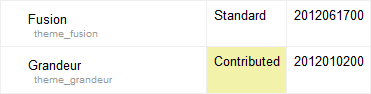
Shows the development source of the plugin. Examples are Standard, Extension, or Contributed.
Version Shows the date the plugin was created. Availability The availability shows whether the plugin is Enabled  or Disabled
  .
.Actions The plugin can be uninstalled here. The settings can be changed on some of the plugins. Notes Necessary notes for the plugin. Usually shows the Required by information for the plugin.
This concludes the article for Moodle 2.3 Plugin Overview.