Welcome to another article in our tutorial series on creating a Joomla 3.0 template. In our last tutorial, we showed you how to install the Joomla 3.0 template that we are in the middle of creating. Installing a template does not immediately activate it, and so we will show how to change your Joomla 3.1 site template in this tutorial.
Please note! The steps in this tutorial for changing site templates applies regardless of whether you are following our tutorial series and installing the template we are creating, or if you downloaded a Joomla 3.0 template from the web.
Changing your Joomla 3.0 Site Template:
- Log into your Joomla 3.0 administrative dashboard.
- In the top menu, click Extensions and then click Template Manager.
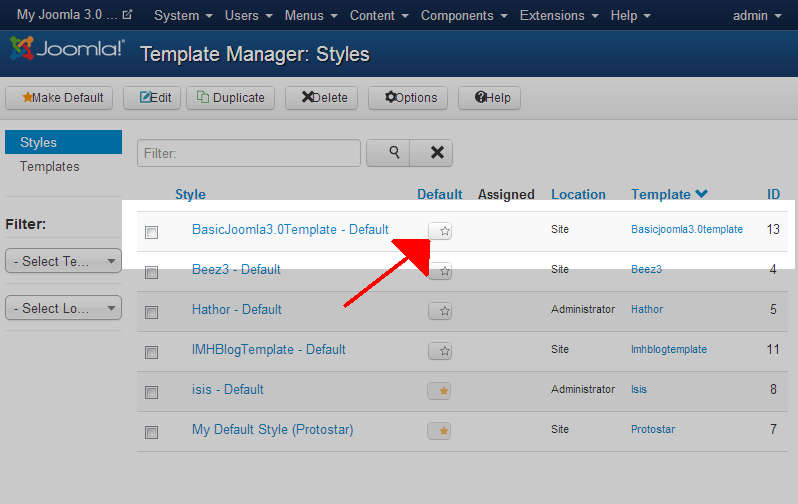
You will see two types of templates, Site and Administrator. In this tutorial, we are changing Site templates (the templates that affect the front end of our website).
In the list of templates, click the hollow star next to the Site Template that you would like to activate. You will then receive the following message:
Message
Default style successfully set
In the screenshots below, you can see that after choosing a new site template, the look and feel of our Joomla 3.0 website has changed.
BEFORE:
Default Protostar TemplateAFTER:
Basic Joomla 3.0 Template selected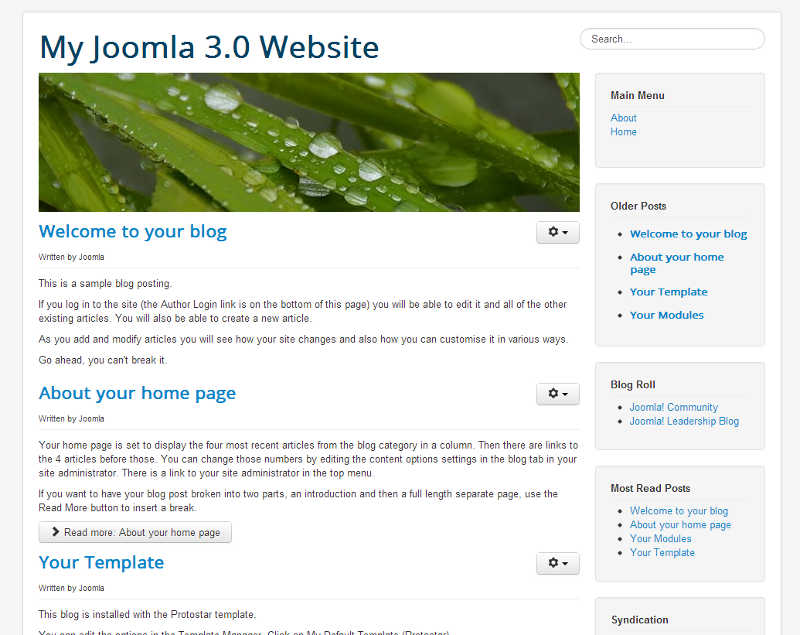
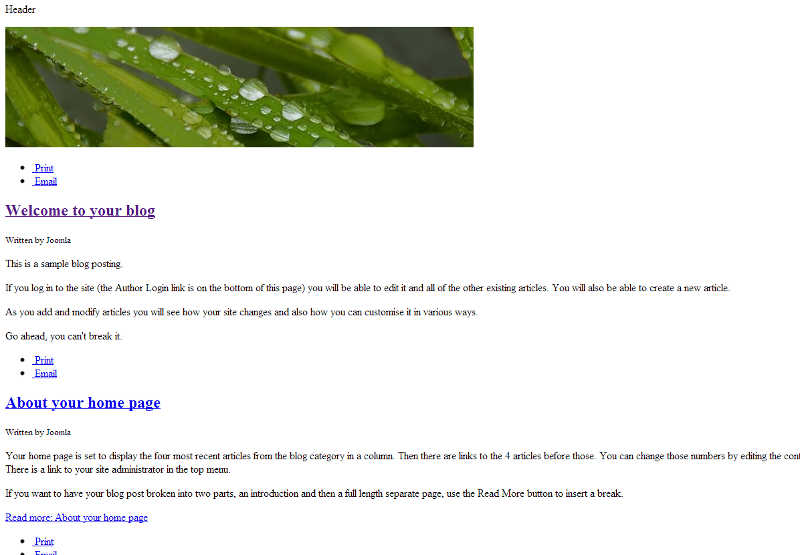
Please note! If you’re following along with our tutorial series on creating a Joomla 3.0 template, you’ll want to read our next article on How to add javascript to Joomla 2.5 articles. If you can see in the screenshot above, the template does not look all that impressive, at this point it is just a mess because our CSS file is not being loaded (which we will explain more in our next tutorial).
