In this tutorial series, we’re creating a simple 2 page website in which each page allows users to post comments. In our previous articles, we’ve created and setup our database, and we’ve created the html form that will allow users to type in and submit their comments. In this article, we now need to incorporate our HTML form into our 2 pages. This can be done using the Include php function.
Creating our Test website
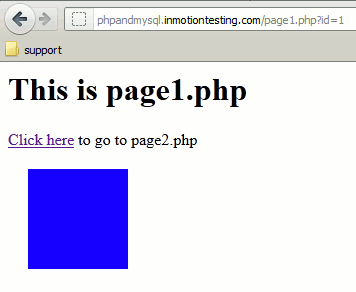
At this point in our tutorial, we need to create the 2 pages that will appear on our website. As the purpose of this tutorial is not to show you how to create a basic website using HTML, we won’t go through the process of creating those two pages. We’ve created the two pages (page1.php and page2.php) and they can be seen below:
| page1.php | page2.php |
| 
|
Adding our HTML form to our website using PHP’s include function
In our previous article, we created an HTML form. Because we only have 2 pages, we could copy and paste the same code onto each page. In this example, that could be OK. If we however had 100 pages, that would be quite a bit of work. Also, if we had to make a change to that form, we would need to make that change to 100 different pages, which would be very tedious.
To make this task easier, we will add our HTML form to a file called formcode.php and then include that file in each of our pages. If we go this route, if we needed to make a change to the form in the future, we would simply change the one formcode.php file and the change would affect all pages that included formcode.php.
To setup formcode.php and include it in your pages:
- create a new file named formcode.php and insert our form code (found in our previous article)
- add
<? include("formcode.php"); ?>in both page1.php and page2.php where you would like the form to appear.
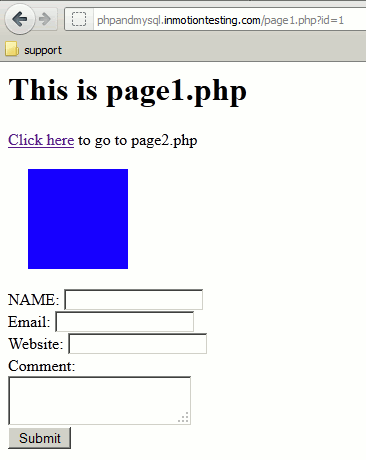
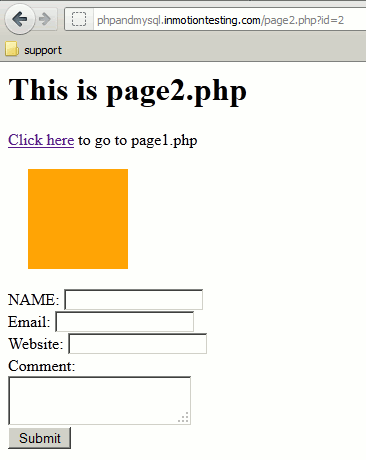
After following the steps above, your pages should look similar to the below screenshots and your code should look similar to the code sample below:
| page1.php | page2.php |
| 
|
<h1>This is page1.php</h1><div><a href="page2.php?id=2">Click here</a> to go to page2.php</div><div style="margin: 20px; width: 100px; height: 100px; background: blue;"> </div><? include("formcode.php"); ?>
In our next tutorial, we’ll show you how to process the user’s comment after they have clicked the submit button to submit their comment.