In this tutorial, Installing a Joomla 3.0 template, we will be installing the Joomla 3.0 template that we created. The steps in this tutorial apply regardless of whether you are installing a Joomla 3 template that you've created yourself or downloaded from the internet.

Installation steps for a Joomla 3.0 Template

  1. Log into your Joomla 3.0 admin dashboard.
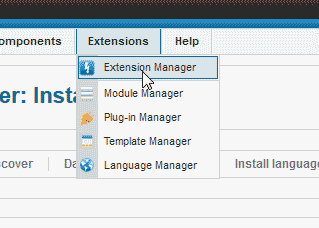
  2. Extention manager Joomla 3.0In the top menu, hover over Extensions and then click Extension Manager.
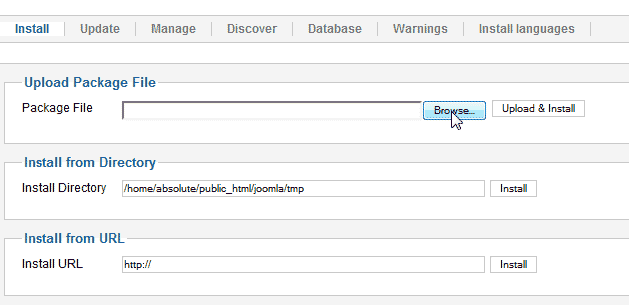
  3. Browse for the theme Joomla 3.0Under the Upload Package File heading, click the Browse button.
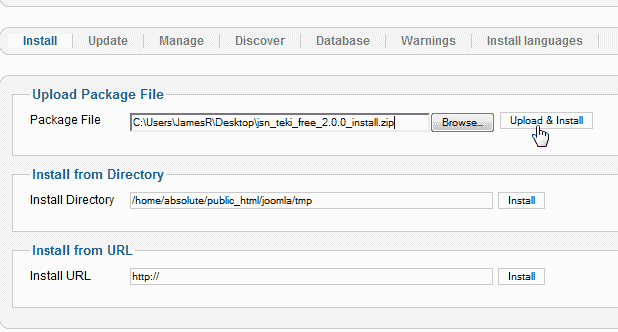
  4. upload the theme Joomla 3.0Find and select the Joomla 3.0 template on your computer, and then click the Upload & Install button.
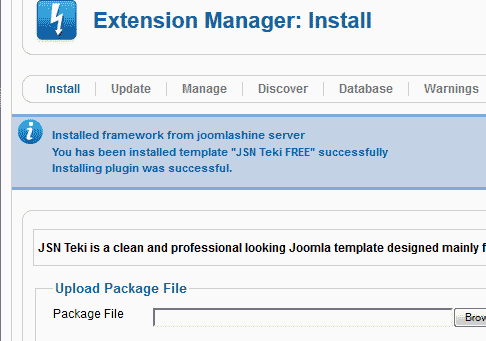
    Successfull Joomla 3.0 When the template has been successfully installed, you should see the success message to the right.

    Even though our template has been installed, it is not yet the template designated for our site. Our next step will be to change the site template used by Joomla 3.0
Like this Article?

Login to comment.

Your Opinion Matters

... but we need to know what you're thinking!

I'm Brad Markle, your friendly Community Support technician, and I wrote the article you're looking at now. I like to think it's perfect, but I'm sure you have some suggestions. Please, let me know what they are!

Feedback
Your Email Address
Because we'd like to talk with you!

Need more Help?

Search

Ask the Community!

Get help with your questions from our community of like-minded hosting users and InMotion Hosting Staff.

Current Customers

Chat: Click to Chat Now E-mail: support@InMotionHosting.com
Call: 888-321-HOST (4678) Ticket: Submit a Support Ticket

Not a Customer?

Get web hosting from a company that is here to help. Sign up today!