As we continue to create a Joomla 3.0 template, the next task we will do is add a bit of style to it. Starting off, we’ll focus on the login form.
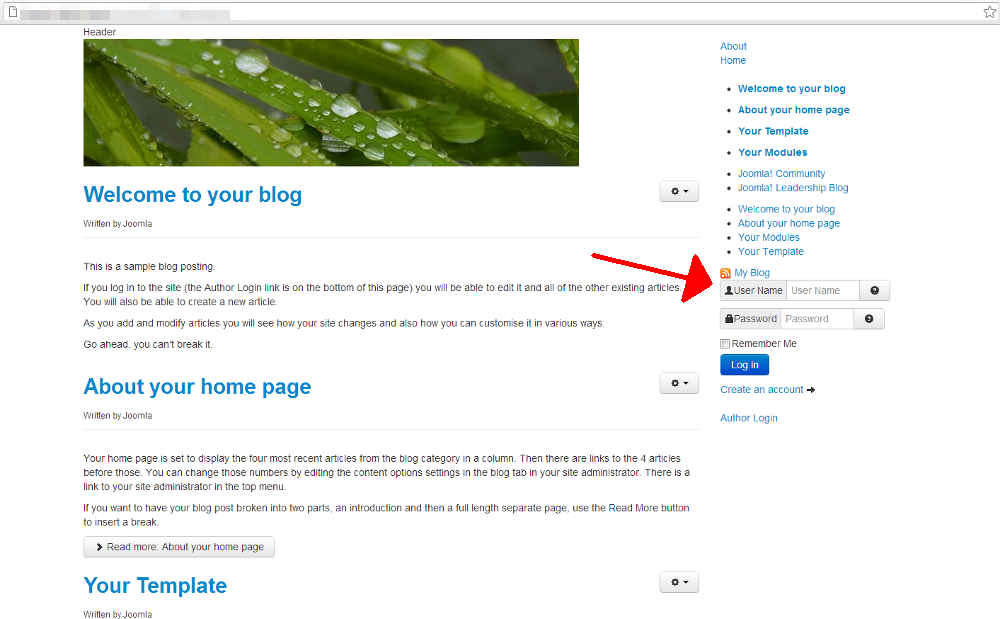
As you can see to the screenshot to the right, the login form is very bland. There is no background color to it, no border, and it does not stand apart from the rest of the items in the sidebar.
Styling the Joomla 3.0 login form using CSS
The Joomla 3.0 login form has an id of login-form. To add css to this form, you’ll want to add a css declaration for #login-form.
- Open css/style.cssUsing your favorite text editor, in your template’s folder, open css/style.css. Your css file may be different, but this is the name of the file we included in our template.
- Add CSS for #login-form and then save the fileYou can add any CSS that you would like for your login form, however we decided to give the form rounded corners with a grey background. Below is the CSS that we inserted into our css/style.css file:
#login-form {
         -moz-border-radius: 5px;
         -webkit-border-radius: 5px;
         -khtml-border-radius: 5px;
         border-radius: 5px;
         background:#eee;
         border:1px solid #ccc;
         padding:5px;
         margin:0px 0px 10px 0px;
}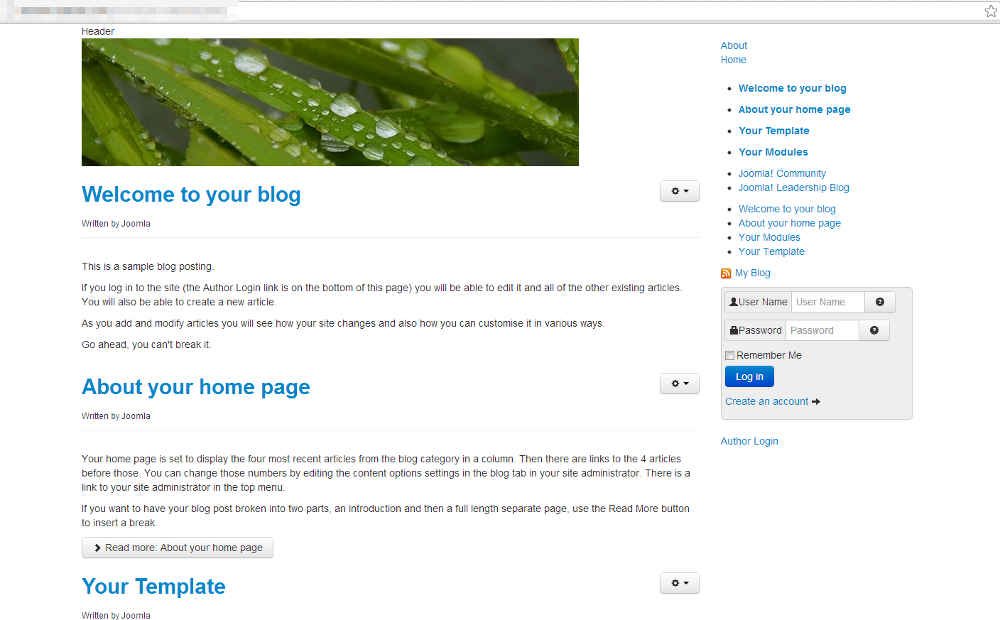
After adding this code and saving the changes, you can see in the screenshot to the right how our Joomla 3.0 login form now has a bit more style to it.
