Joomla 2.5 has reached its end of life as for 12/31/2014. Please be advised this may be a security risk to your website. You can view more information about the end of life here.
In our last few articles, we have been creating a slideshow within Joomla 2.5 using the Unite Nivo Slider extension. Our ultimate goal is to display this slideshow on our Joomla 2.5 frontpage, and in this article we’ll show you how to insert the slider in your Joomla Hosting.
Before continuing, you need to make sure you have a good understanding of the following topics, as they will all be used in this tutorial:
To show a Unite Nivo Slider on your homepage:
- Create a module for your Unite Nivo Slider- Log into your Joomla 2.5 Admin
– In the top menu, hover over Extensions and then click Module Manager
– In the top right menu, click New
– In the list of module types, click on Unite Nivo SliderEnter the following details for your new module and then click Save in the top right menu:
Title Enter a title for this slider. In our example, we entered homepage slideshow. Show Title If you don’t want the title for the module to show, select Hide. Position Instead of clicking the Select position button, enter a position name. We entered my_homepage_slideshow Status Set status to Published so that it is an active module. Slider Select the slider that you want to show. In our testing, we selected Test Slider 1 There are numerous other settings you can select, such as the width and height of the slideshow and various effects. For now, we are only covering the basics, but feel free to experiment with all of the other settings.
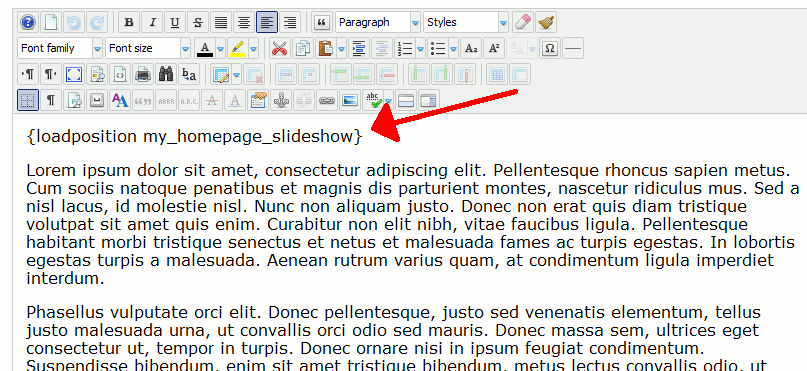
- Load the new module within a featured articleOur homepage currently contains one featured article (see the 2nd link at the top of the page). What we will need to do is edit that article and insert the necessary code to load the module we just created (see the 1st link at the top of the page). Because we placed our module in a position named my_homepage_slideshow, we referenced that position when using loadposition in our featured article:
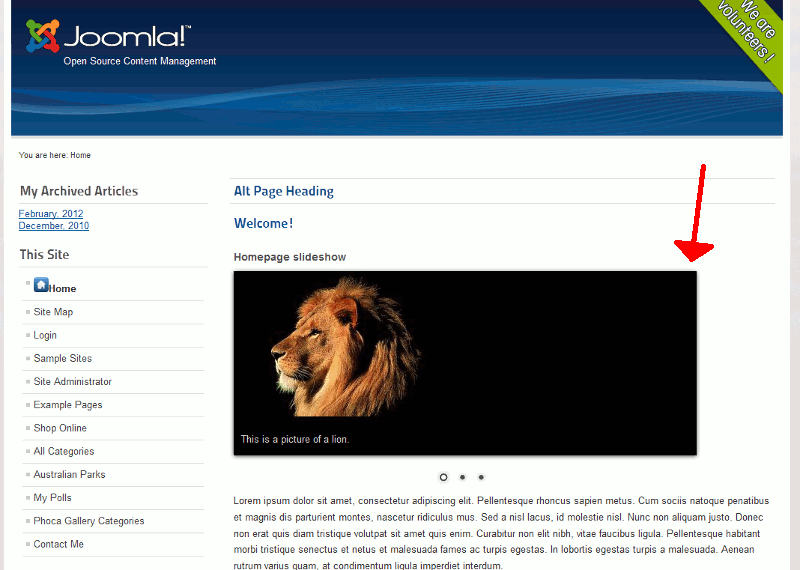
- Test your homepage!In our testing, you can see below a screenshot of how our slideshow is appearing on our homepage:
- Please take note
If the slide does not show for you, in the modules advanced settings enabled the option to Add JS to body. This will load the necessary javascript after jquery is loaded, and the problem should be resolved. If there are any additional problems, enable the jQuery.noConflict() option (in version 1.0.5+)
The size of the slider is set by the sizes of the images within the slideshow. If you need the slideshow to show in different dimenions, you will need to resize your images. In the pro version, auto resizing and cropping features are available.
