Joomla 2.5 has reached its end of life as for 12/31/2014. Please be advised this may be a security risk to your website. You can view more information about the end of life here.
If you have never seen one before, captchas are parts of a website where you sometimes need to type in a word to prove you’re a human. Captchas are a great way to prevent spam activity on your Joomla 2.5 website because most “bots” that attempt to post spam cannot read the letters contained in the captcha image. In this tutorial, we’re going to walk you through the steps for setting up ReCaptcha, a popular captcha system, in Joomla 2.5.
To enable ReCaptcha for Joomla 2.5:
- Log into your Joomla 2.5 Dashboard
- In the top menu, hover over Site and click Global Configuration
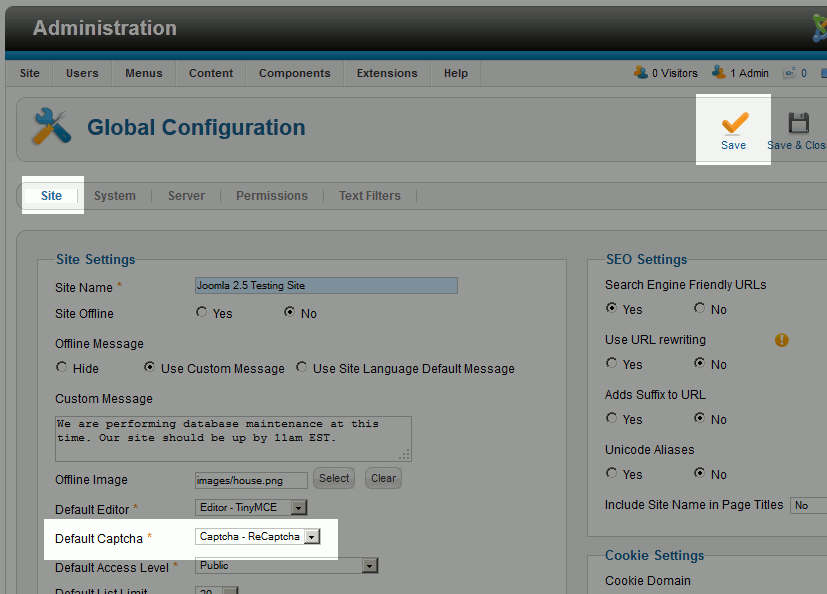
- Under the Site tab, set Default Captcha to Captcha ReCaptcha, and then click Save.
ReCaptcha requires a “key” before it will work. If you test the registration form on your site before entering this key, you will get a similar error message:
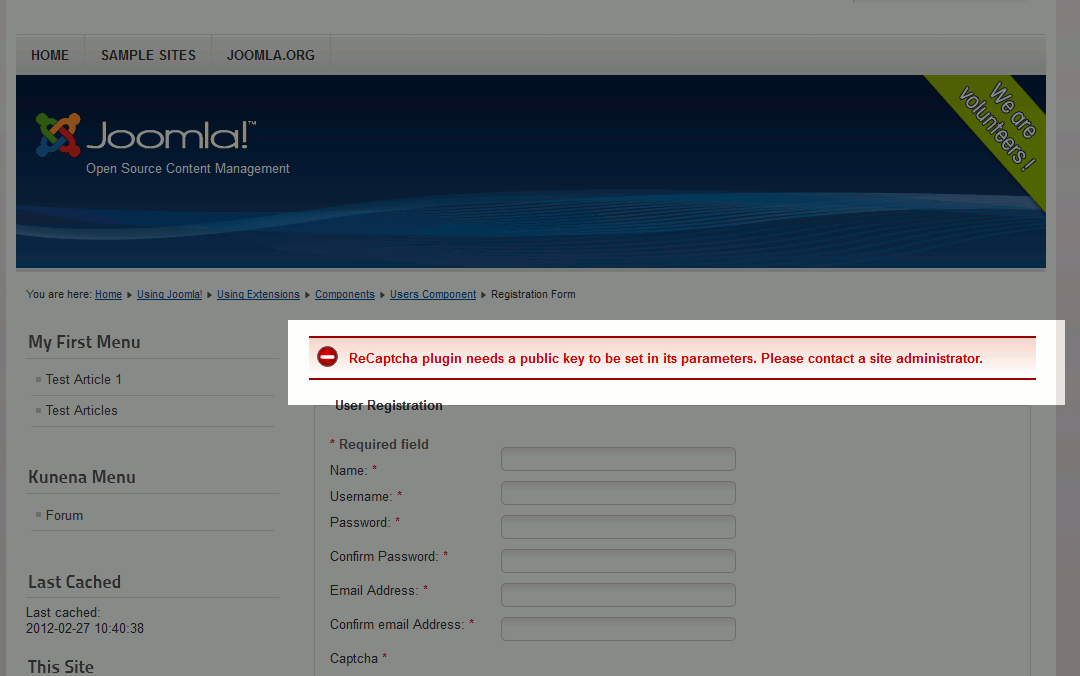
ReCaptcha plugin needs a public key to be set in its parameters. Please contact a site administrator.
- To obtain a Recaptcha key, you need to have a Google account. If you don’t already have one, sign up for a Google account and then visit https://www.google.com/recaptcha/admin/create (be sure that you’re logged into Google). Enter your domain name and then click Create Key. You will then be given both a Public Key and a Private Key, which will look similar to: 6LfnOM47AAAAAB7SSA7fbjH7e1q95htZb34pA1T9
- Now that we have our ReCaptcha keys, we’ll need to configure Joomla 2.5 with them. In your Joomla 2.5 Dashboard, hover over Extensions (in the top menu) and then click Plug-in Manager
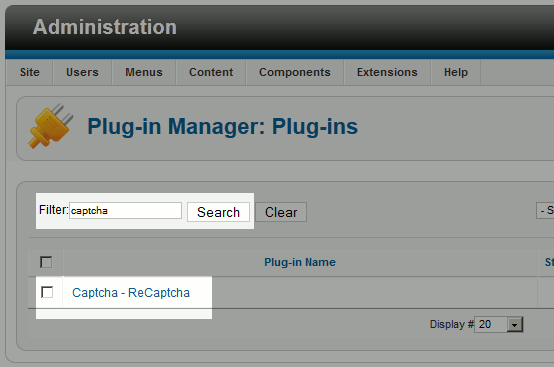
- Use the Filter feature to search for captcha, and then click on the Captcha – ReCaptcha link:
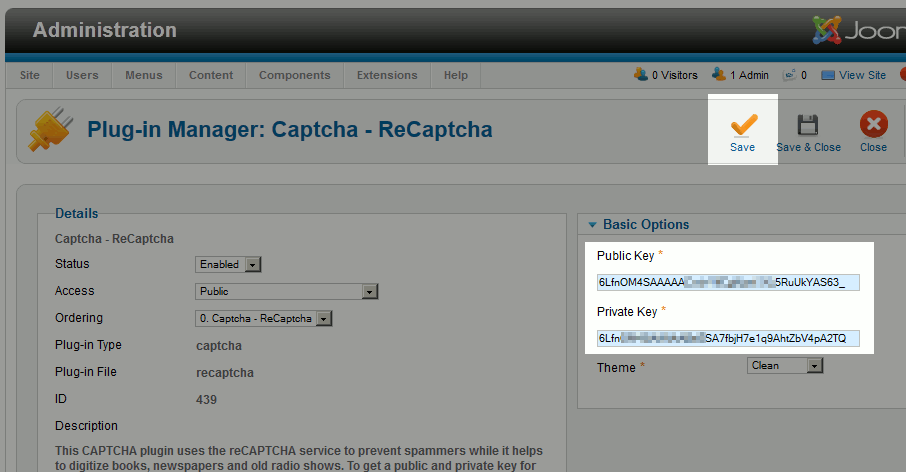
- Enter your Public and Private Key, and then click Save
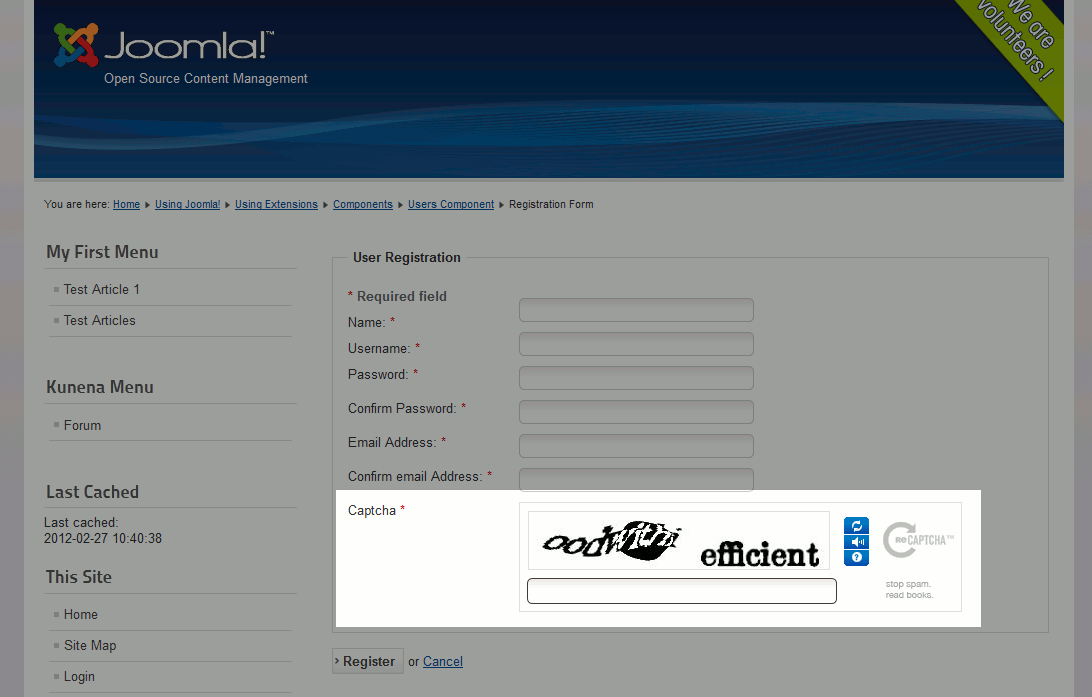
- Congratulations, you have now enabled ReCaptcha for Joomla 2.5! When you access your user registration page, you will now see a captcha similar to the following screenshot: