
In this article we’ll discuss the steps you’d want to take regarding how to re-Install WordPress after a hack, to get your site back up and running quickly. In most cases when a WordPress site is hacked, it is because you are not running the latest secure version of WordPress, or one of the plugins that you have installed is outdated and has been used by a hacker to exploit the site.
A lot of the time a hacker will inject malicious code in your PHP scripts that can make it very hard to clean up manually after the injections took place. In some cases this might require our system administration department to quarantine your entire WordPress site outside of your public_html directory, so that we can ensure further hacks aren’t taking place and further damage isn’t done to your WordPress database.
If you happen to have read our previous article on how to clean up a code injection attack, the steps mentioned in that article might allow you to clean up any injections that have taken place to get your site back online.
In the steps below we’ll walk through an example site’s PrimaryDomain.com that has been maliciously injected to the point where it’s not going to be easy to remove all the malicious code and ensure we’ve caught all of it. So in this case we’re simply going to reinstall WordPress and then link up the new install with our old database.
Reinstalling WordPress after a Hack
- First you’ll want to download the latest version of WordPress to your local computer.
- Extract the files in the .zip archive you downloaded to a local folder.
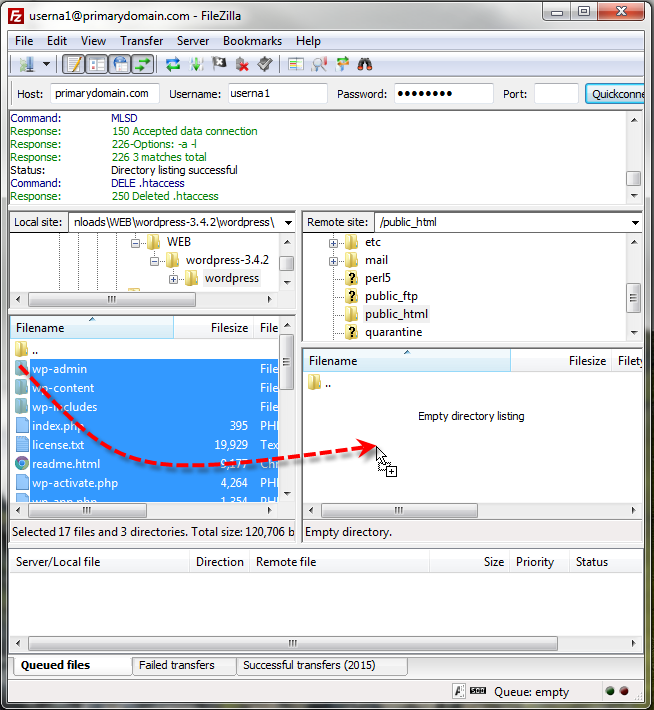
Using FTP, upload all of the folders and files contained within the wordpress directory to your public_html directory. Or if your domain was an addon domain and its document root was in a sub-directory make sure you’re uploading it there. You can do this by hitting Ctrl-A in your FTP client when you’re in the left-hand pane to select all the files, then simply drag them onto the server.
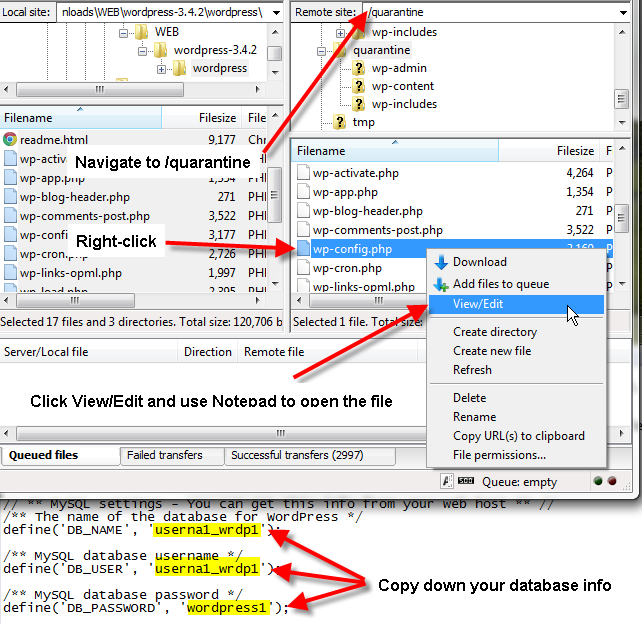
Once the files are done uploading, navigate to the quarantine directory on the server side, right-click on wp-config.php and choose View/Edit. Your FTP application should prompt you for what application you’d like to open the file with, you can just use a text editor such as Notepad. Then finally copy down the database information from the define(‘DB_…) sections.
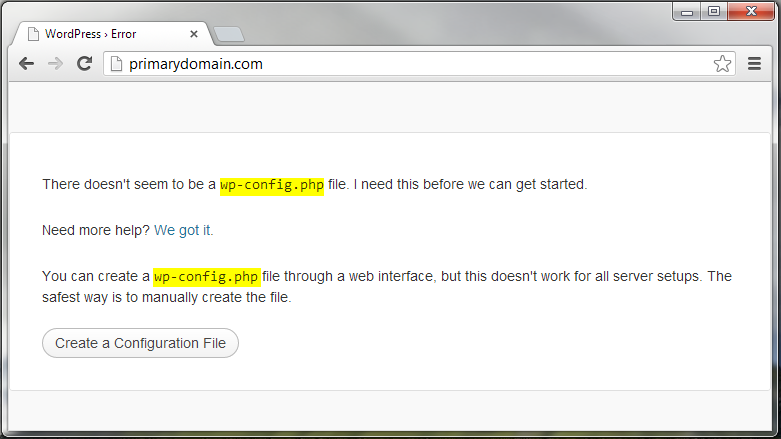
At this point if you try to simply access the site you’ll get a WordPress error about no wp-config.php file.
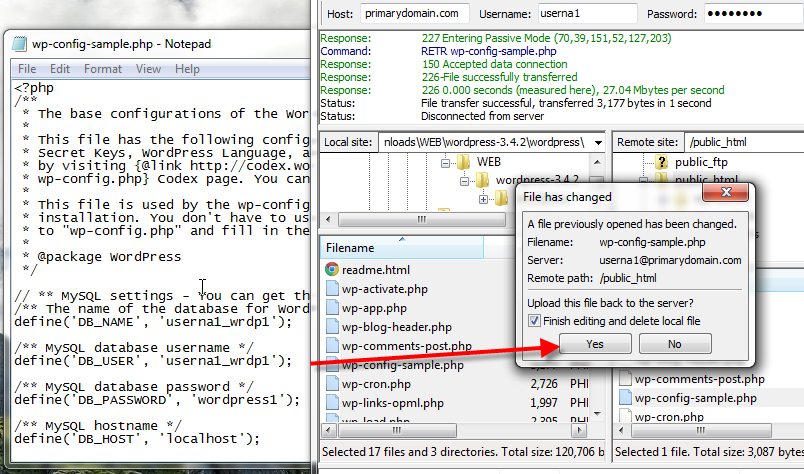
Back in your FTP client, navigate to your public_html directory and you should see a file called wp-config-sample.php, right-click on this file and choose View/Edit, open the file in Notepad then fill in your database name, database user, and database user password.
Then hit Ctrl-S to save the file, in a few seconds your FTP client should prompt you if you’d like to save this back to the server, click Yes. You can also place a check beside Finish editing and delete local file if your FTP client gives you that option.
- Now in your FTP client right-click on wp-config-sample.php choose Rename, and then name the file just wp-config.php.
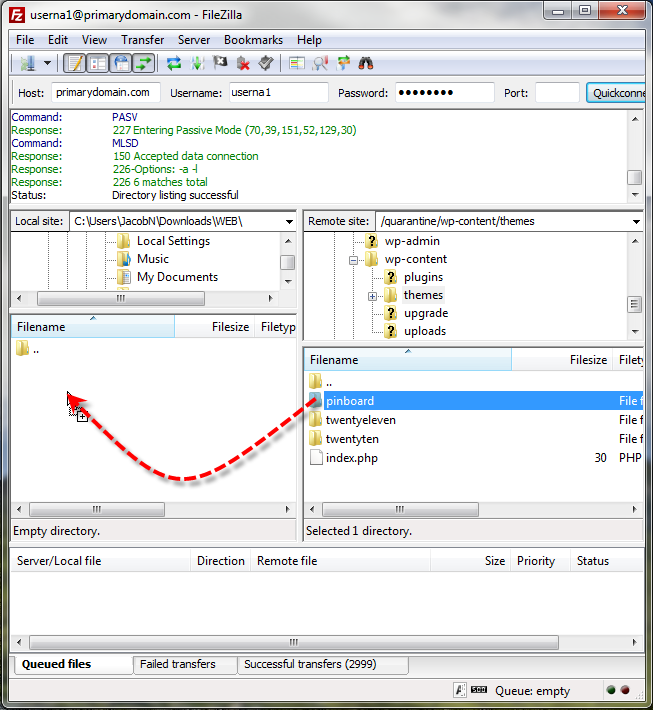
Now in this case if we try to go to our site again it’s an all blank page, the reason for this is because our site used a custom theme, and those theme files are still quarantined. So next in your FTP client navigate to the /quarantine/wp-content/themes directory, and drag over the pinboard directory (or whichever theme you used) to your local computer.
Prior to copying your quarantined theme’s files back to the server, you should scan them for a virus/malware, or preferably re-download a fresh copy of your theme from the developer to ensure no malicious files have been placed inside your theme’s folders.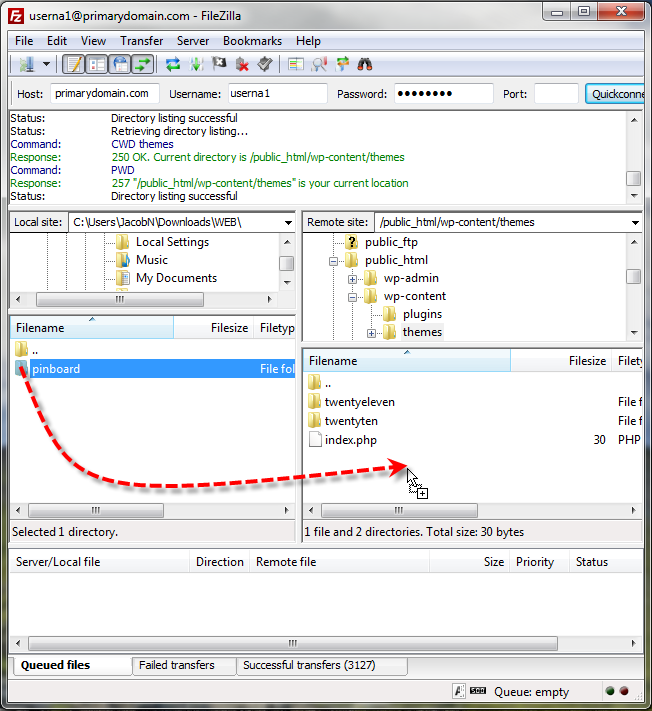
Now navigate on the server side to the /public_html/wp-content/themes directory, and then drag the pinboard directory from the local computer to the server.
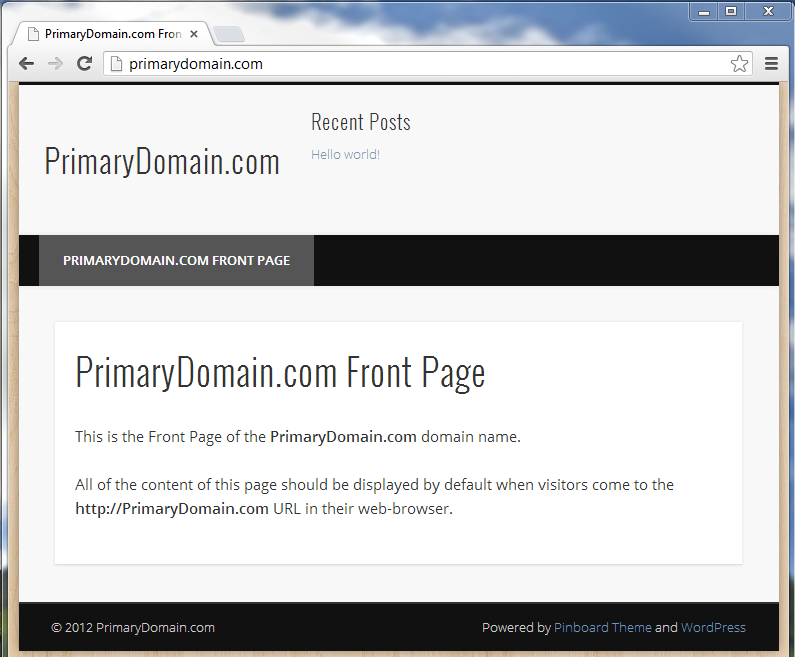
You should now be able to hopefully pull up your website again free of any malicious hacks.
Depending on the complexity of your WordPress site, you might want to also go in and reinstall any plugins that you had setup to get your site fully functional again. These steps above should at least get you to the point where you can start logging back into your WordPress administration panel again, and get your site back online for your visitors.
