Submitting a Ticket Request

When it comes to getting support from us at InMotion Hosting, submitting a support ticket is one of the best ways to request assistance. To help with this task, it can be helpful to realize the way that our ticketing system works.

In this article we’ll go over the types of support requests, the differences between support requests, submitting a support request with details, checking on the status of a support request, and finally how to get immediate help if necessary.

Types of Support Requests

When submitting a support request there are two different types of options, a non-verified question and a verified ticket.

Non-Verified Question

Non-verified question to our Customer Community – A Non-verified question means that we will look into and respond to your issue in our public Q&A section of our website. These are typically for questions outside of the scope of our Support Team. We will be able to provide general assistance (without making changes to your account) and will not divulge any account-specific information.

If you just need to ask us a quick general question a non-verified support request is fine. However, if your request requires that we give you specific information about your account or make any adjustments on your behalf, you must submit a Verified ticket request.

Verified Support Ticket

Verified ticket submitted through AMP – This method is the easiest way to contact Technical Support. It is preferred because your authenticated session automatically provides your verified account details to our agents.

What Should You Include in Your Ticket?

Be sure to include the following information in your ticket so we can help you troubleshoot and provide assistance in the fastest way possible.

  • What software and version are you using?
  • Is it a base install or are plugins/modules added?
  • What is the exact nature of the issue?
  • What are the steps to duplicate the issue?
  • When does this issue occur?
  • Were there any changes made just prior to the start of the issue?
  • If the software supports it, is caching enabled?

For more detailed information, see our full article:

Submit a Ticket From AMP

Since you must be logged into AMP before submitting a ticket, they are already “verified”. This means we can give you specific information about your account or possibly make adjustments on your behalf, if necessary.

  1. Log into AMP.
  2. Click the Get Help button as per the graphic below.
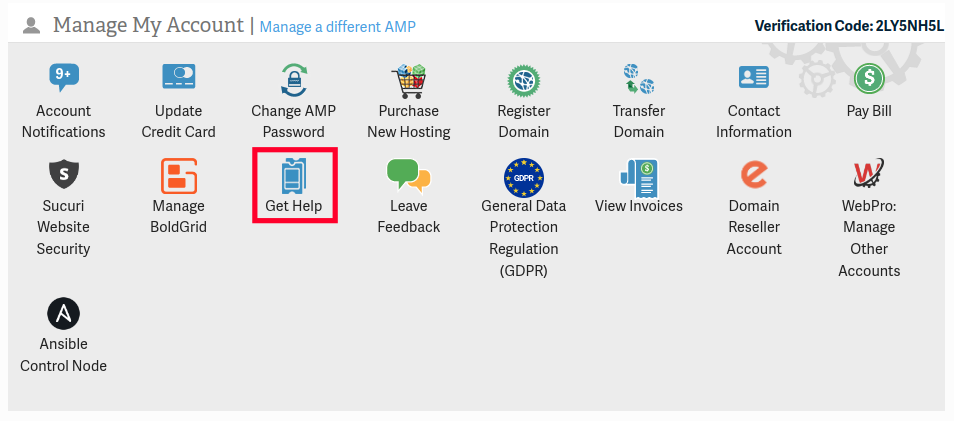
    Get Help via AMP
  3. In the Submit a verified ticket to Billing or Technical Support section; choose a Department, enter a information in the Subject, and Support Request Detail fields. Click the Submit button.
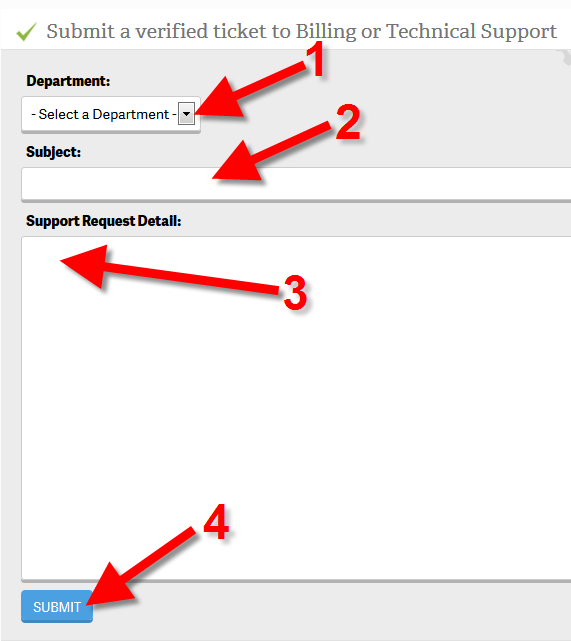
    AMP ticket fill in info

    You will then see a message stating, “A ticket has been submitted to Support from your account’s primary email address: [email protected].”

Check Status of a Support Request

Once your initial request is received a ticket is created and queued, then we answer all tickets in the order that they are received. There are three possible statuses for your tickets and you can view them in AMP: Open, Awaiting your reply, or Solved.

  1. Login to AMP.
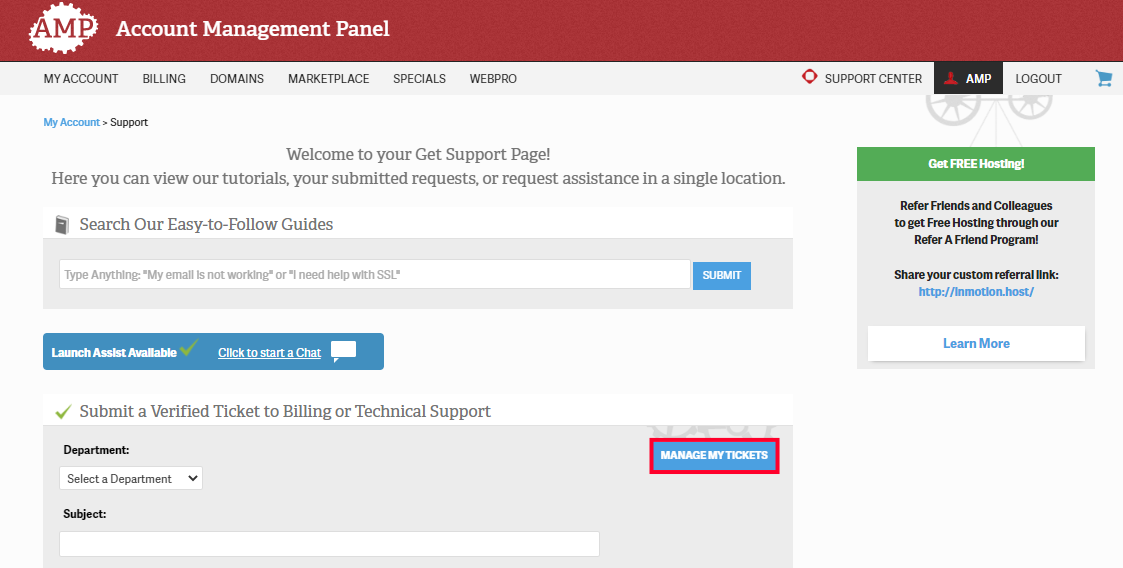
  2. Click the Get Help button.
    Get Help via AMP
  3. Click the Manage My Tickets button.
    Viewing your Tickets in AMP

    You will then see a list of your ticket requests.
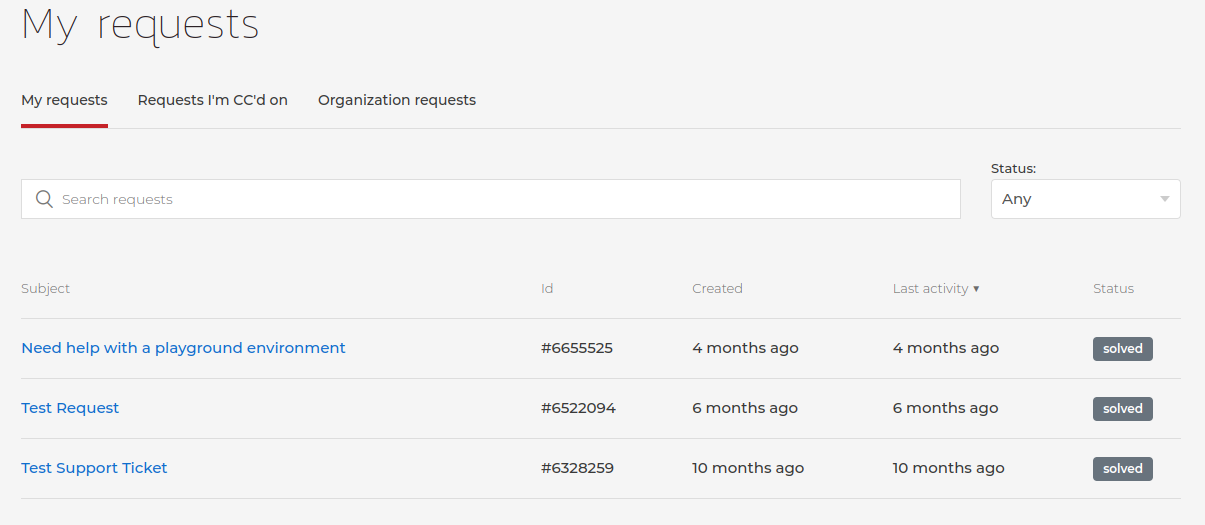
    Viewing Ticket Requests in AMP

    You can also search or view by status. While the ticket is in the queue and/or being worked on, the status is open. If a support agent requests more information from you, it will be set to “Awaiting your reply“. Once a technician responds to your request, you will receive an email and the ticket will be set to Solved.

Adding Details to an Open Ticket

If more information is being requested by the team that’s assisting you, or you want to add more data, you can access the ticket in AMP then enter details and attach files if necessary. This can help them replicate the problem, troubleshoot further, and complete the ticket.

  1. Login to AMP.
  2. Click the Get Help button.
    Get Help via AMP
  3. Click the Manage My Tickets button.
    Viewing your Tickets in AMP
  4. Click the ticket you want to add details to from the list of tickets presented.
  5. Click the box labeled Add to the conversation.
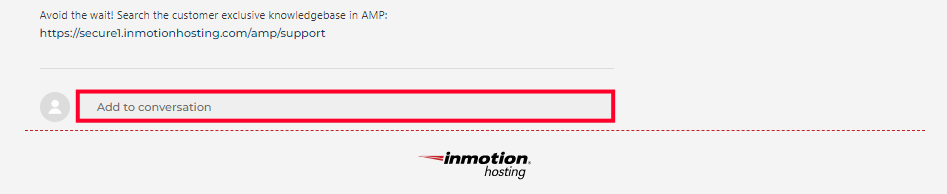
    Add to converstation option in AMP while viewing tickets
  6. You can then fill in your details as needed or add/drop files to attach them.
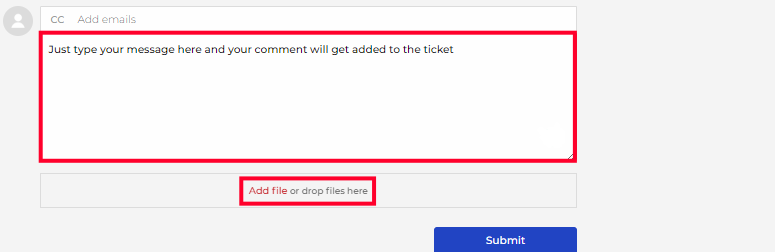
    Adding More Details to a Ticket via AMP
  7. Finally, click the Submit button.

Need Immediate Help?

The Technical Support team is available 24/7 and the Customer Service department is available from 9AM – 9PM ET, Monday – Friday via phone or chat. So if for some reason you need immediate assistance with your support request, please start a Live Chat session with us or give us a call at 757-416-6575.

Share this Article
IC
InMotion Hosting Contributor Content Writer

InMotion Hosting contributors are highly knowledgeable individuals who create relevant content on new trends and troubleshooting techniques to help you achieve your online goals!

More Articles by InMotion Hosting

45 thoughts on “Submitting a Ticket Request

  1. Howdy! This is my 1st comment here so I just wanted to
    give a quick shout out and tell you I genuinely enjoy reading through your articles.
    Can you recommend any other blogs/websites/forums that go over the same
    topics? Thank you!

  2. We sincerely apologize for the wait times you have been experiencing. At this time our phone, chat, and email queues are longer than normal and we are working hard to give every issue the attention it deserves. We appreciate your patience.

    I am not seeing any issues when I attempted to submit a ticket from AMP, at this time. If you are still experiencing that issue, you can always submit a ticket.

  3. I added my IP address to firewall and now I am unable to access cpanel. Can you please remove my IP address from firewall for me. Or resolve whatever is going on so that I can access cpanel

    1. If you’re having trouble renewing, please contact the Customer Service team. They will be able to help you with any renewal/billing issue. You can find the contact information for Customer Service here.

  4. zemhost, we appreciate your patience. You probably think that we don’t care about responding to you in a timely manner, but we definitely do. We’re currently experiencing a higher than average volume, and are doing everything we can to catch back up. Also, please keep in mind that due to the way that our ticketing system works if you reply or resend a new message regarding your issue it will count as a ‘new’ reply and our tickets are typically responded to in the order that we receive them. Thank you very much again for your patience during our increase in volume.

  5. Hello David,

    In regards to the original request, if you need the original text, it can easily be copied and sent to you in a reply to your request.

    If you have any further questions or comments, please let us know.

    Regards,
    Arnel C.

  6. Sounds much better then what my current web host does.  Might be time to change web hosts.  Thanks for your time.

  7. What is InMotion’s typical responce time to a new trouble ticket for lets say a web site technical issue.

    1. Hello David,

      Generally, our response time for tickets sent to our technical support team is 30minutes to around 4 hours depending on the traffic of other tickets we are seeing.

      Best Regards,
      TJ Edens

  8. After moved to Cloudflare i get a fantastic speed with Inmotionhosting.com so i can only be satisfied now

    1. ok ok i’m back again.
      Wow this is good.
      I got another one of those weird late email as usual in replying to my help request.
      Strange i cant seem to remember what my issues was all about but it must have been of some importance.
      I am not sure if i should laugh or cry here but something is definitely telling me that this is all out of place.
      Oh yeah i did read the above post about people here complaining of some sort. I dont really know what all the fuss is about since this all of this is very amusing.
      Anyhow how was everyone Christmas here. I hope it was an enjoyable one as was mine.
      Dont mind my comments here people, i only come here when i am drunk.
      Oh yeah where was i?
      hmm
      have a nice day.

    2. Is the support ticket system broken? I seem to get stuck in a loop. When I click the link: Ticket: Submit a Support Ticket. I am sent to the the instructions page. And the instructions don’t appear to be accurate. Instructions I’ve attempted to follow below.
      o AMP.
      Click the Get Support button on the top right.

      In the Submit a verified ticket to Billing or Technical Support section; choose a Department, enter a information in the Subject, and Support Request Detail fields. Click the Submit button.

  9. Hello Arra,

    There is not a ticket viewing feature as of yet in the AMP. Any response given by the Support department is emailed to the original email address that created the ticket.

    Kindest Regards,
    Scott M

    1. Hello Bill,

      The perldesk is old and was used before the AMP was implemented. Now, everything is done via the AMP. Log into the AMP and click on the Support lifering in the upper right. This brings you to a form to fill out.

      Kindest Regards,
      Scott M

  10. Your navigation seems to have changed, and now the instructions are out of date. But seriously, if your system requires this many instructions, then your system is too complicated. When I have a problem, I just want to click a link to get help. For instance, right now I need to check the status of a ticket, but there’s no link to click, and the instructions above don’t tell me where to find one. Do you honestly need someone to explain to you why and how this is unacceptable?

    1. Hello David,

      In checking your domain’s DNS I noticed there are no MX records for the domain. This means email will not be delivered as it has no idea where to go. I also notices you have a mail subdomain pointing to Google. Are you trying to get your mail through Google? If so you will need to point to their mail servers. Please review our article on Changing your MX records so you can point to the proper server to get your email.

      Kindest Regards,
      Scott M

  11. my Account not yet activated

    Please i need start to work with my e commerce .

    can you active my account ?

    thank you 

  12. I have 5 domains. All email works great. However for visualhollywood.com incoming email bounces. Could you do a quick check and repair for me?

  13. Can You please delete my certificate info from the post? Did not know this will be posted for public.

    Thank you,

    Hadi

    www.rugstown.com

    1. Hello Hadi,

      The information has been removed as requested. Do remember all questions asked here are public, so the article comments and answers will be as well.

      Kindest Regards,
      Scott M

    2. Searched for how to file a ticket. It use to be simple. This guidance tells you to click Support and then clisk on submit a Ticket. Don’t see that. It use to be simple – just went to the perldesk.

    3. Where is the “submit a ticket” page? I need help with email on visualhollywood.com. It bounces.

  14. Guys my server has been down for more than 12 hours. Apparantly none of your chat people can help. Must be admin but still have had no response to any emails. I have no answers to anything!!!!!

    1. Hello Iachy,

      Sorry for the delayed response. I see that you were able to take care of this issue via internal tickets. It looks like your VPS had been under a DDoS attack and that caused the need to switch the main IP address of your server which made it appear to be down while DNS settings were propagating.

      Please let us know if you’re still having any issues at all.

      – Jacob

  15. Hi,

    I have an active SSL certificate on my domain name (rugstown.com) which was at other hosting company. However, I just moved my domain name to your hosting now, I would like to move/install my SSL certificate with your hosting.

    I have the following dedicate IP address assigend by your hosting for that reason: 23.235.200.204

    Below are ALL info you need from my Certificat:


    SSL Certificate Information
    ***INFORMATION REMOVED***


    Thank You,

    Hadi Jouma

    1. Hello Hadi,

      To move a certificate, it will first need to be rekeyed by the provider for our server. You will need to first have our Live Support team generate a CSR from our side so you can then send that information to the merchant from which you purchased the SSL certificate. They will then rekey the certificate and you will then want to resend that information to our support team so they can install it on your account.

      Kindest Regards,
      Scott M

  16. you have to click on the “tienda” word on the right upper corner . you will have to register to get in though

    1. Hello vicente,

      Thank you for your question. I can see the broken images now.

      The broken images seem to only be thumbnails. What are you using to generate the thumbnails in OsCommerce? For example, are you using a 3rd party plugin?

      If you are I recommend trying a different thumbnail generator, to see if it works.

      If you have any further questions, feel free to post them below.
      Thank you,

      -John-Paul

    2. Hello Vicente,

      I took a look at the store after registering a test user. The problem you’re having seems to be related to the file names you’re using and path being used by OSCommerce. I would review how thumbnails are generated on OsCommerce. You may need to review documentation on Configuring OScommerce concerning the image files.

      When I looked at the code for the snippet, I noticed this:

      < img src="product_thumb.php?img=images/1 vinyl purpl.jpg&w=120&h=59" width="120" height="59" border="0" alt="Remix Vinilo Cruiser Azul" title="Remix Vinilo Cruiser Azul" >

      The problem here is that the link does NOT work. Also, the server will not recognize the name of the graphic because of the spaces. You need to RENAME your files that have spaces, otherwise, the server will not recognize it. Remove the spaces from the original graphic file name, then have OSCommerce regenerate the thumbnail and it will work. I can actually replace the spaces with “%20” in the code and fix the link and then graphic does appear. However, this is NOT the way to fix the problem you’re seeing. Please re-name your files without the spaces and then OSCommerce should be able to generate the proper thumbnails and they will appear correctly.

      Regards,
      Arnel C.

  17. Yes, it would be nice/helpful to be able to view tickets in a single string that require a monolog of sorts with support staff.

    1. Hello Matt S.,

      Thank you for your suggestions, I have forwarded them to my manager. Feel free to email any additional feedback directly to our Management Team.

      We are always open to suggestions, since it helps us to better serve our customers.

      If you have any further questions, feel free to post them below.
      Thank you,

      -John-Paul

Comments are closed.