You can set up your iPhone or iPad to connect to your InMotion Hosting email by following the steps below. If you do not know your email settings, please see our Getting Started guide for Email. Also, if you are a web hosting Reseller, your settings will differ; you can view email settings in cPanel at any time.
Apple continually updates its iOS for iPad and iPhone. New features often include improved security, fixed bugs, and increased performance. In order to be able to send/receive messages with the email accounts created with your domain, you will need to configure the iOS Mail App corresponding with the server settings from your email provider. Follow the steps below to learn how to add an email account to your iPhone / iPad. These steps also apply to other devices using iOS.

How to Add an Email Account to Your iPhone / iPad
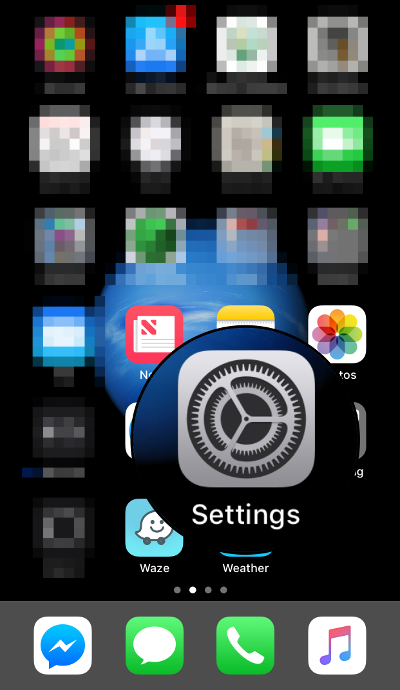
- From your home screen, find the Settings icon and tap on it to open it.

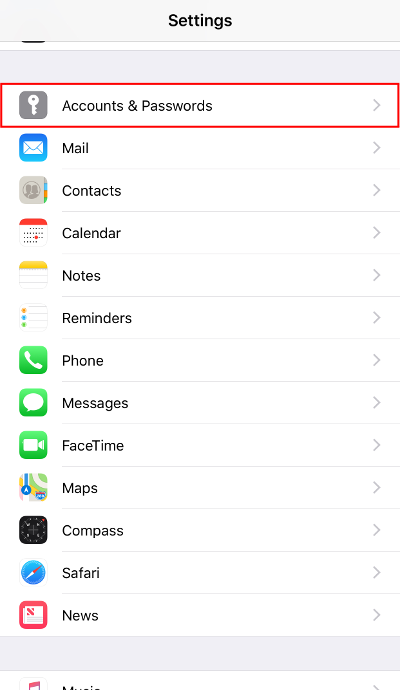
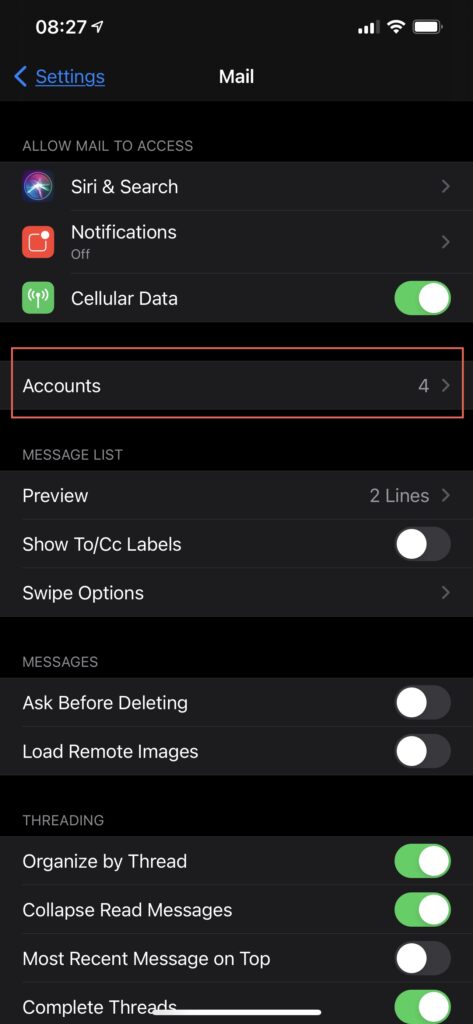
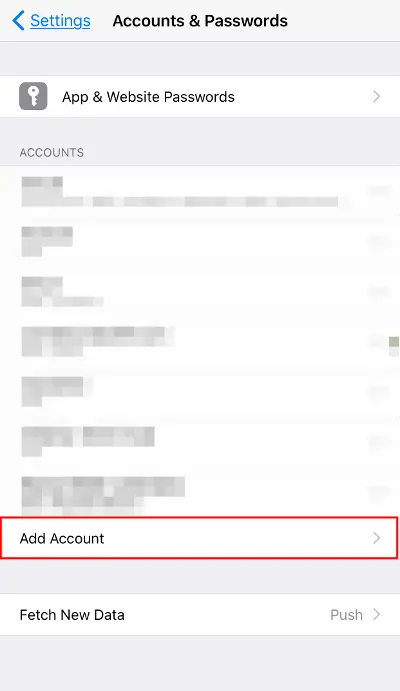
- In iOS versions 11 – 13, scroll to locate the Accounts & Passwords menu option and tap on it to proceed. In iOS 14 (or higher), you will not see Accounts and Passwords in the Settings section. You will first need to tap on Mail. Then you will see Accounts. Tap on either Accounts & Passwords or just Accounts to proceed. Passwords is now a separate section in Settings for iOS 14+.

The image above applies to iOS 11-13.
If you have version 14+, then you will simply see Accounts by itself. - In iOS 11-13 you will see a screen labeled Accounts & Passwords. There will be a list of existing email accounts and an option at the bottom labeled Add Account. iOS 14 users will see a similar screen but it will be labeled Accounts. Tap on Add Account to proceed.

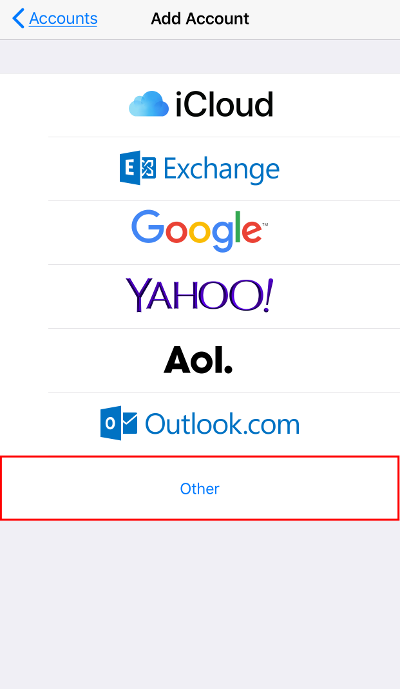
- Tap to select Other as the category of account to add.
.
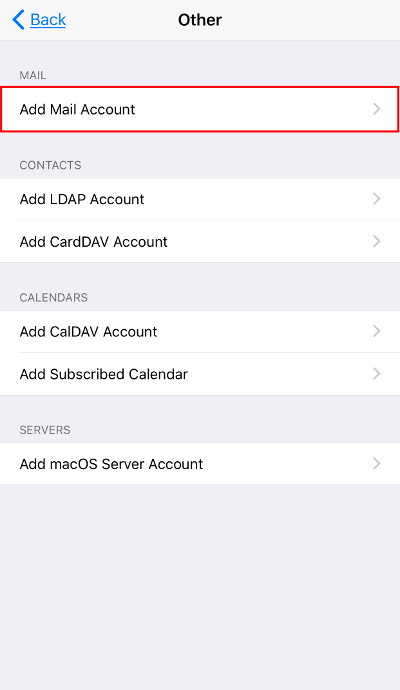
- Tap on Add Mail Account to continue.
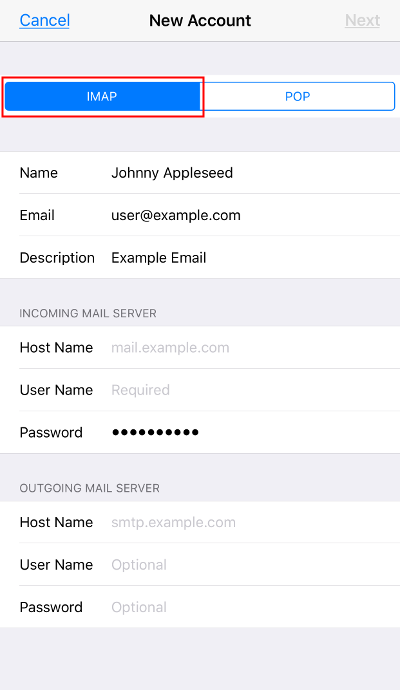
. - Fill in the details for each field and tap Next at the top right.
 NOTE: The table below provides the fields, descriptions, and sample values to explain what values are expected.
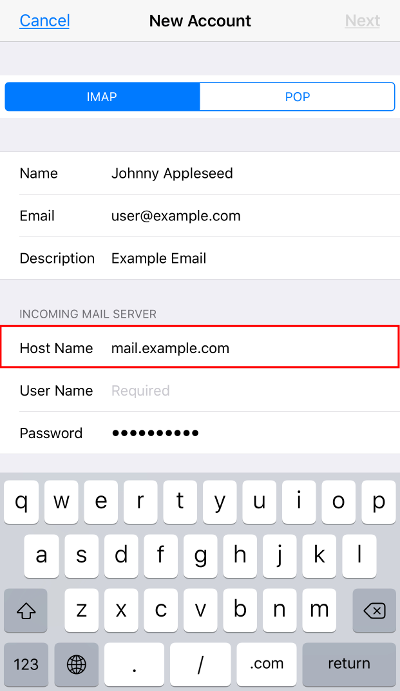
Field Description Value Name Enter your name. This name is used as the sender when addressing emails. Johnny Appleseed Email Enter the email address that you are creating this new account for. This needs to be the FULL email address. [email protected] Password Enter the password associated with your email address. P@$sw0rd123! Description Enter a description to help identify this account on your device. Example Mail - At this point, you can select which protocol to use to access your email. IMAP is selected by default, however, if you want to use POP, then you can tap on the POP tab. We use IMAP in our example, as that is recommended.NOTE: IMAP is the optimal protocol to use when accessing your email from multiple locations, especially on mobile devices. Select POP if this is the ONLY device you will access your email account from. Accessing an email account on multiple devices using the POP protocol can cause emails to be lost or removed.
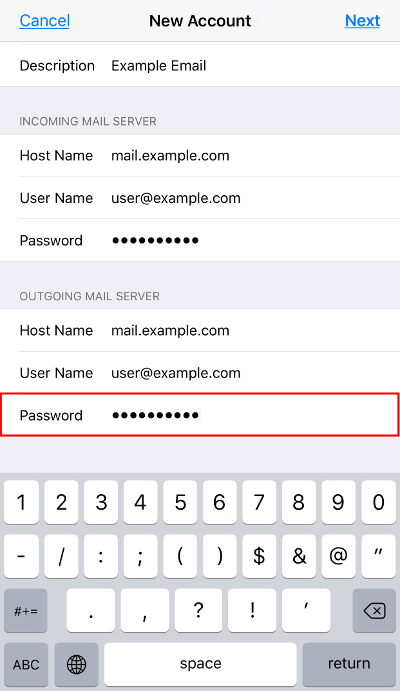
- Enter the Host Name for the Incoming Mail Server.

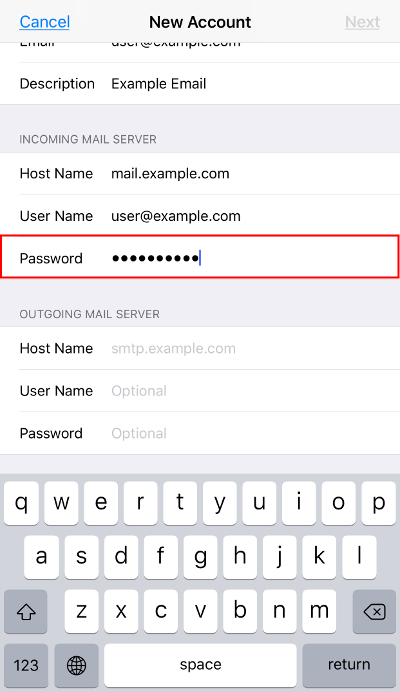
- Enter the FULL email address in the User Name field for the Incoming Mail Server.

- The Password field for the Incoming Mail Server should contain the password you entered from the previous screen.
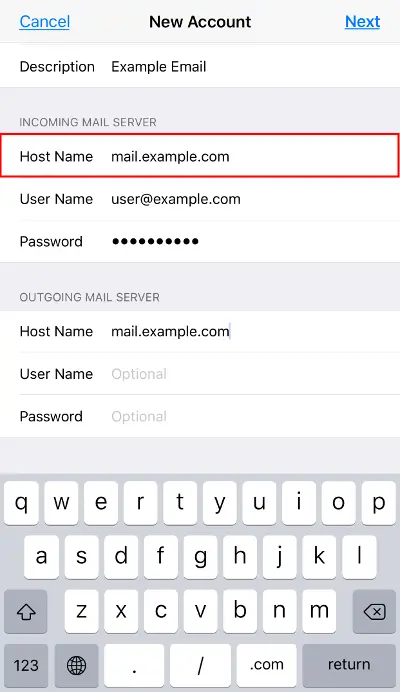
- Enter the Host Name for the Outgoing Mail Server.
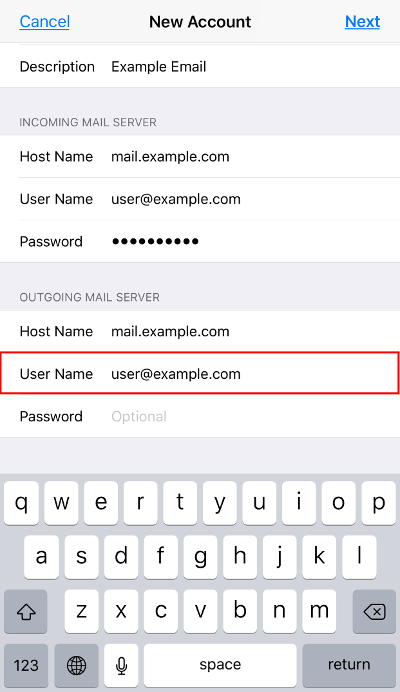
- Enter the FULL email address in the User Name field for the Outgoing Mail Server.
- Enter the password associated with the email address in the Password field for the Outgoing Mail Server.
- Confirm all your settings are entered correctly, then proceed by tapping on Next at the top right.

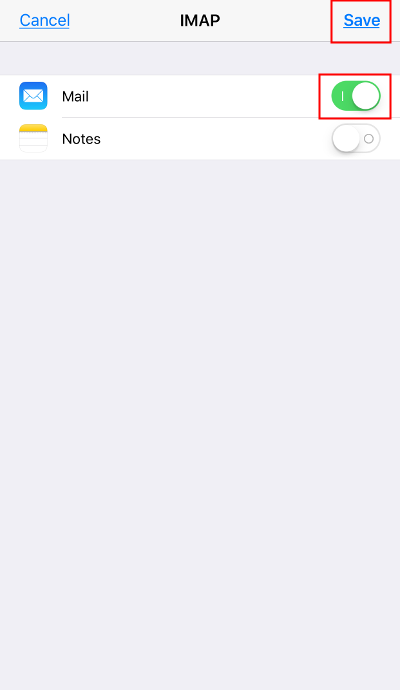
- Your iOS device will proceed to verify a connection to the mail server based on the settings entered. When successful, the next screen will allow you to add this account to your device’s additional Apps (if applicable). If you would like to setup the additional account(s), simply tap on the toggle switch to enable them. By default, Mail is enabled (since we are setting up a Mail account), so you can proceed to tap on Save at the top right.


Congratulations! You now know how to add an email account in iOS. You can begin to send and receive emails from your device. If you need to change the email server settings, check out our tutorial on How to Set the Mail Server Settings in iOS. If you are interested in accessing Webmail through cPanel’s new iOS App, be sure to check out our guide to learn How to Set Up cPanel App for iOS 11. Lastly, if you ever change your email password, be sure to update the password in your iOS mail client to avoid being accidentally blocked by fail2ban.
Check out some of our other articles on iPhone tips and tricks:
Go Unlimited with Exceptional Shared Hosting
Upgrade your Shared Hosting today and take your business to the next level! Get unlimited NVMe SSD storage, cPanel, professional email and over $400 in savings.
 Free Domain 24/7 Human Support 100% Money-Back Guarantee



Can we please get these articles updated to reflect that iOS devices are at around version 14 and not version 5?
Thanks for the feedback, Matt! You’re right, those pictures and references to old iOSs could make things confusing. I’ll get that on our article rewrite list so we can update it.
Thanks for your reply Scott. To clarify, both the iphone and ipad are giving me the same error message. All my other email addresses (I have 10) from verious servers work fine. The only one that doesn’t work is the one from imotionhosting and on my mac, the two that are served by inmotionhosting consistently gives me certificate error (which I ignore nad the one still works but the one doesn’t).
Hello,
I just want to be clear that you are using non-ssl to connect and you still get SSL errors? Have you tried removing the account from the device and re-adding it?
Best Regards,
TJ Edens
No matter what I do I get Your user name or password are incorrect on iphone6. I’ve spent over 3 hours trying to get it to work. It started spontaneously after it had been working since January. Key points: 1) it works on my mac; 2) I’ve tried deleting the account and re-installing it several times; 3) I’ve tried non-secure (mail.drjeffkaplan.com) and secure (secure147.inmotionhosting.com); 4) the passcode is correct (hasn’t changed; matches keychain and mac); 5) followed instructions explicitly (e.g., email is correct; user name is complete email address; Ports are as instructed (for secure IMAP Incoming 993, outgoing 465; non-secure: incoming IMPA 143, outgoing 587; SSL is either turned on (for secure) or off (for non-secure); 6) It works on my other devices (such as iPad); 7) Whenever I sign on to my email via the Mac I get the warning error that the certificate to mail.drjeffkaplan.com could not be verified and asks me if I want to connect anyway, which I do and then have no problem accessing email (though, on the Mac the IMAP account name is entered as mail.drjeffkaplan.com with 143 as the Incoming Port and “SSL” checked. Your help is much appreciated.
Hello,
By what you explained, the iphone should not have any issue connecting. This is especially true if all the settings are identical on all three devices and two are working. The conclusion is that the issue is with the device. For that, you will want to contact Apple or visit a nearby Apple store and have them take a look. It still may be a setting on the phone somewhere or even something more such as an issue with the phone itself.
Kindest Regards,
Scott M
Hi, when I send an email from my phone it does not show up in my sent messages on my computer, how do I fix this?
Hello Sara,
When you first set up your iPhone to check your email hosted with InMotion Hosting, it’s possible you will not see the Sent, Trash, Drafts, and Junk folders. Typically, these folders are in your INBOX and you’ll need to set the prefix path for it to work correctly.
Please follow our guide on Syncing your IMAP folders on your iPhone.
Thank you,
John-Paul
My rouncube account is working fine on my PC. However, I am having problems on my iphone. If I send mail from my phone it does not save in the Sent folder althogh the mail does get sent. When I delete mail on my iphone it deletes the mail but it does not appear in the Trash folder. Basically all I can do is receive mail. I have attached a screenshot of my settings. Thanks for your help. I am not very tech saavy!
Hello Mike,
Unfortunately screenshots cannot be added here. Are you referring to connecting to your email via your iphone email client? Or are you logging into your webmail using example.com/webmail using your iphone web browser? If using the client, then you likely just need to subscribed to the Sent folder. This is not normally recommended, however. As long as it is sending, that is the goal.
Kindest Regards,
Scott M
I am currently using POP3 but would like to try IMAP so I added it on my iPhone 5S. (1)Sent mail does not show up in the sent folder. Why? How is that fixed? (2) I need to make folders in my inbox to separate emails – that is why I want to use IMAP. When I try to add a folder to the inbox, it won’t let me. I’ve googled this and found I need to make the folders on the hosting email and it will sync with my iPhone. How do I do that? I really need to have mail folders. Thanks!
I just answered part of my question. I created folders in RoundCube and they are showing up on my iPhone. However, the sent messages still are not showing in the sent folder and I am subscribed to the folder. How do I get my sent emails to show in the sent folder?
Apparently I had two sent folders in my mail. I deleted the RoundCube generated folder and my sent mails are now showing in the other one. Problem solved 🙂
i believe someone has already told me from there that it will tke 24 hours for incoming emails to start working
where it says “Be sure to replace ## with your server number. You can find this in your AMP tech details etc” I was at first a little confused, and did not see my server number in my accounts tech details but I found them under “host name”
I have set up my new email account on my phone, but incoming is not working. Help anyone?
Hello Sally,
These instructions should work without issue the vast majority of the time. When they do not, it is generally an account specific issue. For that, if you are one of our customers, you will want to speak with Live Support and they will take a look at all the individual settings with you.
Kindest Regards,
Scott M
iphone fine forever
Now however cant sent receive
secure…is not responding….. 3 days while on the road
help please
Hello Deb,
Sorry you’re having problems with your iPhone receiving or sending email. If you’re on the road, the problem may be with your internet connection preventing you from making connection via the ports for email. If you can get to the internet, and you have an account with InMotion, then you will be able to access email through the webmail clients. If you are unable to get into the webmail client, then the issue is either the internet connection or your email account. I hope this helps to answer your question, please let us know if you require any further assistance.
Regards,
Arnel C.
its not broke don’t fix it
it’s great now
I can’t get email! I sucessfully changed my password online yesterday but my ipad and iPhone don’t acknowledge it!!! What do I do?
help!!!
Hello Emily,
First test to ensure the new password works by logging directly into webmail. If so, then all you should need to do is to change the password setting in your email settings. If your devices are not allowing it you may simply delete the accounts and recreate them. This is assuming you have the accounts set up as IMAP since that just reflects what is on the server. As long as you do not have any emails saved on the devices themselves it will not hurt anything.
Kindest Regards,
Scott M
Great! Thanks.
When using my iPhone, whenever I try to delete emails in my Inmotion email, I get an error that says
“Unable to Move Messages, The messgaes could not be moved to the mailbox Trash.” but then the emails don’t show up anymore in the inbox. Can you help me figure out what’s going on?
Thanks
This error is fairly common in iPhone users. To correct it, go to Settings, then Mail, Contacts, Calendars, then tap the email account. Within this page, go to Advanced. Here, you will see an option that says IMAP Path Prefix. Change this to INBOX. Your mail should then be able to be deleted just fine.
Hi Arnel:
thank you for responding. The mail clients are all configured correctly. There are no pending emails in any of my accounts. I do not have a space issues as I have lots of gigs remaining. I setup a new account on the ipad2 but I still cannot open the mail program. When i send messaages to the account from other devices the badge on the mail app icon reflects the new mail but I still cannot open the Mail app without it crashing.
please help me in resolving this problem. At least if i can find a way to force the ipad2 to skip the account that is giving trouble this will be appreciated. Even if i can find a way to force it to stop trying to send or receive the particular mail account it would be appreciated.
please help me…
apnads
Hello Diyar Khan,
Sorry for the problems with email. If you are having problems with sending email, then it is most likely a result of the SMTP (or outgoing) email settings. Make sure that you compare your proper email settings against what has been set in your phone.
If you continue to have problems, we would need more information such as your domain name and the email address having the problem.
Kindest regards,
Arnel C.
Explain how to syncronize the contacts and calendars
Hello Dear.
I have configured my email on my iphone but i receive the emails but cannot send them.
May you kindly help, please.
Thank you so much.
I only receive emails when I am in the mail icon. How can I get notifications when I get a new email?
Hello Don,
There is a setting for push notifications in Settings -> Mail, Contacts, Calendar -> Fetch New Data . Push should be an option on that screen.
Kindest Regards,
TJ Edens
It worked perfectly! No changes recommended.
we havig problem in my outlook setup error showing is couldnt find your setting.but we allready put correct my mail id and password. please solw this my problem
Hello Yogesh,
Can you please provide the full error you are recieving? Have you tried going through the article for setting up outlook?
Kindest Regards,
TJ Edens
Hi: I have a HUGE iPAD2 MAIL CRASHING PROBLEM.
Using iPad2 and Mail app with 10 seperate email accounts setup (This has worked fine with no problems for the past 2-3 years)..
A few days ago I was forwarding an email to someone with several large attached pictures (6 images each image between 3 – 6 MB each). As I had clicked forward mail I then copied and pasted a 7th image into the body of the email message which then appeared in the body of the email. I then proceeded to enter the TO: (recipient) and it was moving slow entering the persons email address when suddenly it selected an incorrect email address from the list as I was typing and then froze the screen. The screen froze and turned white. After about a minute or two the email program crashed and returned me to the main ipad icons screen. Everytime I tried to open the mail program it freezes and after 5 -7 seconds it closes to the main icons screen. I have tried deleting the offending emails from online that I was forwarding (please note that this email I was preparing to send out was neither in the draft emails box nor in the sent email box online enen thoufgh I use imap.) I checked the internet for solutions and read and tried almost every suggestion I found for this problem without any success. My email apps on my phones, other Gmail app on my ipad, my outlook programs, my online email accounts all are working well with the exception for this ipad2 Mail App.
Could you please help me to identify the offending email or emails and help me to get rid of it/them? If this is not possible, could you please assist me in having the mail app at the least SKIP this particular email account and read the other email accounts? I have removed the account from the mail program and I have also set it back up again but nothing is working…. I have shutdown and restarted 100 times but nothing works. I went into setup and turned off the setting for all of the accounts and turned off MAIL but this did not work…. The app is still updating the Badges (the number of unread emails across all accounts including the offending account) I am at my wits end with this problem….
PLease help me as this is the main reason that I use iPad2. The other uses are secondary for me though all are important….
Please assist me ASAP…
Apnads….
Hello Apnads,
Sorry to hear about your problems with the iPad 2 and email client. I researched the issue very generally on the internet and there are definitely reports of crashes, but no corresponding conditions that ties all of these issues to a specific cause. To begin troubleshooting this issue, you should make sure the client is setup correctly, then make sure that any PENDING emails to be sent are not sitting in the client. Make sure that you have sufficient free space on your iPad. If you have less than 10 MB and you’re trying to send multiple messages with large attachments, then it’s possible that you’re simply out of memory.
Also, try creating a test account with no emails and then send yourself those emails with the large attachments. I am unable to an iPad2 here, but I do have access to an iPad mini (with the latest iOS 8.1.1), but I’m not having the problem you’re having. I sent myself a few emails with 6-7 MB attachments, then I forwarded them to a co-worker with no problems. This doesn’t mean that there isn’t a problem, but I can see that it does not appear to be account related with our email servers. If it were a server-side problem, then it would happen regardless of the device (and memory).
So, apologies for the problem you’re having with the iPad. I hope this response gives you a positive direction in order to resolve the problem.
Kindest regards,
Arnel C.
the save buttone never showed up only next but it was not blue to hit next it was unhighlighted.
Hello Heidi,
Sorry for the problems with setting up your email on the Apple device. We do need a little more info from you in order to help with troubleshooting. What version of the iOS are you running? The version can be found by going to : SETTINGS > General> Version.
Also, where in the process did you stop? Let us know and we would be happy to help.
Regards,
Arnel C.
Hello Shulim,
Apologies that your question appears to have been left unanswered. I was reviewing the posts and I have assessed your question. I actually own several Apple devices, so I hope I can help you with this issue. In terms of the email accounts, if you one saved, it doesn’t mean that you have to keep it. You can select the account and edit it. If necessary, you can also delete it and then re-create a new mail account. If you can provide us more information on the device you’re using and version (SETTINGS>GENERAL>Version), then we don’t mind helping if you still require assistance.
Kindest regards,
Arnel C.
Hi,
i having problem with with my newly created company email account on my iPhone. I am not able receive or send from my phone. I will only be able to view my mailbox on iPhone with new mail when I download it from my laptop. When I send from my phone, there will be an error msg saying the recipient’s email is rejected by the server.
Can anyone help?
thanks.
Hello Maddie,
Thank you for your question. Since there are many causes for a recipient server to reject an email, we will need some additional information.
Can you provide the full bounce or returned message?
Also our Bounce Back Parser tool, can help narrow down the cause.
If yo have any further questions, feel free to post them below.
Thank you,
John-Paul
I am not able to delete my emails.
absolutely perfect….
I cannot erase my hosting map garbage
Normally you can install your email without it but i accidentally put in the wrong info and now it is stuck in my iphone
I’m having email problems with my iphone. I am able to send emails fine, but I’m unable to receive them on my phone.
I have tried the following settings to no avail…
1. Changed the incoming host name to: secure156.inmotionhosting.com
2. Changed the incoming host name to: mail.mydomainname.org
Under Advanced Settings, I have SSL – ON, and Server Port 993 input.
When I put the data in on my phone, I get all checks that it verified, but it doesnt work.
It was working fine up until 8-OCT-14.
Can anyone help?
Thanks,
Hello Brad,
Thank you for contacting us today. Your settings seems correct, you can view them in the cPanel at any time.
We are happy to help, but will need some additional information, such as the email address you are using. Are you connecting via Wifi, or phone network? Have you tried disabling Wifi, and connecting again?
If you do not want to post your information here in our public forum, please contact Live Support. This would also allow them to review the email logs or issues in “real-time.”
If you have any further questions, feel free to post them below.
Thank you,
John-Paul
Hello Karmen,
Thank you for your question. All of the email passwords for your account can be reset in cPanel. You do not need to know the original password to change it there.
If you have any further questions, feel free to post them below.
Thank you,
John-Paul
Hello Rick,
Thank you for contacting us. This seems really unusual.
If you are not able to check your email at all, I recommend confirming your settings in cPanel.
As a test, if you are connecting via WiFi, turn it off and try to connect over the phone network.
If you are connecting over the phone network, try connecting via WiFi. This allows us to determine if it is caused by the network you are on.
If your problems persist, contact Live Support so they can review your mail logs in real-time, and help determine the origin of the problem.
If you have any further questions, feel free to post them below.
Thank you,
John-Paul
Hello Kacey,
Thank you for contacting us. I recommend checking your email settings in cPanel, and ensuring they are entered correctly (with no typos).
Are you getting any errors? What are they?
Thank you,
John-Paul
Hello David,
Thank you for contacting us with your iPhone problem. We are happy to help, but will need some additional information. What did Apple say was causing the problem with Earthlink?
Have you tried a different port in your email settings? ISP’s often on their network.
Are you getting any errors? What are they?
If you have any further questions, feel free to post them below.
Thank you,
John-Paul
how to email settings for iphone 5s 16gb ??
I’ve tried on its incoming and outgoing use “secure587.inmotionhosting.com” but have not been successful
Hello syaepul,
We do not have a server587. You will need to find your server number as described above. The 587 is one of the port numbers used for non-secure email. You will want to use 993 for IMAP (highly recommended over POP for a phone). Once you get your server number and that port you should not have any issues.
Kindest Regards,
Scott M
RESOLVED: After months, of working fine, I am suddenly unable to retrieve mail with iphone. Message, “The mail server ‘secureXX.inmotionhosting.com’ is not responding.” Note: I am using IMAP, as most users with their iPhone will be.
Steps I’ve taken:
1. Purposely changed to an incorrect password. Message changes to tell me the password is wrong.
2. Verified/retyped all settings.
3. Deleted account from iphone and re-entered all information.
4. Accessed securexx.inmotionhosting.com from iphone (Safari) to make sure IP is not blocked.
5. None of the above helped. I finally went back into Settings > Mail, Contacts, Calendars > “my account name” > Account. Under Outgoing Mail Server > Other SMTP servers, click Add Server. For Host Name, type “mail.YOUR-DOMAIN-NAME.com” (Example: mail.freepuppies.com). Save it, then check your mail.
Doing step 5 alone fixed the issue for me. If it doesn’t, I’d suggest trying going back to settings: Settings > Mail, Contacts, Calendars > “my account name” > Account. And doing the same with your INCOMING Mail Server.
6. AFTER you are done with step 5, go BACK into the additional servers settings and DELETE the entry you just created. For me, IMAP started working just fine again. It’s like it was vapor locked and adding this additional route allowed it to start flowing again.
How do I find my personal password? I have the password for our account with you, but I can’t find the password for my personal emails. I took over this job from someone else and I have no idea what my email password is. It automatically comes up on my computer w/o me having to enter a password, but I’m trying to access my emails from my phone, but can’t without the password.
In Motion Hosting is AWESOME ! Now I Have Domain Mail Sent Directly To My iphone5 !!!
Love My Power Plan –
I have to delete my email from my iphone every 2 weeks and now I cant even get it to work at all.
Excellent! Well done !
I am trying to set up an email account on an Ipad and I am receiving emails just fine but can not send email. I have the correct server number and am using secure##inmotionhosting.com user and password are correct under authentication it is set for password and server port 587 can you tell me what might be the problem.
Thanks Dave
Hello Dave,
Sorry to hear you’re having problems with email on your iPad. If you are using the secure settings for outgoing, then it should be set to use SSL and port 465, not 587 (which is for non-secure delivery). The incoming and outgoing mail settings should be using the same user (your email address) and mail server settings. Port settings depend on the protocol you’re using and if you’re using SSL or not.
If you have any further questions about email settings, please make sure to take a close look at How do I find my email settings?
Kindest regards,
Arnel C.
Hi,
I’m having the following trouble shooting problems. 1) I am able to send out a email through the website but when I reply to that same email my yahoo account will say this email address is not correct. 2) when I set up all the info required for iphone I can not see recieved emails either nor through the website.
Hello Carlos,
Be sure that your website is pointed to the correct nameservers. If you have recently changed where the domain points, then it may still be in propagation. This period can take up to 24 hours. If you are certain that the domain is pointed properly, you may want to contact your particular host to check the server logs to see how the email account is behaving.
Kindest Regards,
Scott M
This article gave me good information in a straight forward manner. However, it did not resolve my issue! I have spent in excess of 6 hours of technical support, chat and voice, to no avail. Apple says the problem lies with my ISP (Earthlink.net). I don’t care to assign blame, I just want my iPhone 5S to send email! My email address is @igc.org and the cyber gods keep inserting @igc.net. Go figure. If you have a pathway to sanity, please email me at the address below! Thanks! David
Although this was helpful, I still have my account on my phone and for some reason it didn’t fix my problem of connection to the server.
Thank you Arn. It’s actually worse now that I changed the Port to 465. I can no longer receive incoming mail. (Before it was only outgoing.) Can someone contact me to get this resolved? I work from the road!
Hello JR,
I’m sorry to hear that you’re having continued problems with the Apple device. I am also an Apple user, and I can tell you that the problem is most likely related to a setting problem on your device.
You did not provide any settings information, so I can’t help you other than to try to guess what’s wrong. Also, PORT 465 (SMTP) is for OUTGOING mail, it has nothing at all to do with incoming mail. So, if your incoming mail stopped, it’s for a different reason. Unless you replaced the incoming mail port with 465.
In order for us to help you, please provide your email device settings. If you’re unwilling to do that, then organize your device settings and write them down so that you can compare them against what they SHOULD be. Here’s a good example of how they should be set:
INCOMING
For NON-SECURE IMAP settings:
Server name= mail.domainname.com
Server port = 143
USER name = [email protected]
Password = email address password
You would need replace “domainname.com” with your domain name. If you’re not using secure settings then under the ADVANCED settings, scroll down and slide the USE SSL to the left indicating that you’re not using it. Typically the port changes when you change this slider. At least it does on my iPhone 4s.
If you are using the secure settings for IMAP email, then you would use port 993 instead of port 143. The server name would be secure##.inmotionhosting.com. You would replace ‘##’ with the server number.
You would need to check off that you’re using SSL.
The IMAP path prefix is “INBOX all in caps”.
OUTGOING
For NON-SECURE IMAP settings:
Server name= mail.domainname.com
Server port = 587
user name = [email protected]
password = email address password
If you are using the SECURE settings for outgoing, then the port would be 465. The user name would be the same as per above. You would also need to go into the advanced settings and make sure that USE SSL has been selected. Also, the port doesn’t changed automatically. You need to click on the Server port #, back space over the exiting port # and type in the one you want to use.
I have done these settings many times on my iPhone, my IPad, and also my 2 different Macbook Pros, and I can tell you that they definitely work. Also, these aren’t numbers we made up for our system – they’re industry standard. You can go from host to host and you’ll find these settings are usually the same.
I hope this helps! If you continue to have problems PLEASE provide your email device settings so that we can review them and troubleshoot as necessary.
Regards,
Arnel C.
I have the correct outgoing server # on my IMAP iphone email settings, yet I have been getting messages saying:
Cannot Send Mail
SMTP:[email protected]@secure142.inmotionhosting.com is incorrect
I have deleted the account and added it again, checked wifi, etc. It’s been a few days and nothing’s worked. Can you help? The incoming mail works fine.
Hello JR,
Sorry for the email problems. What’s happening is that the setting for SMTP is incorrect as indicated by the error message. Your SMTP setting should be secure142.inmotionhosting.com. The user should be the email address you’re using, and the password should the email password for that account. The port will be 465. The error points to the SMTP setting which is the same as your outgoing server. I know that you’re saying that you have the correct setting, but the error indicates otherwise. Please double-check these settings, this problem is not server related, but related to the client settings on your device. You can see the correct settings (multiple settings) for your email account by going to our How to Find Email Settings. When I say “multiple settings”, it means that there are different settings that you can use for your email account. They will be listed in the Manual settings list. You can use either the secure or non-secure.
I hope that helps to clear this up. If you continue to have problems, please provide us a little more information on the issue. In particular, it would help to know the settings that you are using for your device.
Regards,
Arnel C.
If you have Two Step verification on your normal e-mail account you can’t use it through Settings. As a verification code can’t be sent to your Settings. Turn off two step verification and try again.
People have changed passwords because its stating wrong password but they can get on through safari with same password, hope this helps
Hi me,
That was funny to say! I hope you don’t mind myself editing your comment a bit to make it more clear for others. Thanks for sharing that bit of information because it is helpful to keep in mind when using two step authentication and getting a password incorrect error that could be why.
I just wanted to also point out that most Two Step Verification services offer the ability to generate an application password.
For example two step verification in Gmail just needs you to sign in using app password if you’re using a iPhone, or iPad this should do the trick!
Thanks again for commenting and sharing your solution with others!
– Jacob
Hi JacobIMH,
My email is [email protected] and my IP address is: 72.70.76.45
I am able to log in via webmail both on my laptop and on my iPhone, whih is what I’m doing now. The Mail app on iPhone is what’s no longer accessing the secure111.inmotionhosting.com server, but is still working for my verizon home email, and a Bluehost email acct for a consulting job I have.
I’ve double checked the settings before and they look fine. Let me know what I might need to do, and give me a call if it’s easier. Thanks!
Hello Selen,
Thank you for your question. I can see your IP address logging into the server successfully, as recent as 10 minutes ago. Are you still experiencing issues?
Have you tried switching to WiFi; or disabling it if you are already on WiFi?
I would first try restarting iPhone, just to make sure the mail app has not just crashed, or is having a software issue.
Next, check your settings, to make sure they are correct. I have seen clients drop or change settings randomly.
Next, performing a Ping/Tracert to your mailservers, can help narrow down where your connection is being delayed.
You can also try communicating with your mailserver via TELNET.
If you are still experiencing issues after checking all that, I recommend contacting Live tech Support and having them review the logs in real-time, while you are attempting to connect.
If you have any further questions, feel free to post them below.
Thank you,
-John-Paul
Hi,
my iPhone had been receiving email via IMAP fine until about 2:30pm today, at which point I get the message “Cannot Get Mail. Secure111.inmotionhosting.com is not responding. Any idea what to do to get it back up and running again?
Hello Stan,
I’m seeing successful IMAP login attempts to your domain after 2:30PM. If you were still having issues, are you connected to a cell phone network and possibly getting bad reception, or were you on WiFi?
Also it would be helpful to know the email account in question, and if you could find out what IP address your iPhone is using when having issues connecting to the server. We can use this information to see if your connection attempt is making it all to the server and if some connection issue is happening past that point.
If you can’t connect to the server at all directly in IMAP, can you login to webmail still from your iPhone?
– Jacob
This document needs to be updated to reflect the servconfig.com domain for the server address… or at least include it – it is very confusing and the xxx.inmotionhosting.com domain does not work
Hello Rich,
Thank you for your comment. Yes, as a reseller, your email settings will differ; you can view your specific email settings in cPanel, which is explained here.
This is included in our Everything Reseller page.
I will updated the article with this link, for any other Resellers that may use this post.
If you have any further questions, feel free to post them below.
Thank you,
-John-Paul
Wow, great blog. Great.
The iPhone mailbox behavious don’t seem to work when I try to map the iphone Trash to the “On Server” mailbox Trash. I get this error
Unable to Move Message – the message could not be moved to the mailbox Trash.
What’s the solution?
Hello Terence,
Thank you for your question. Here is a link to a similar question we answered; if you are using IMAP, this solution should work for you.
I also found this discussion forum on Apple’s support site, where they provide several other solutions.
If you have any further questions, feel free to post them below.
Thank you,
-John-Paul
Hello,
I am trying to set-up my I phone and do not know the server number
Can you provide me with the server #
Thanks,
John
Hello John,
You can find your server name by viewing the technical details in AMP. The hostname is the server name you can use for your email setup.
Kindest Regards,
Scott M