

One of the benefits of being an InMotion WordPress Hosting customer is that we can migrate your existing WordPress website to your InMotion Hosting account or easily get you set up with a site that has WordPress already installed. At that point, it’s just a matter of logging in and getting started.
Once you have completed the installation of WordPress, you can log in to your WordPress dashboard. The admin section of WordPress, the “WordPress Dashboard“, is where you will begin building your WordPress site. Please take note that your login credentials are not the same as your cPanel username and password unless you set them up as the same.
- WordPress Installation URL: If you installed WordPress on the root of your domain, your URL to access WordPress would be: example.com/wp-admin
- WordPress Username: This is the username you set up when initially installing WordPress.
- WordPress Password: This is the password you set up when installing WordPress. If you emailed the installation details during the installation process it will be in that email as well.
Steps to login to WordPress Dashboard
- To access the WordPress dashboard you simply need to add /wp-admin to the end of the URL where you installed WordPress. For example:
example.com/wp-admin
Note! If you installed WordPress to the document root of the url it would be example.com/wp-admin. If you installed WordPress on a folder called “blog” on your domain you would go to example.com/blog/wp-admin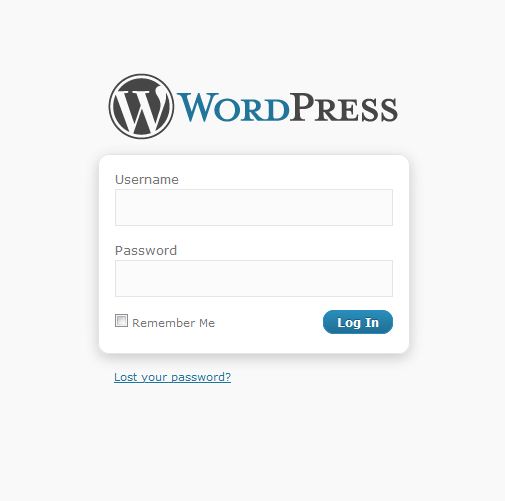
- Type the username and password you used when you installed your WordPress. Note! Your WordPress login is a different login than your cPanel and your AMP. If you cannot remember your Username or Password, Please see our article on Resetting your WordPress Admin Password
Once you login you will see the WordPress dashboard.
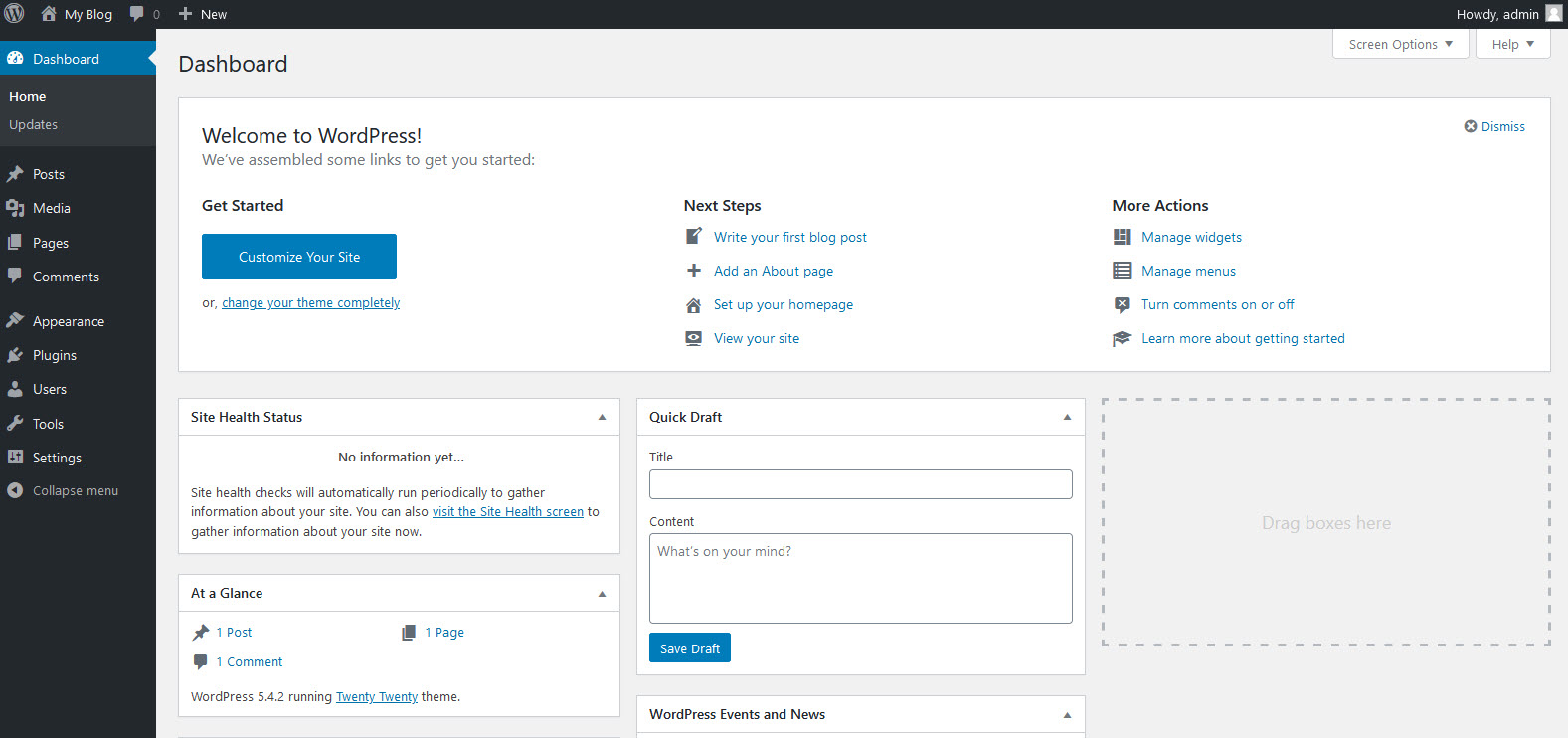
If you installed WordPress on a new domain or on a domain that is not yet pointed to your account with InMotion Hosting, you will not be able to use the dashboard until you point the domain to our servers or until the DNS changes take effect. Until then, you can set WordPress up to use your temp URL which can be found in your AMP technical details.
I can’t login to my WordPress dashboard
There are several reasons why you may be getting errors when trying to login to your WordPress dashboard. We will go over a few of the common ones.
If for some reason none of these methods work and you still want to make changes to your site, learn How to Add Blog Posts to WordPress Using Email.
WordPress login disabled
If you are getting this error, it is because there have been too many failed logins on your dashboard. Our automated systems have disabled your WordPress admin to prevent your site from being compromised due to WordPress brute force attacks. To resolve this issue, we recommend you increase the security measures utilized on your WordPress site. (Click the link below for tips on how to make your site more secure.)
WordPress wp-login.php brute force attack
Username or password is incorrect
Many times, users simply forget their passwords. Luckily, we have written an excellent article on resetting your WordPress password. Click the link below.
Resetting your WordPress Admin Password
Problems with Security Apps
It has been reported that some login issues may occur due to the Windows Defender Firewall and Bit Defender Antivirus applications.
The particular behavior is characterized by the login page refusing to accept the correct password/user. This behavior occurs when the login repeatedly reappears regardless of the login credentials used.
If you are using Windows Defender Firewall, BitDefender Antivirus, or a combination of these applications, then you will need to whitelist the website the affected URL in both applications to resolve the issue.
Additional Reading
Looking for more guides? We have over 400 WordPress How To Articles to help you!
Get our Free Step-by-Step Guide to Creating a WordPress Website
Learn the ins and outs of creating a winning WordPress site step-by-step, from start to finish.
