
Backing up your website is a necessary step for all users.
When you use an FTP client to backup your files to a local folder on your computer, you can summarize the process in three basic steps: access and select your files with FTP, create or find a directory for your backup, download your website files to the directory you have created or selected.
You can also use FTP to backup your mail or database files. This tutorial is based on using cPanel for hosting the website. Access to the files using the cPanel user for your account is required.
- Use FTP to Access Your Website Files
- Create a Directory for Your Backup
- Download Your Website Files
- Other Website Files
Use FTP to Access Your Website files
cPanel includes an easy feature to back up your website; however, if your site is very large, you’ll want to use an FTP client to download your website files. The process is quite easy, and in this article, we’ll show you how to back up your files using the Filezilla FTP client.
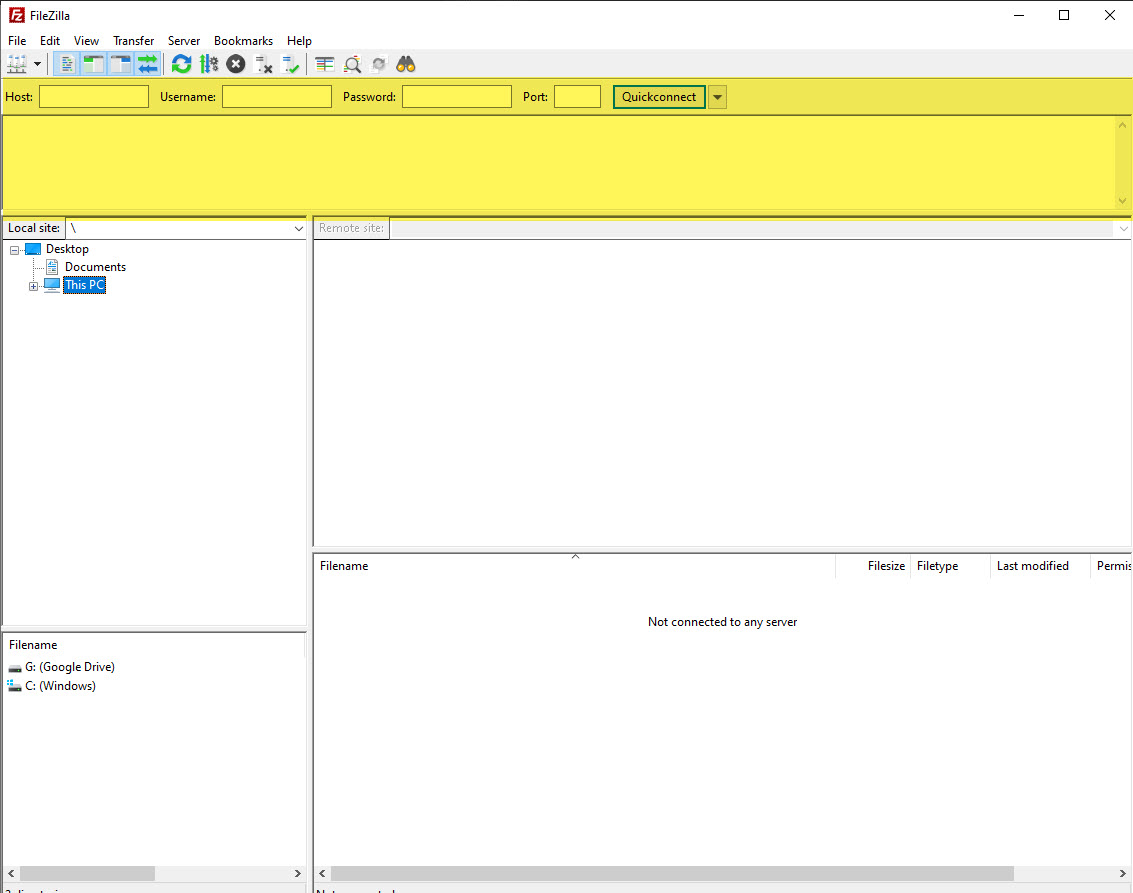
- Download and install Filezilla. Check out our guide on using Filezilla for assistance.
- For the host value, enter example.com. For example, if your domain name is domain-abc-123.com, enter domain-abc-123.com
- Enter your cPanel username.
- Enter your cPanel password.
- Type in the Port number. The default port number is 21, but you can leave the port blank here.
- Click on the Quickconnect button to log in to your FTP account.
- Once you log in to the FTP account, select your website folder and select your files. If you need help finding the location of your files, please see Find the Document Root of your Website. The default location for a primary website account with an InMotion Hosting account using cPanel is the public_html directory.
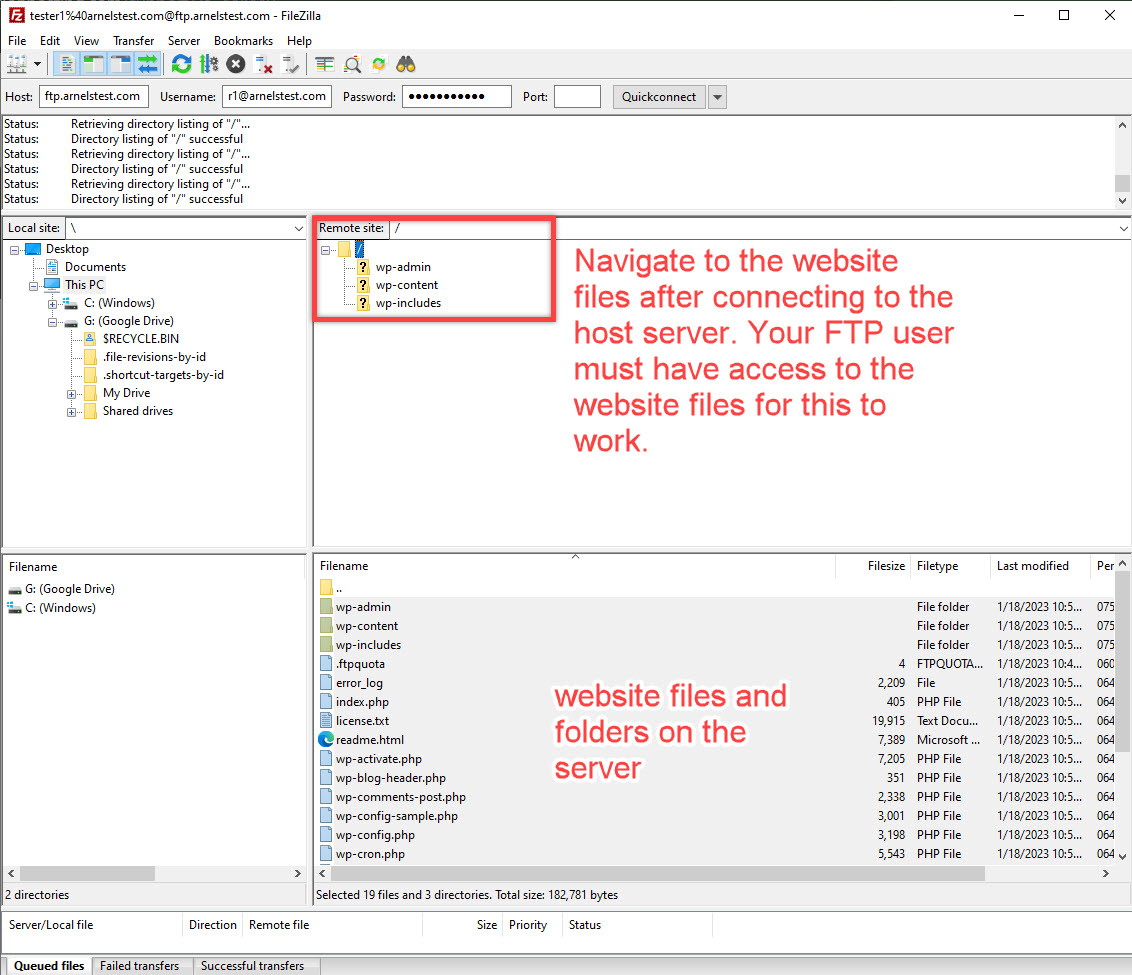
The top right window of Filezilla will display the folders on your server. The bottom right window will display the contents of a selected folder – not just the folders.
Create a Directory for Your Backup
You can use the FTP client to create a directory to serve as the destination for your website files. You can also use a pre-existing directory and select it with FTP.
- Use Filezilla to access your desktop.
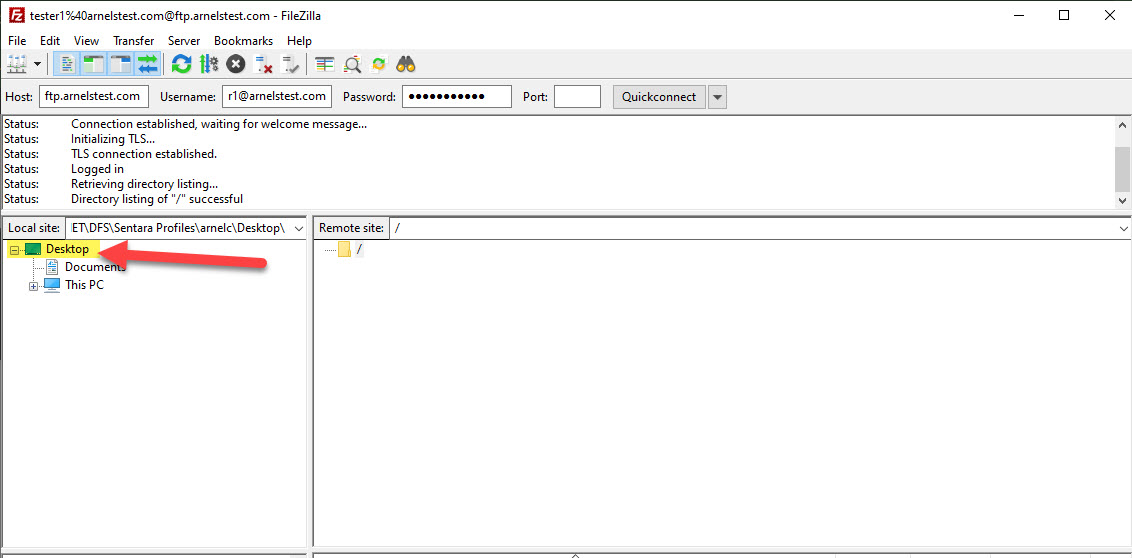
- Right-click on the folder at the top of the list in the lower left, then select Create Directory.
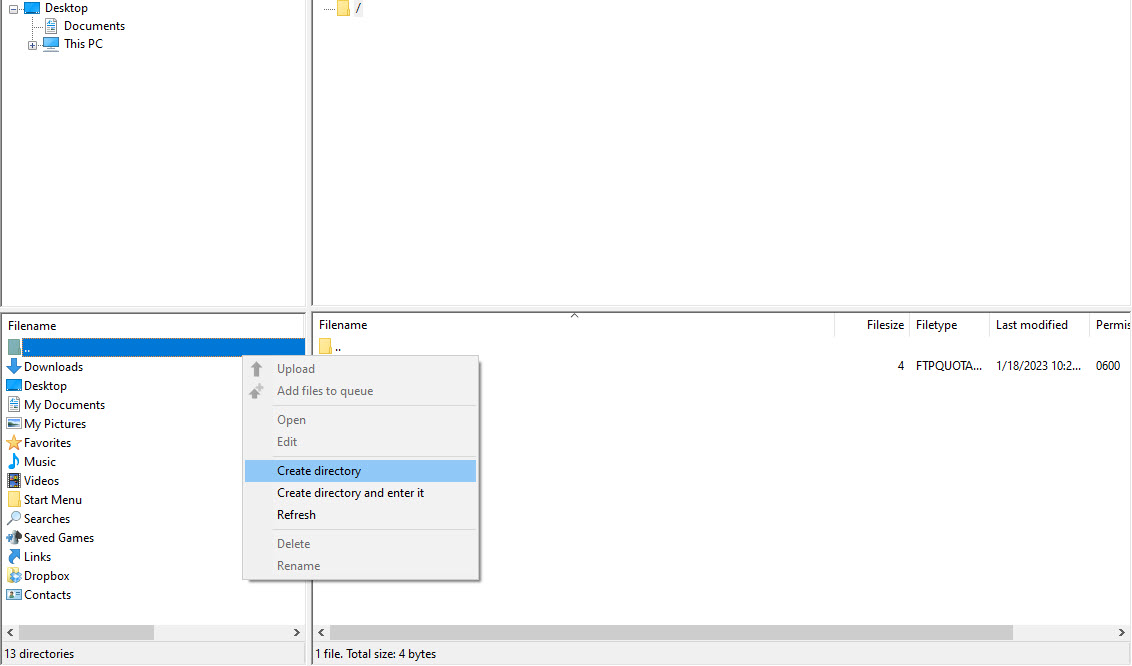
- Name the folder that is created on your desktop. I have named it “Website Backup-011823” below.
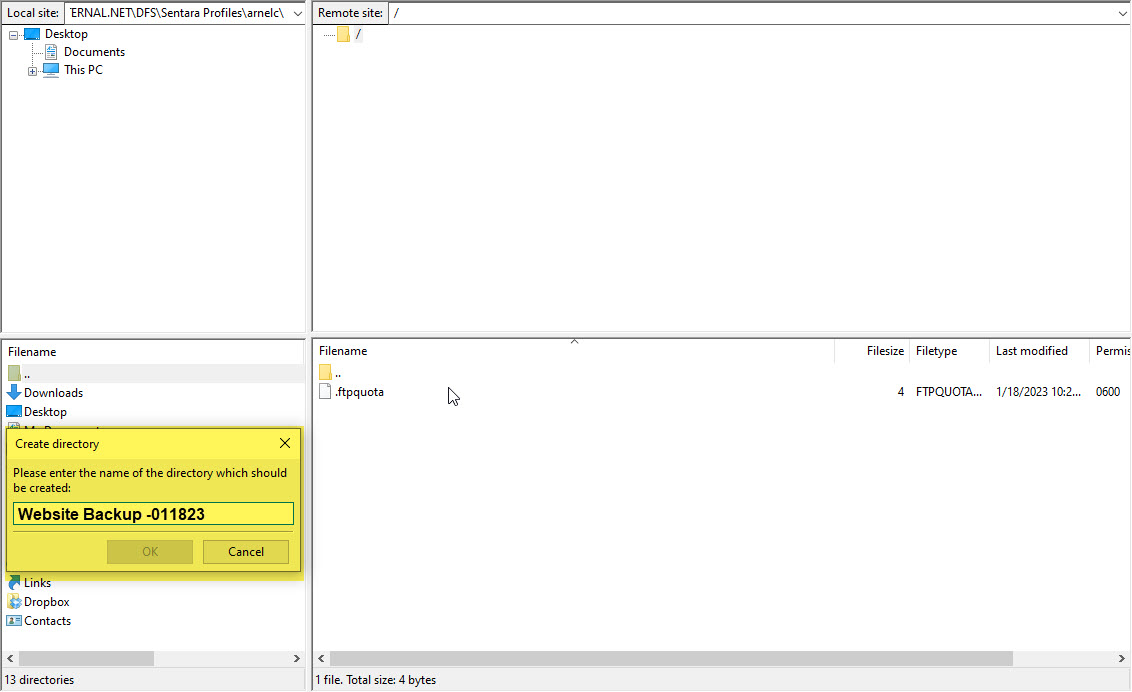
Once the directory is created, you must select your website files. FTP clients allow you to choose files from a location (the source) and then move or copy them to a destination.
Download Your Website Files
The final set of steps requires that you select your files (the source) and then copy them to the directory (the destination) you created previously.
- Select your website files in the top right section. Note that this section of the FTP site is labeled “Remote site.” This
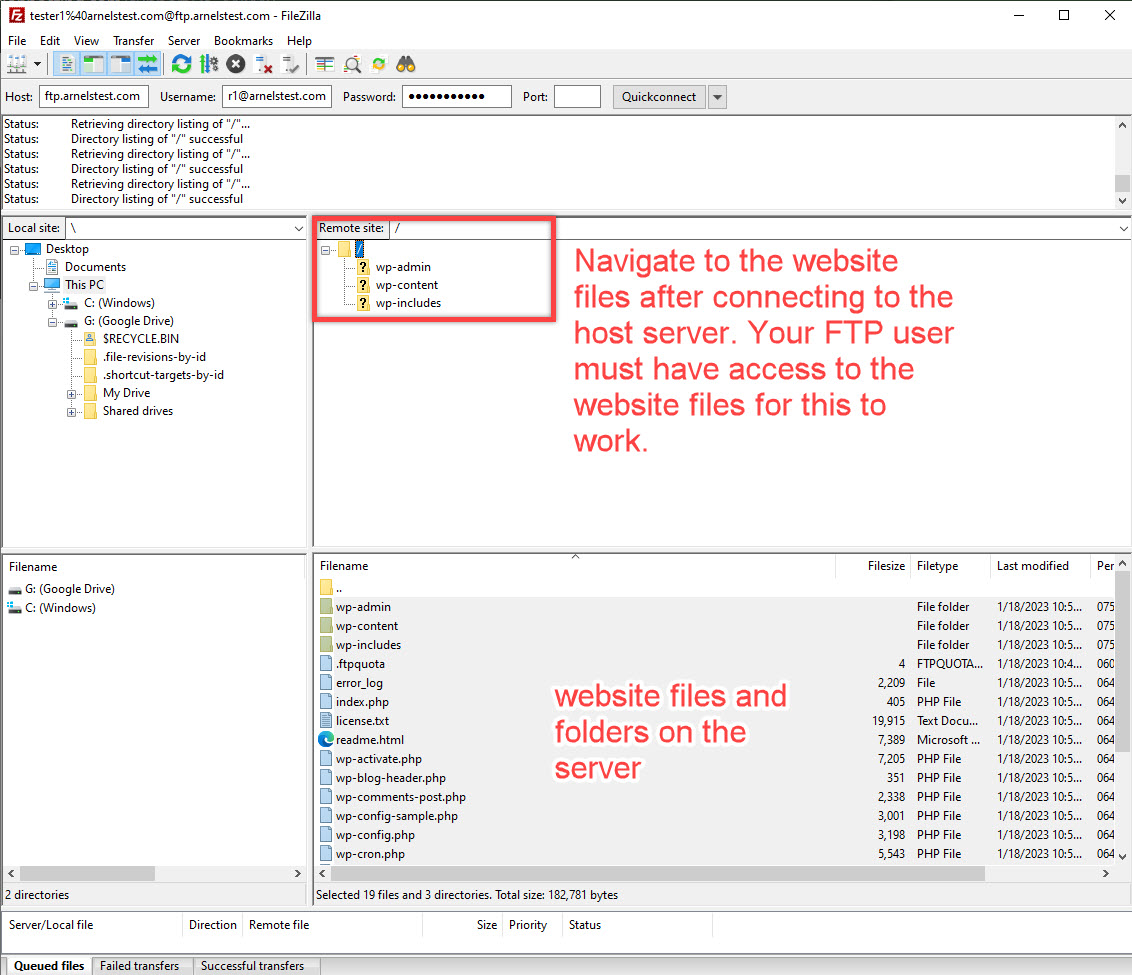
- Click CTRL + A to select all files.
This will select all the files in that window. If you wish to select specific files (instead of all of them), then hold your CTRL key and then left-click on the files you wish to select.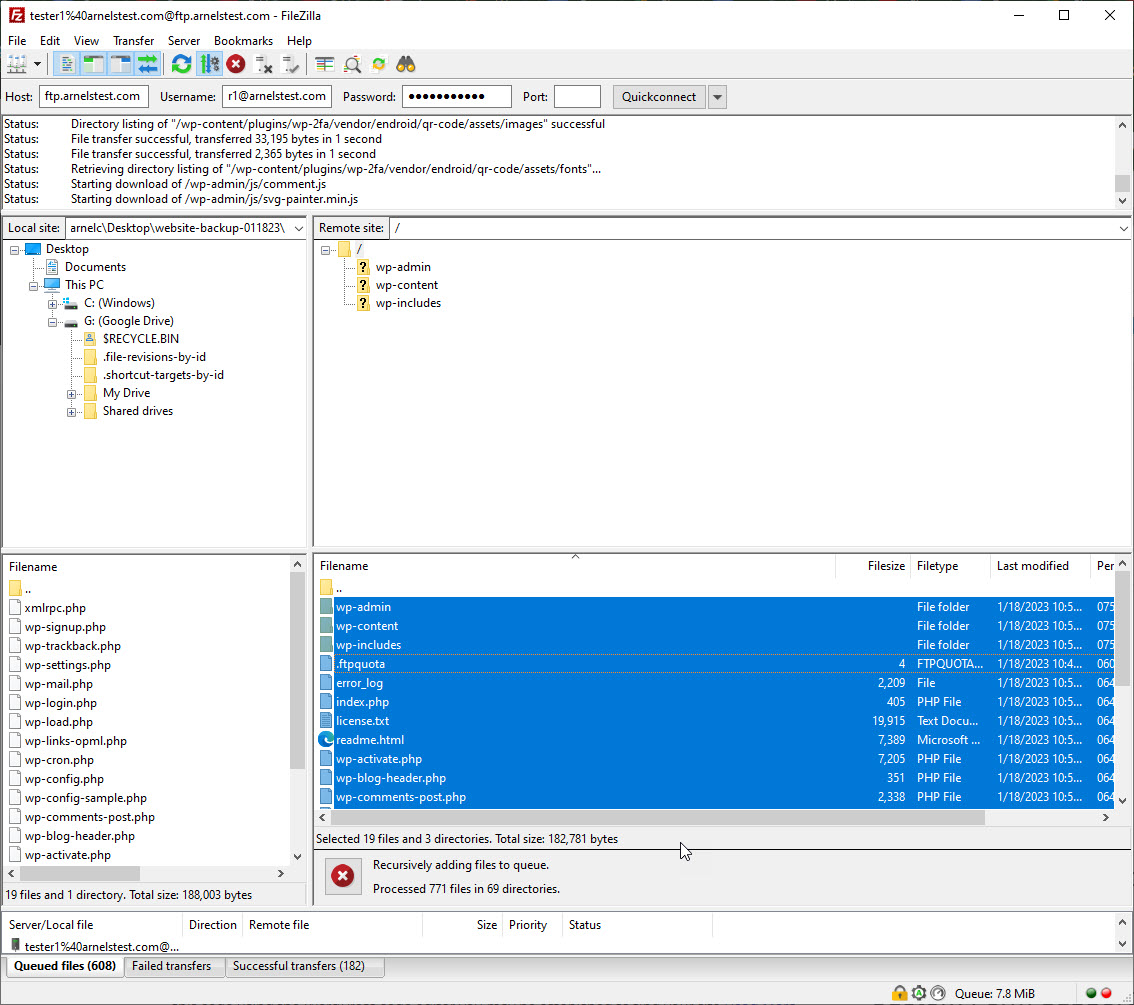
- Double-check to make sure that you have selected the directory you created earlier.
- Right-click with your mouse on the selected files. Select download from the pop-up menu
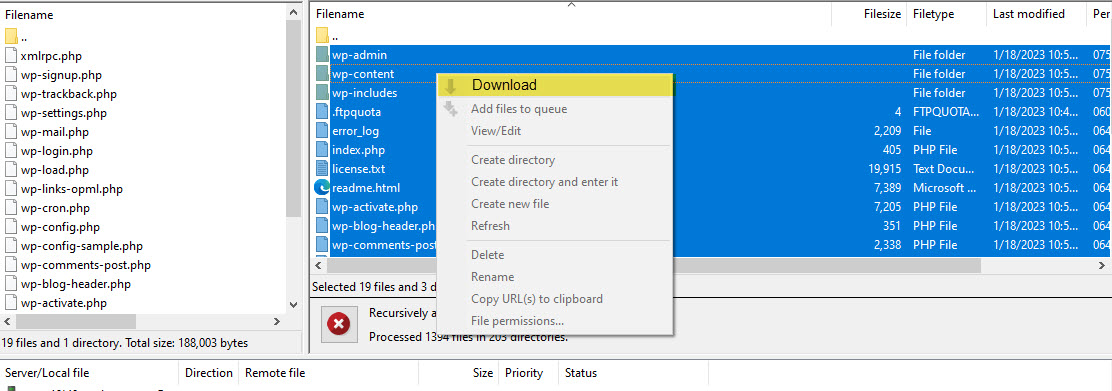
Your files will be copied to your local computer using Filezilla when the download is complete.
Other Website-Related Files
You may also want to download your email. If that is the case, then you would need to find the Mail directory. Then you can download those files. The following instructions are based on cPanel-based accounts from InMotion Hosting.
- Log in to your cPanel.
- Go to File Manager.
- Find the mail folder. It will be under the root of the user account. The user account below is “user5.” Click on the folder to see its contents.
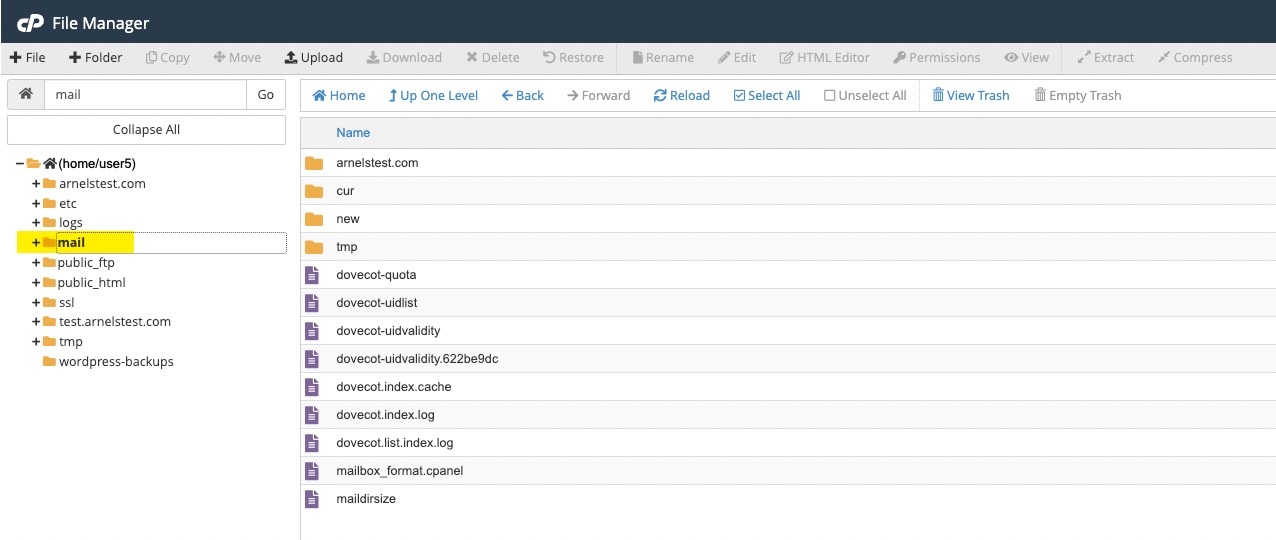
- Download the mail folder contents to back it up. You can use File Manager or an FTP client to download these files.
Note that the mail folder is not in the same location for all hosting services. Speak with your respective technical support team for further assistance.
Databases
Your databases are not stored in the same directory as your hosting account. If you would like to download a backup of your databases separately, please see the following link: Backup your database in cPanel
Remember that there are many files that make up your website, database, and email for your account. The time it takes to complete the backup with FTP will depend on the number and size of these files.
If you don’t have a backup of your site, you can try restoring your content from the Wayback Machine.
You can now backup your site using the Filezilla FTP client. Make sure to regularly backup your website files to help keep your backups current and relevant.