When administering a Drupal site, it’s a good idea to make a duplicate site for testing purposes. This allows the administrator to make large changes to the web site while the existing site is still running. This article will teach how to make a duplicate Drupal site for testing.
Steps to Duplicate a Drupal Site on a Subdomain
First Step is to Create the Subdomain
To set up a Drupal test site, create a subdomain that you will use to separate your Drupal site. The following are the steps on how to set up the subdomain. If you don’t have hosting for your website already, check out our Drupal Hosting options for an optimized platform for your website.
- Log into your cPanel.
- Create the subdomain that will be used for the Drupal testing site, for example you may want to name it something like testsite.example.com.
Second, Set Up the Database
Because Drupal stores all the content in a database, the database will need to be imported into a separate database. The following section will explain how to export your Drupal database, change the site url in the database, and import the database into your testing database.
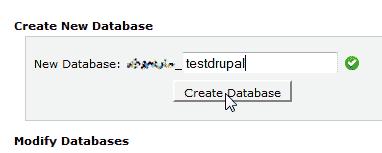
- Create a database.
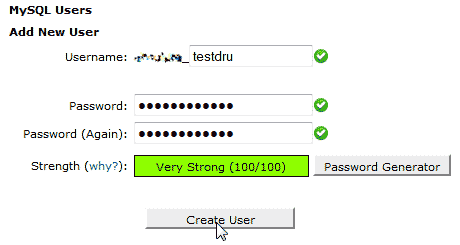
- Create a database user.
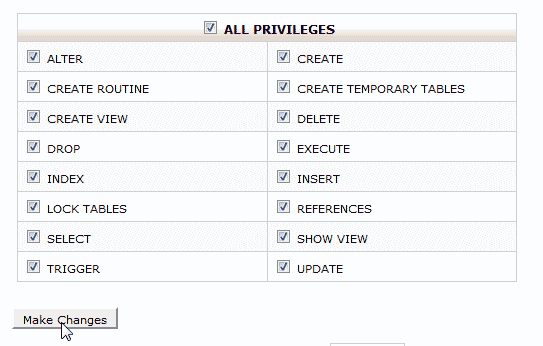
- Add the user to the database will full permissions.
Important! Make sure you save the Database name, Username, and password in a notepad or text document. These will need to be used later in the setup.
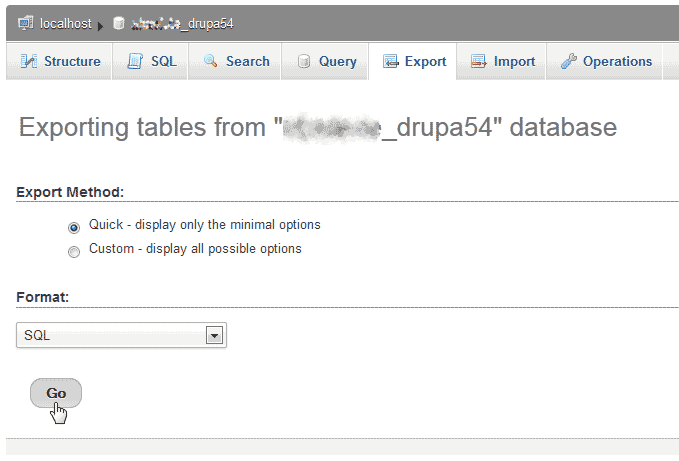
- In phpMyAdmin, export your current database.
- Make a duplicate of your Database on your local computer. (This is to prevent you from having to export the database again due to any possible mistake.)
- Open the .sql file with Notepad++ or another editor.
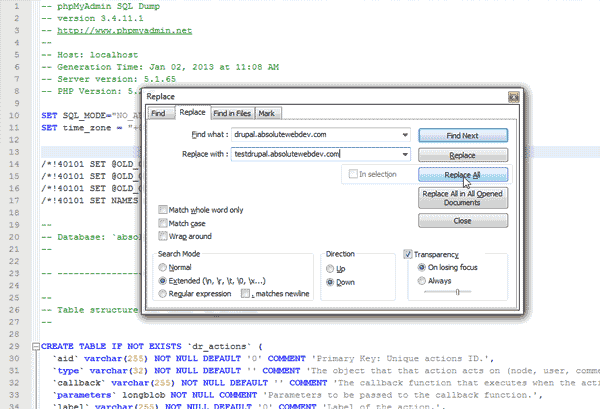
- Find and replace all instances of the old subdomain with the new subdomain. For Example, if your existing Drupal is on drupal.yourwebsite.org
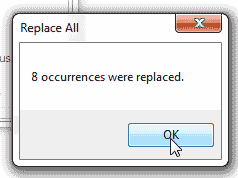
- Replace all instances of the old domain with the new domain. For example: drupaltest.yourwebsite.org
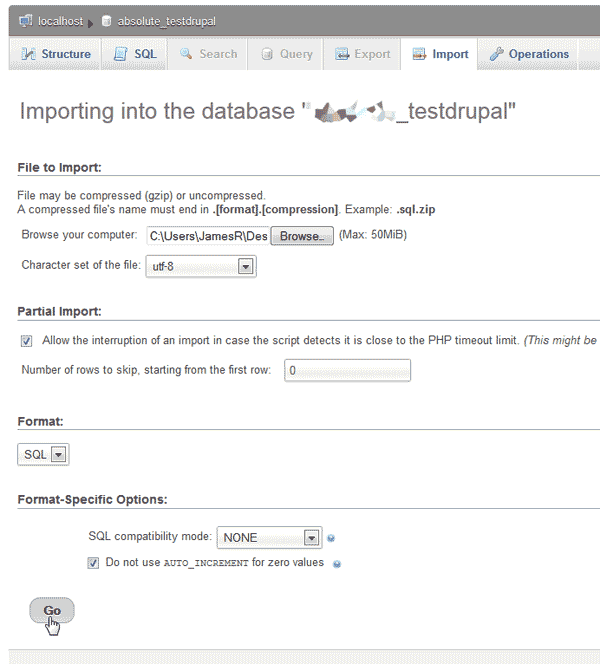
- Import your Database into the new database you created.
Finally, Move the Drupal Files
Now that the database is set up, the files will need to be moved and the settings.php file will need to be edited to use the new database connection. The following section will explain how to move and set the settings.php file to work on the new subdomain.
- Go to your cPanel File Manager.
- Copy your Drupal Files from your current directory to the document root directory created for your subdomain. The root directory usually is the same name as the subdomain that was created.
- Select all the Drupal files.
Important! When selecting all your Drupal Files, make sure any other files and/or folders not related to Drupal are not selected. After selecting all, hold the Ctrl key and click the folders to deselect any “non-Drupal” files and /or folders. If you do not deselect unrelated files and/or folders, there will be duplicates taking up disk space.
- Click Copy at the top right side of the File Manager. Type the path to the folder you want to move your files to (This will be the subdomain document root location). Click Copy.
- Now we will need to update the database settings for Drupal. Navigate to the path to the Document Root folder for the Sub Domain. For example:
/home/userna5/public_html/testdrupal/sites/default/settings.php
- Select the file and click the code editor.
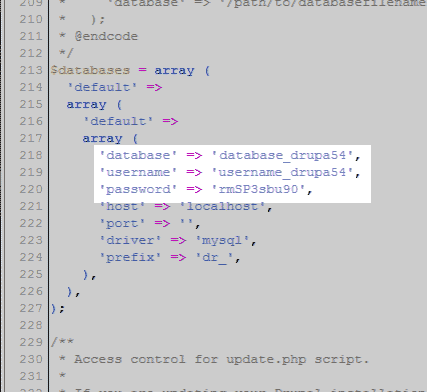
- Update the database name, username and the password for the database to the new database credentials so you can test them.
- Click on the Save Changes button.
For more step-by-step guides and practical tips, visit our Drupal Education Channel.