
Selecting a reputable web hosting company is only the first step towards building and maintaining a successful website. There may be times when you have to connect to the database from outside your work network and if that’s the case, you need to connect to your database using third-party software that does not run on the server (i.e. a MySQL client on your desktop). This is referred to as making a remote MySQL connection. To do this, however, you will first have to allow the connection from within cPanel for the IP address you are connecting from. Read on to learn how.
What program do I use to connect remotely?
There are a few programs you can use to connect remotely to your database. You can utilize HTML editors like Adobe Dreamweaver for a fee, or there are free Open Source programs you can use like MySQL Workbench or Heidi SQL. Here are some options to check out.
Adding an IP address to allow a remote MySQL connection
First, you will need to make sure you have the IP address that will be accessing the database. These rules protect the database by only accepting external connections that you have set up. If you are connecting to a database from your current connection, get your IP address by clicking here, then follow these steps:
- Log into cPanel.
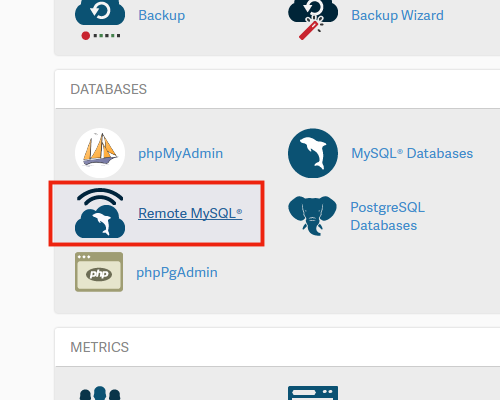
- Click the Remote MySQL button in the Databases section.
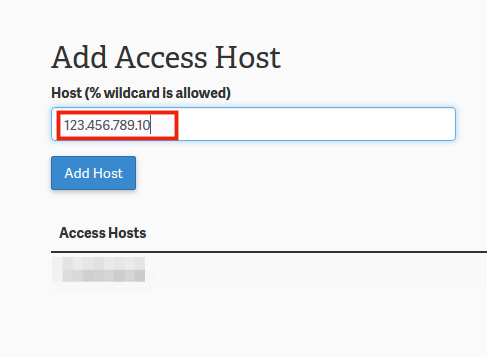
- Enter the remote IP address in the Add Access Host section.
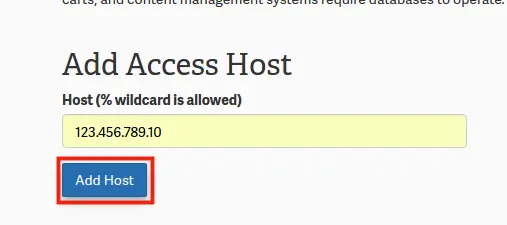
- Click the Add Host button.
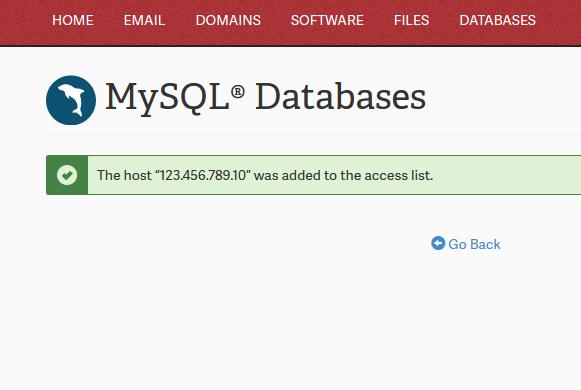
You will then see a message stating the host IP address was added to the access list.
Now, since you have added the IP address to remote MySQL connections you will be able to connect to the databases. You can add as many IP addresses as you need.
Using a Wildcard to allow all IP’s
You may find you need to use a wildcard if your IP address changes regularly. You can add a wildcard by using the % symbol. This will add all IP addresses in that range.
For example, if you want to list all IP addresses in the range 174.77.92.1 to 174.77.92.255 you’d add the IP address 174.77.92.%.
Troubleshooting Remote connection issues
If you are using your preferred remote connection tool and suddenly it will not connect, it’s known as a 1045 error and usually reads similar to ‘1045 – access denied for user‘. If you are getting this error, here are a couple of things to check:
Check your cPanel password
Many people connect remotely using their cPanel username and password as opposed to creating a single administrative user to add to the databases. This is not the preferred method, however, if you do use the cPanel username and you are now getting a connection error, chances are you recently changed the cPanel password and have not changed it in the Remote connection software settings. Change the password there and you should be able to connect once again.
Check to see if connecting IP has changed
From time to time your ISP (Internet Service Provider) may change your public IP address. If that is the case, you may find yourself unable to connect remotely via your preferred software. Check your IP address by clicking here.
Once you know your current IP address, go back and make sure that it is in the list of allowed IP addresses for your Remote MySQL settings. If you find it was not in the list, add the new one and then you should then be able to connect remotely.
If you need further assistance with connecting to a database remotely please contact our support department