When you export a database, you are creating a backup file of the database. This backup file is usually a .sql file (a text file), and can be used to copy and import the database onto another server. In this article we’ll show you how to export your database.
- Log into phpMyAdmin
If you are an InMotion Hosting customer: Log into your cPanel and click the phpMyAdmin icon under the Databases heading.
If you are not an InMotion Hosting customer and do not use cPanel, please contact your hosting provider for more help.
-

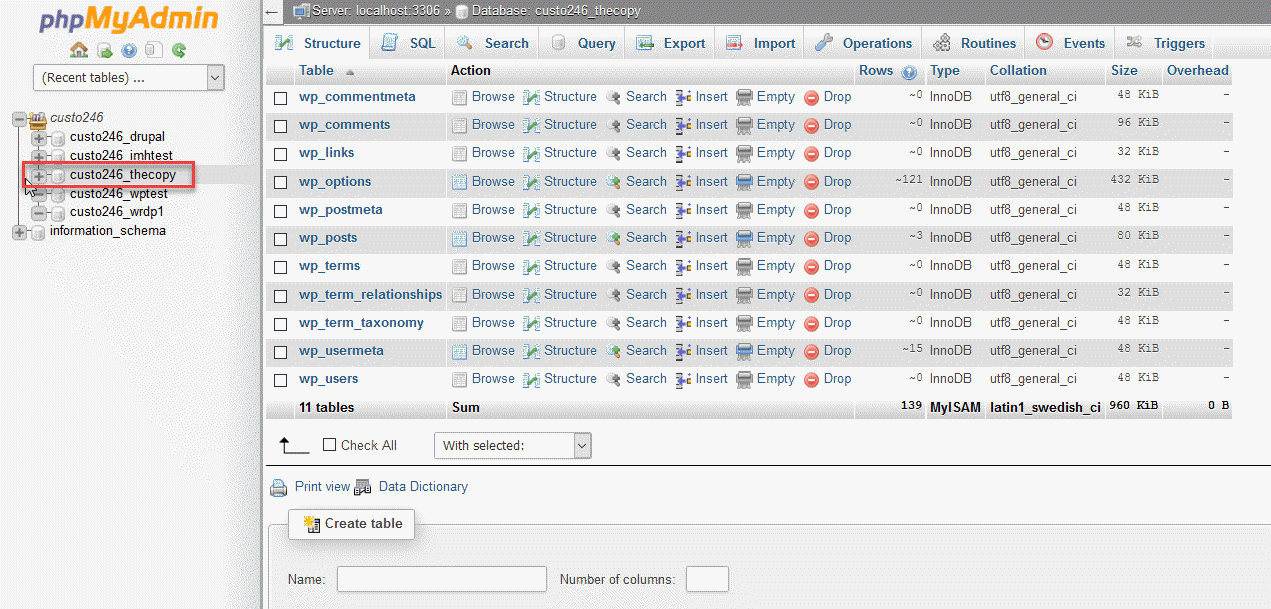
Click on the database you are working with in the left menu
-

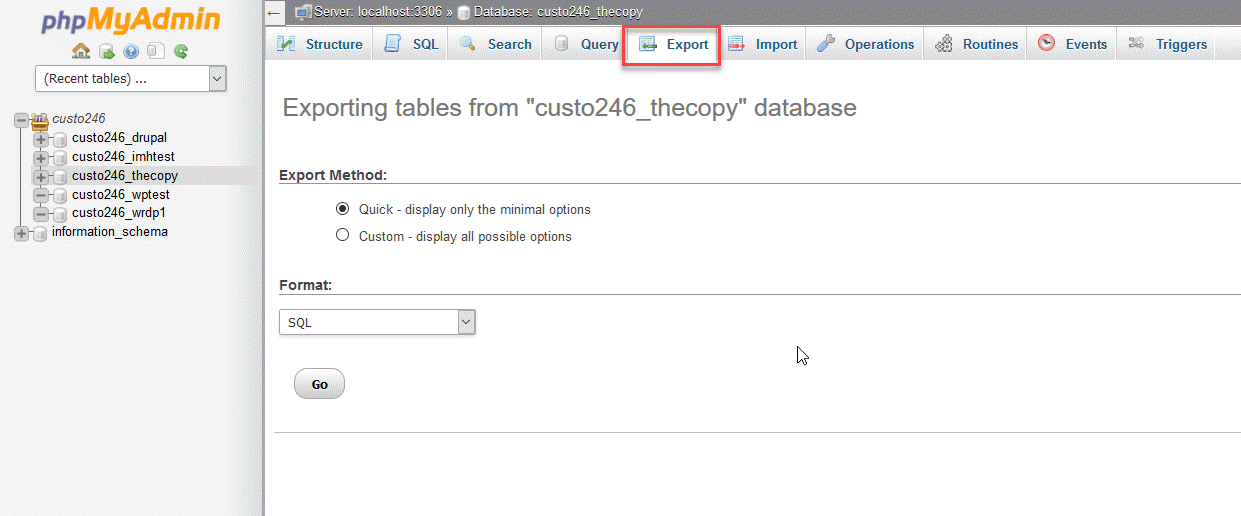
Click Export in the tabs along the top of the screen.
-
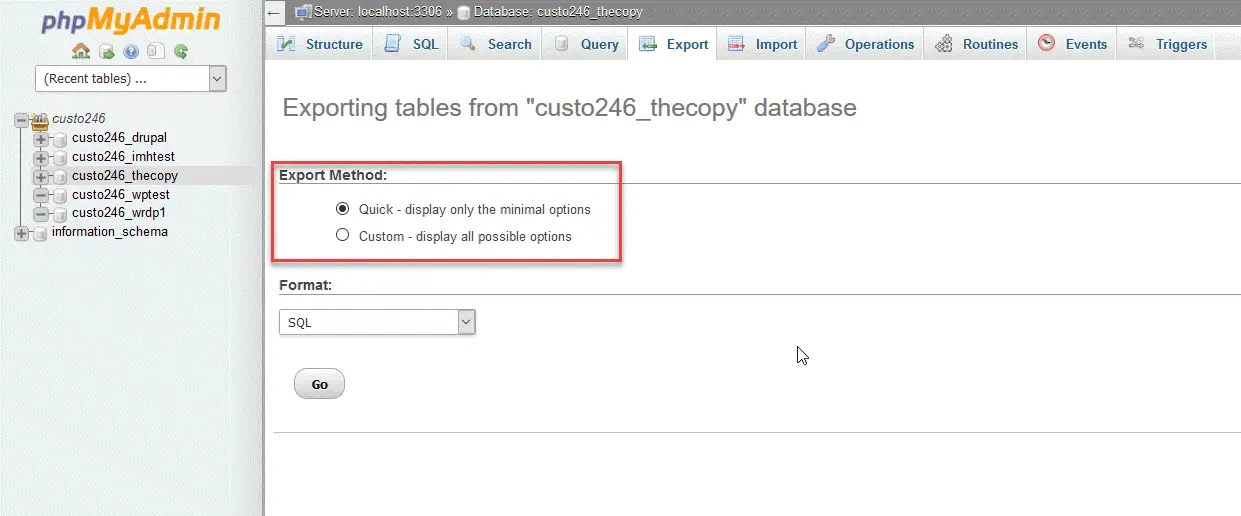
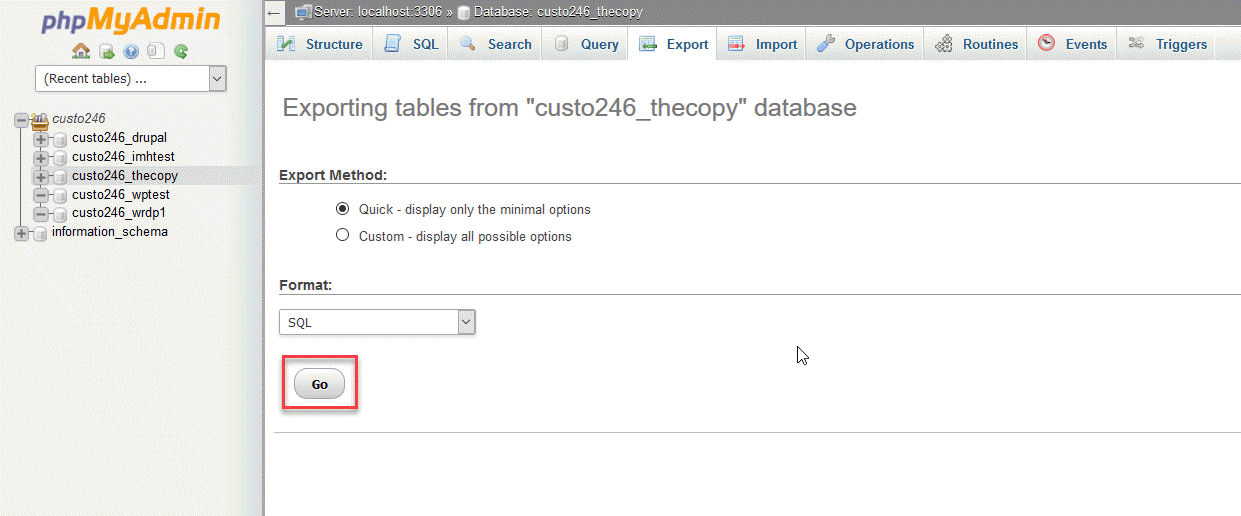
The export option that we are providing instructions for is the Quick method. Click on the radial button for Quick. If you want more complete control, then click on Custom. You will need to be familiar with the exporting MySQL databases in order to use these options. If you are not, then please consult with an experienced database administrator or developer.
-
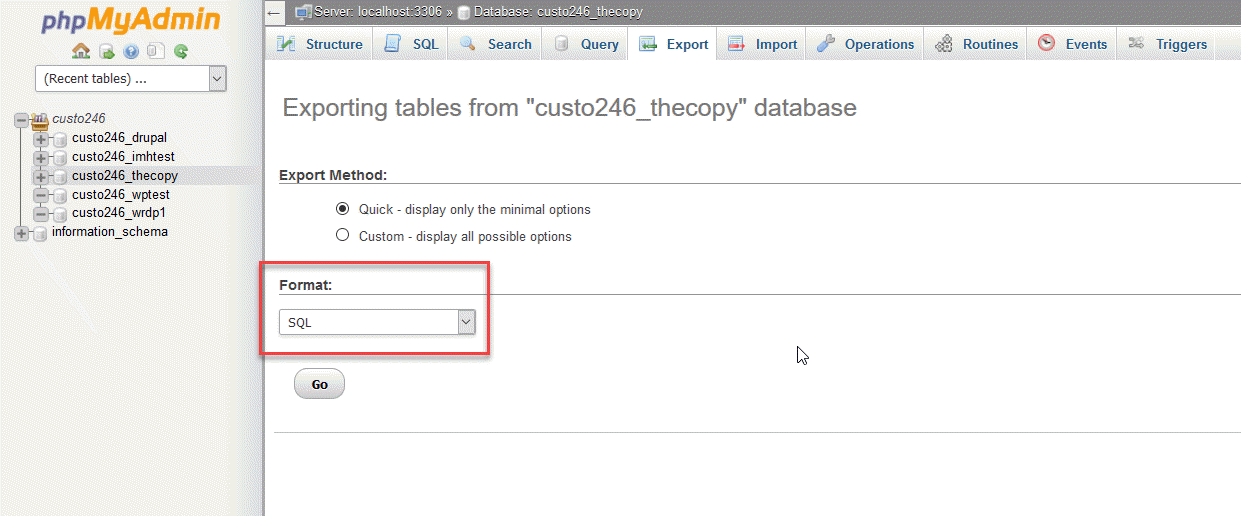
Next, you will need to click on the format of the export file. By default, it should be on SQL, so you don’t need to change anything.
-
Click on the Go button in order to perform the export.
- You will be prompted to either open or save the file. Please select the option to save the file and then save the somewhere you’ll remember (such as directly on your desktop).
Congratulations, you have just exported a copy of your database!


Hi,
Itried to import a database of 95M but phpmyadmin have only 50M allowed size to import. How can I change the parameters in order to import a bigger database?
Here is a link to our guide on How to Upload a Database That’s Larger Than 50MB.
VPS/Dedicated server accounts with root access can import a database larger than 50 MB using the command line access.
Thank you,
John-Paul
Database export failed after some time , it display network failed error. (my database size 585 Mb after every 350 -400 MB its failed.)
Sorry for the problem with the database export. I recommend contacting our live technical support team (contact info at the bottom of the page) – they can look into why it’s failing or perform the export for you.
how do i export this database as dll to connect my website
Hello,
A database is a collection of data and is not designed to automatically connect to your website. You need to have an interface that reads the database, validates and connects with your application. I would recommend that you work with a developer if you do not understand how this can be done.
If you have any further questions or comments, please let us know.
Regards,
Arnel C.
It was possible some years ago in older PhpMyadmin versions though, on different hosting. That’s why I wondered if still there is a way to perform it. Thank you Arnel.
Thanks for your instructions. Is there an option to save the export in a folder on the server? Cause sometimes the export to a PC takes too much time \ interrupts.
Hello Igor,
After you export the database you can FTP it back to the server. If you’re having problems with the default settings, use the custom settings to change the compression, or save certain tables so that you’re splitting the export into several files. I checked the options in PHPMYADMIN and there is no way to save directly to the server.
If you have any further questions, please let us know.
Kindest regards,
Arnel C.
Easy to follow!
After 3 days @ 1 call per day, This is exactly what I needed to begin with! With the youtube video skipping ahead (glitching)….. just wanted to say,
I can’t thank you enough, Jeremy
Thanks for your valuable suggestion