A custom name server allows you to run your own name server to respond to DNS requests for your domains. You can also decide to set up custom name servers for branding purposes if you would like to hide the fact that your domain’s DNS requests are handled by our public name servers. Shared and Reseller hosting customers can achieve this same branding effect for their domains by instead setting up vanity name servers.
If you are a web hosting Reseller, please see our guide on Using Custom Nameservers as a Reseller.

Our Public Name Servers
By default, any websites that we host are going to have DNS records added for that website to our public name servers. These are our public name servers:
ns1.inmotionhosting.com 74.124.210.242ns2.inmotionhosting.com 70.39.150.2Are You Using Our Public Name Servers?
You can use our domain routing tool to see if your domain is pointed already at our public name servers. Or you can follow the steps below to check your domain’s DNS records directly from your computer.
- Open a command prompt or terminal window.
- Once a command prompt window is up, you’ll want to type in the following command and hit Enter
nslookup
You should now be at the nslookup prompt indicated by a>
Now you’ll want to specify that you are just looking to query the (NS) name server records of the domain by typing in the following:set q=NS
Then hit Enter to be dropped to the next line and type in your domain name:inmotionhosting.com
For this example we used InMotionHosting.com and we get back our public name servers:ns1.inmotionhosting.com internet address = 74.124.210.2
ns2.inmotionhosting.com internet address = 70.39.150.2
Activating Custom Name Servers
If your server has been set up with custom name servers, but your domains are still pointed to our public name servers you’ll want to update these so that they are using your custom name servers instead.
You should have already at this point been given custom name server entries by our system administration team, or you specifically requested for them to be set up. For this example, we’ll be using the fake domain name MyCustomNameServer.com.
ns1.MyCustomNameServer.com 123.123.123.123ns2.MyCustomNameServer.com 123.123.123.123- Login to your domain Registrar where you registered the MyCustomNameServer.com domain name.
- Most Registrars will have a section similar to Maintain name servers under this domain, or it’s sometime referred to as glue, or host records as well.
- Typically you’ll just need to enter in the part before your domain name ns1 for instance, and then the IP address you were given for the custom name server.
- Repeat the same step again for the ns2 as well.
- Now update all of your domains to point to your custom name servers.
Activate Your New Nameservers in AMP:
If your domain is registered through us, you can activate (also known as glue) your Custom Nameservers in AMP.
- Login to AMP.
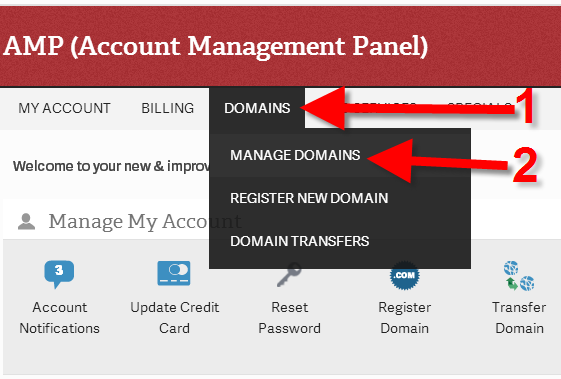
- Move your mouse over the DOMAINS menu and click the MANAGE DOMAINS link.
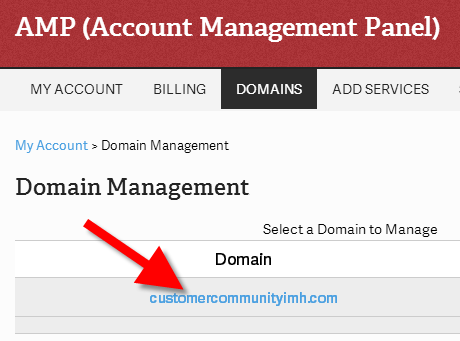
- Click the domain name you want to edit from the list.
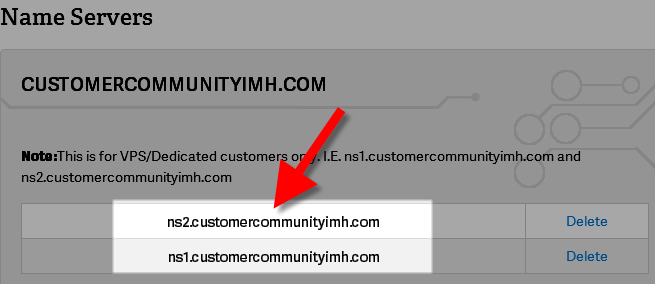
- On the next screen click Create custom nameservers.
- In the Add Name Server section enter your custom nameservers, and your Shared IP for both nameservers. Click the Submit button to save your changes, you will then see your new nameservers listed.
After making DNS changes like this, it can take a full 24-48 hours for the settings to fully propagate. Once they have been updated, you should be able to query your domain’s name server records again, and they should come back with the custom name server settings as the active name server addresses for that domain.
How Do I Find My Custom Nameserver IP’s
- Log into WHM.
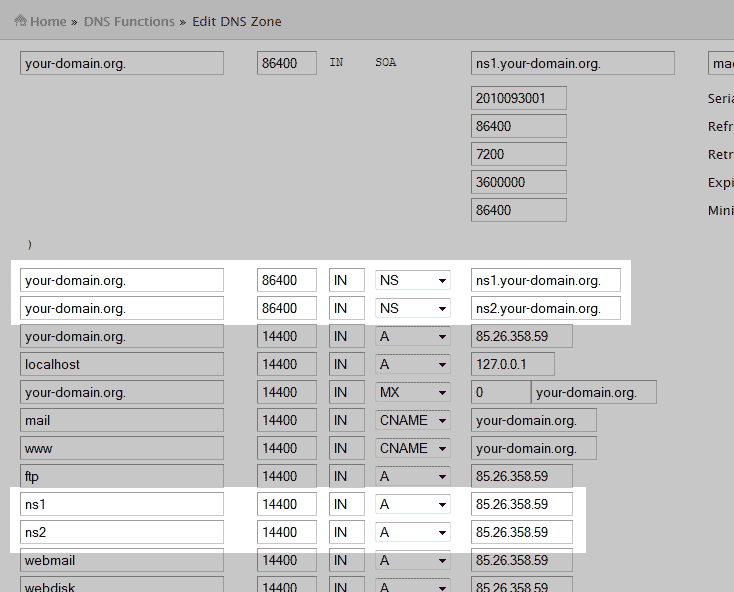
- Go to Home > DNS Functions > Edit DNS zone.
- Select your main domain from the list and click Edit. You will then see your ns1 and ns2 subdomain entries for your custom nameservers. The IP address will be listed there.



I am trying to transfer my domain name servers. currently using bue host.. trying to transfer to inmotion… when i enter the inmotion ip addresses it says invalid ip addresses… what can i do to be sure i have the right ones?
I would recommend contacting our Live Technical Support 24/7. There are account specific details that would need to be known in order to advise how you should register your name servers, like the IP address assigned to your account and the type of account you have (reseller, VPS, dedicated, etc). They should be able to get you setup properly with the information they can obtain when they review your account and domain setup.
In my VPS can I have vanity nameservers for certain domains or do I have to have a single custom nameserver for all the domains?
Yes, you can use any domain you want for your custom nameservers.
Also, individual cPanel accounts can setup vanity nameservers.
Thank you,
John-Paul
I have a domain registered in not in inmotionhosting. Inmotionhosting helped me set-up a CUSTOM NAMESERVER. Will it work or is my website accessible if my domain is not registered in inmotionhosting?
Yes, your domain will work even if its not registered at InMotion Hosting.
I have a google web site where i use storage and mail. I only want to use your site for hosting web servers. How should I configure DNS is in this cast
Hello Harold,
You will want to use A records to point to the correct servers. Watch this video as it better explains it.
Kindest Regards,
Scott M