
Node.js performance problems in production almost always come from the same short list: a single-process app pinned to one CPU core, missing caching layers, an event loop blocked by synchronous work, and a process manager that crashes silently at 2 a.m.
This article covers the tuning that actually moves p95 latency and concurrent request capacity on a production VPS, with the configuration patterns that hold up at real traffic.
Why Node.js Performance Tuning Matters on a Production VPS
A VPS gives you the root access, dedicated vCPU allocation, and persistent process control that shared hosting cannot, which is exactly what a long-running Node.js process needs. The default node server.js setup runs your application as a single process on a single thread, so a 4-vCPU VPS running an untuned app uses roughly 25% of the hardware you are paying for. Tuning closes that gap.
The other reason to tune at the VPS layer is that Node.js is single-threaded for application code by design. The runtime uses an event loop and a libuv thread pool to handle I/O, but any CPU-bound work you write still blocks every request on that worker. Production tuning is mostly about getting CPU-bound work off the event loop. It also involves putting cheaper layers in front of Node so the runtime only handles what it must.
What Are the Most Common Node.js Performance Bottlenecks?
Real production issues cluster around a handful of root causes:
- Single-process deployments. One Node process cannot use more than one CPU core for application code, so a multi-core VPS sits idle under load.
- Blocked event loop. Synchronous file reads, JSON.parse on large payloads, bcrypt hashing on the main thread, or unbounded regex stall every concurrent request.
- Memory leaks from retained references. Long-lived closures, growing in-memory caches without eviction, and event listeners attached without cleanup quietly push heap usage past the default 1.5 GB ceiling.
- No HTTP-level caching. Every request hits application code, even for responses that change once an hour.
- Direct exposure to the internet. Running node on port 80 or 443 without Nginx in front leaves TLS termination, static file serving, and slow-client buffering to your application.
- Database round trips on the hot path. Missing indexes and N+1 queries show up as Node performance problems even though the actual time is spent waiting on the database.
Knowing which one you have requires measurement, not guessing. Start by checking event loop lag and heap usage before changing anything.
How Do You Set the Right Node.js Cluster and Worker Count?
The cluster pattern runs one Node process per CPU core, with a master process distributing connections to workers. The Node.js cluster module is built into the runtime and is the foundation that PM2 and most process managers use under the hood.
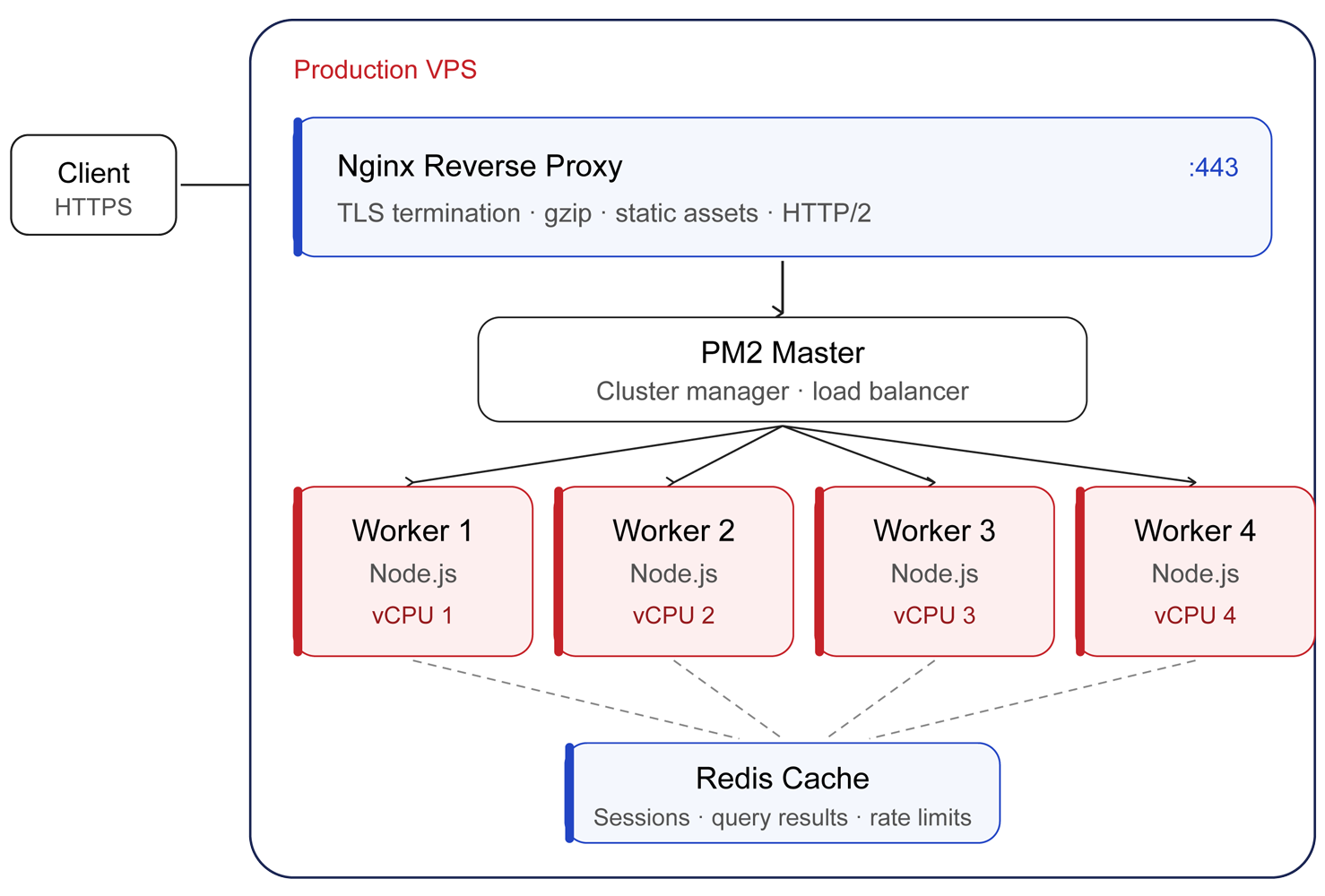
The general rule:
- CPU-bound or balanced workloads: workers = number of vCPUs. On a 4-vCPU VPS, run 4 workers.
- I/O-heavy workloads: workers = vCPUs is still the right starting point. Adding more rarely helps, because the bottleneck is the database or external API, not Node.
- Memory-constrained VPS plans: workers = floor(available RAM / per-worker heap). If each worker holds 400MB of heap and you have 2GB free after the OS, four workers is the ceiling regardless of core count.
With PM2 you set this declaratively:
pm2 start app.js -i max --name apiThe -i max flag spawns one worker per available core. Use a specific number, such as -i 4, when you want to leave headroom for a database or cache process on the same VPS.
What PM2 and Process Manager Settings Improve Stability?
PM2 is the most common production process manager for Node, and the defaults are not the configuration you want at scale. A production-ready ecosystem.config.js looks closer to this:
module.exports = {
  apps: [{
    name: 'api',
    script: './server.js',
    instances: 'max',
    exec_mode: 'cluster',
    max_memory_restart: '500M',
    node_args: '--max-old-space-size=460',
    env_production: {
      NODE_ENV: 'production',
      PORT: 3000
    },
    error_file: '/var/log/pm2/api-err.log',
    out_file: '/var/log/pm2/api-out.log',
    merge_logs: true,
    time: true
  }]
};A few details that matter in production:
max_memory_restarttriggers a graceful restart before a worker hits the V8 heap limit and gets killed by the OS OOM killer. Set it 5 to 10% below--max-old-space-size.exec_mode: clusteris what actually enables load balancing across workers. Fork mode runs independent processes without shared port binding.- Log rotation is not on by default. Install
pm2-logrotateand setpm2 setpm2-logrotate:max_size 50Mandpm2 set pm2-logrotate:retain 14so logs do not fill the disk during a traffic spike. - Startup persistence. Run
pm2 startup systemdandpm2 saveso workers come back automatically after a reboot or kernel update.
For zero-downtime reloads on deploys, use pm2 reload api rather than restart. Reload swaps workers one at a time while keeping the cluster online.
How Should You Configure Nginx as a Reverse Proxy for Node.js?
Putting Nginx in front of Node is the single most impactful change for most production deployments. Nginx handles TLS termination, static asset delivery, gzip and Brotli compression, request buffering for slow clients, and HTTP/2 multiplexing, freeing Node to do only the work your application code requires.
A minimal production server block:
uupstream node_api {
    server 127.0.0.1:3000;
    keepalive 64;
}

server {
    listen 443 ssl http2;
    server_name api.example.com;

    ssl_certificate     /etc/letsencrypt/live/api.example.com/fullchain.pem;
    ssl_certificate_key /etc/letsencrypt/live/api.example.com/privkey.pem;

    gzip on;
    gzip_types application/json text/css application/javascript;

    location /static/ {
        alias /var/www/api/public/;
        expires 30d;
        add_header Cache-Control "public, immutable";
    }

    location / {
        proxy_pass http://node_api;
        proxy_http_version 1.1;
        proxy_set_header Connection "";
        proxy_set_header Host $host;
        proxy_set_header X-Real-IP $remote_addr;
        proxy_set_header X-Forwarded-For $proxy_add_x_forwarded_for;
        proxy_set_header X-Forwarded-Proto $scheme;
        proxy_read_timeout 60s;
    }
}Two details developers miss most often: setting proxy_http_version 1.1 plus the empty Connection header enables connection reuse from the upstream keepalive pool, which dramatically reduces TCP handshake overhead under load. Serving /static/ directly from Nginx with long Cache-Control headers also pulls thousands of requests per minute off your Node workers for files they should never have been touching.
What Memory and Garbage Collection Flags Should You Tune?
Node uses V8 under the hood, and V8’s default old-generation heap size is roughly 1.5GB on 64-bit systems regardless of how much RAM the VPS actually has. On a 4GB VPS running four workers, that default leaves about 10GB of theoretical heap capacity you cannot use because each worker caps itself.
The flag to set is --max-old-space-size, expressed in megabytes:
node --max-old-space-size=460 server.jsSizing guidance:
- Reserve roughly 25% of total RAM for the OS, Nginx, and any database or cache running on the same VPS.
- Divide the rest by your worker count, then subtract 10% for V8 overhead. On a 2GB VPS with 4 workers, that math lands around 460MB per worker.
- Match
max_memory_restartin PM2 to this value or slightly below. A worker restarted by PM2 is recoverable; one killed by the kernel OOM killer is not.
For very high-throughput services, additional flags worth testing include --max-semi-space-size to give the young generation more room (reducing minor GC frequency on services that allocate aggressively) and --no-compilation-cache if you are seeing memory pressure from cached compiled code in short-lived workers. Test changes under load before committing them to production.
How Do You Profile a Slow Node.js Application?
Most performance work fails because the engineer optimized the wrong thing. Profile first, then change code:
node --inspect server.jswith Chrome DevTools gives you a flame graph of CPU time and a heap snapshot tool for finding retained objects. The DevTools Performance tab is the fastest path to identifying a blocked event loop.clinic doctor(clinicjs.org) runs your app under load and produces a diagnosis. It is especially good at flagging event loop delay and excessive GC pressure before you dig deeper.autocannonis the load generator most Node developers reach for. A baseline benchmark before any tuning gives you the comparison point you need to know if your changes helped or hurt.- Event loop lag monitoring in production belongs in your APM or a simple
perf_hooks.monitorEventLoopDelay()exporter to Prometheus. Lag above 50 ms under steady load is a signal that something synchronous is blocking workers.
If a single endpoint is slow, time the database query separately from the handler. The Node profiler will point at await pool.query(...) as the slow line, but the work is happening in PostgreSQL or MySQL, not in your code.
Which Caching Layers Make the Biggest Difference?
Caching is the highest-ROI optimization most teams skip. Three layers matter for Node.js production workloads:
- Application-level caching with Redis. Move session storage, rate-limit counters, and frequently accessed query results out of the database into Redis on the same VPS or a private network neighbor. A round trip to local Redis is sub-millisecond; the same query against PostgreSQL on cold cache might be 20 to 80 ms.
- HTTP response caching at Nginx. For endpoints that return identical responses for the same URL,
proxy_cachein Nginx can serve thousands of requests per second from disk without ever touching Node. Even a 10-second cache window on a popular endpoint cuts upstream load dramatically. - CDN in front of your VPS. Cloudflare, Bunny, or any reverse proxy CDN absorbs static asset traffic, terminates TLS at the edge, and shields the origin from bot traffic. For globally distributed users, the latency improvement is usually larger than any application-level tuning.
The order to add them is the order listed. Redis first because it changes how your application is structured. Nginx caching second because it requires no code changes, and a CDN third because it benefits even an untuned app.
How Do You Secure a Production Node.js VPS?
Performance and security overlap more than developers expect, because an exposed application is one botnet scan away from being unavailable. Baseline hardening for a Node.js VPS:
- Run Node as a non-root user. Use
setcap 'cap_net_bind_service=+ep' $(which node)if you need to bind to ports below 1024 without root, or terminate at Nginx and let Node listen on 3000. - Configure a host firewall. UFW on Ubuntu or
firewalldon AlmaLinux locks the server down to only the ports you intentionally expose, typically 22, 80, and 443. - Keep dependencies patched.
npm auditin CI and Dependabot or Renovate on the repository catch CVEs in transitive dependencies before they reach production. - Set HTTP security headers. Helmet is the standard Express middleware for headers like
Strict-Transport-Security,Content-Security-Policy, andX-Frame-Options. Misconfigured headers are one of the more common findings in security audits. - Rotate secrets and use environment variables. Never commit .env files. Tools like Doppler, Vault, or even systemd
EnvironmentFile=directives keep credentials out of the repository.
When Should You Scale Beyond a Single VPS?
A well-tuned Node.js application on a 4 to 8 vCPU VPS with Nginx and Redis can comfortably serve millions of requests per day. Scaling horizontally usually becomes necessary for one of three reasons:
- Sustained CPU usage above 70% across all workers, even after profiling and caching changes, indicates you have outgrown the box.
- Tight uptime SLAs that cannot tolerate a single-host failure require at least two application VPS instances behind a load balancer.
- Stateful resource separation becomes worth the operational cost when your database, cache, and application workloads start competing for the same disk I/O or RAM on a shared VPS.
InMotion’s Cloud VPS plans and Managed VPS plans both ship with full root access, dedicated vCPU allocation, and Linux distributions including AlmaLinux 9, Ubuntu 22.04 LTS, and Debian 12, which cover the runtime requirements for any current Node.js LTS release. The 99.99% uptime SLA and 24/7 access to the APS team matter most at the point where your application has stopped being a side project and started carrying revenue.
If you are running a production Node.js application on shared hosting or on a VPS that has not been tuned past the defaults, the changes in this article will likely cut p95 latency in half. They can also double sustainable request throughput before you spend another dollar on infrastructure. Start with PM2 cluster mode and Nginx in front, profile what is left, and add caching where the data supports it.
Practical Node.js performance tuning for production VPS hosting, including clustering, PM2, Nginx reverse proxy, memory flags, and caching layers.
Ready to Run Node.js in Production? InMotion’s Managed VPS plans give you root access, dedicated vCPU allocation, and a choice of AlmaLinux 9, Ubuntu 22.04 LTS, or Debian 12. Backed by 24/7 human support and a 99.99% uptime SLA.