---
title: "How to Align and Float Images with CSS"
description: "The formatting of Images and text is done using CSS. They can be aligned and floated to allow the images to be placed in particular locations on the page. Using these options will help you create..."
url: https://www.inmotionhosting.com/support/website/website-design/align-float-images-css/
date: 2013-01-17
modified: 2025-06-12
author: "InMotion Hosting Contributor"
image: https://www.inmotionhosting.com/support/wp-content/uploads/2023/03/align-img-css-float.jpg
categories: ["Website Design"]
type: post
lang: en
---
# How to Align and Float Images with CSS
The formatting of Images and text is done using CSS. They can be **aligned** and **floated** to allow the images to be placed in particular locations on the page. Using these options will help you create content that is easier to understand.
**Aligned images** do not wrap text around them. Aligning images will only position the image left, right, or center with the text following before and after the image. Aligning leaves quite a bit of white space on your site. You will see the white space when you go through the aligning section.
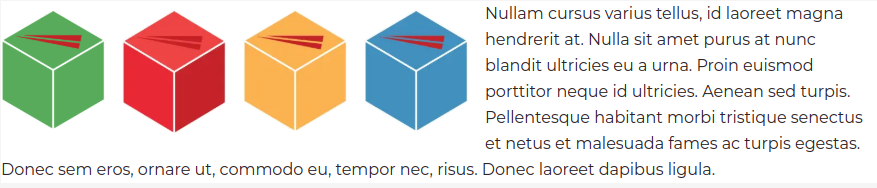
**A floated image** will let the text wrap around the image as a regular book or newspaper would. Images can also be floated, so they appear horizontally on your site. This is good for displaying images like a gallery. The following sections will explain how to float and align images using CSS.
## Left, Center, and Right Align
Images can be aligned left, right, and center using the div tag and an inline CSS style. **Text DOES NOT wrap** around images that are simply aligned. The following explains how to align your images left, right, and center using CSS.
### Left Align
The line of code below is for aligning an image to the left.
```
```

### Center Align
The following line of code is for centering an image.
```
```

### Right Align
The following line of code contains the CSS attribute for aligning right.
```
```

## Floating Images Using CSS
Floating images allow images to align horizontally with each other and allow text to wrap around the image. The following will explain horizontally aligning images and floating images around the text.
### Floating Images Left to Wrap Text
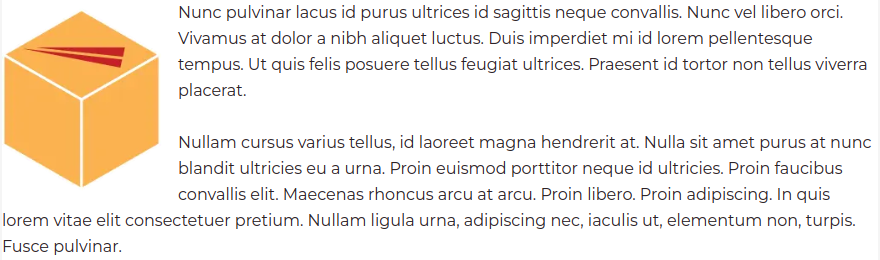
This code aligns an image to the left of a text block. Note that the margin in the code determines the space around the image. The code defines the space in clockwise pixels: top, right, bottom, and left.
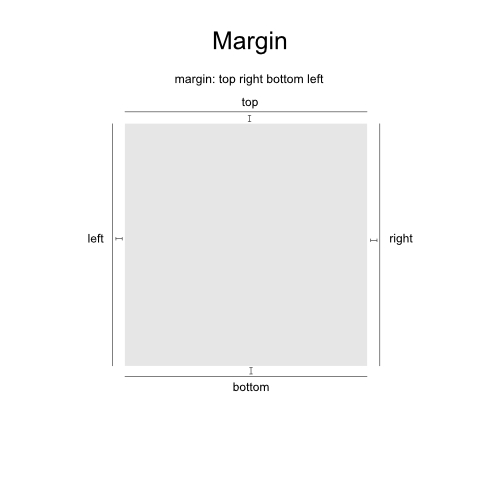
You can see that the code below has a margin of 0px (top), 15px (right), 15px (bottom), and 0 px (left). The code allows for 15 pixels of space to the top and right of the image.
 ```
```
**Important!** Floated images will overlap each other if the float is not cleared. Ensure you place a clear float code after each section where your image floats. Below is the code to clear your floats.
```
```

**Important!** Floated images will overlap each other if the float is not cleared. Ensure you place a clear float code after each section where your image floats. Below is the code to clear your floats.
```
```
## Floating Images Right to Wrap Text
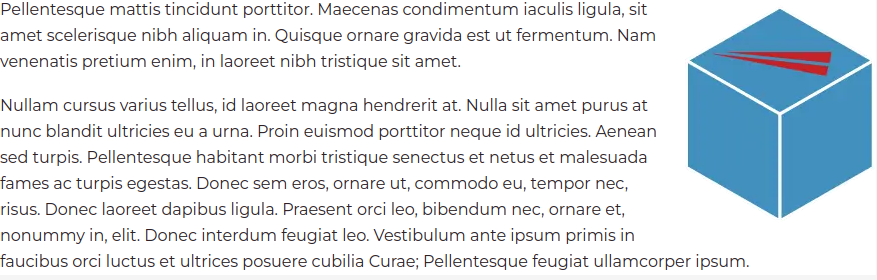
The following code floats an image to the right. Notice that the margin differs from the code used when an image is floating to the left.
```
```
## Floating Images Left Horizontally
This will use the same code as before (see below). The images are placed one after another to get them to float horizontally. Floating images in line with each other is another way to display your images as a gallery.


 ```
```
---
This concludes how to **align** and **float images** with **[CSS](https://developer.mozilla.org/en-US/docs/Web/CSS)**. Use these options to help create more informative and creative content by blending your text and images on your web pages.
[Join our community](/support/questions/) to receive specialized help with HTML and design, special hosting offers, and more! The next tutorial will show you how to make a simple [CSS Drop Down Menu](https://www.inmotionhosting.com/support/website/website-design/simple-css-drop-down-menu/). We also have a helpful article on [External, Internal, and Inline CSS styles](https://www.inmotionhosting.com/support/website/linking-your-css-to-your-website/).
Looking for more help with CSS? Check out our [introduction to CSS](/support/website/the-benefits-of-css/) guide!
**Professional Websites Without the Tech Headaches**
Our team will build a beautiful WordPress site and take care of updates, security, and maintenance – so you can focus on running your business.
[Let Us Handle It for You](https://www.inmotionhosting.com/services?mktgp=t&irgwc=1&affiliates=5001860&utm_campaign=Jumbotron&utm_source=supportcenter&utm_medium=cta&utm_term=pro-websites-cta3)
```
```

---
This concludes how to **align** and **float images** with **[CSS](https://developer.mozilla.org/en-US/docs/Web/CSS)**. Use these options to help create more informative and creative content by blending your text and images on your web pages.
[Join our community](/support/questions/) to receive specialized help with HTML and design, special hosting offers, and more! The next tutorial will show you how to make a simple [CSS Drop Down Menu](https://www.inmotionhosting.com/support/website/website-design/simple-css-drop-down-menu/). We also have a helpful article on [External, Internal, and Inline CSS styles](https://www.inmotionhosting.com/support/website/linking-your-css-to-your-website/).
Looking for more help with CSS? Check out our [introduction to CSS](/support/website/the-benefits-of-css/) guide!
**Professional Websites Without the Tech Headaches**
Our team will build a beautiful WordPress site and take care of updates, security, and maintenance – so you can focus on running your business.
[Let Us Handle It for You](https://www.inmotionhosting.com/services?mktgp=t&irgwc=1&affiliates=5001860&utm_campaign=Jumbotron&utm_source=supportcenter&utm_medium=cta&utm_term=pro-websites-cta3)