All of our servers check incoming email against the SpamCop RBL (Realtime BlackList.) If an IP address is listed in the RBL it is not allowed to send email to our servers. These emails are rejected and sent back to the sender telling them they are blocked. This is mandatory for all shared servers, but VPS and Dedicated servers have the option to disable the SpamCop check if they wish. Below we show you how to do that within the WHM.
How to disable the SpamCop RBL in WHM
- Log into your WHM.

Check under the Service Configuration section and click on the Exim Configuration Manager.
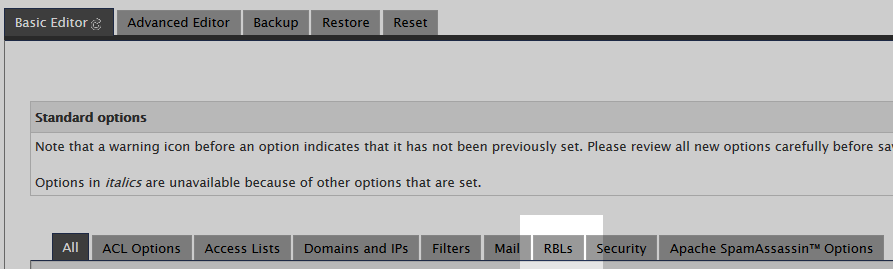
From the Exim Configuration Manager page, select the RBLs tab.
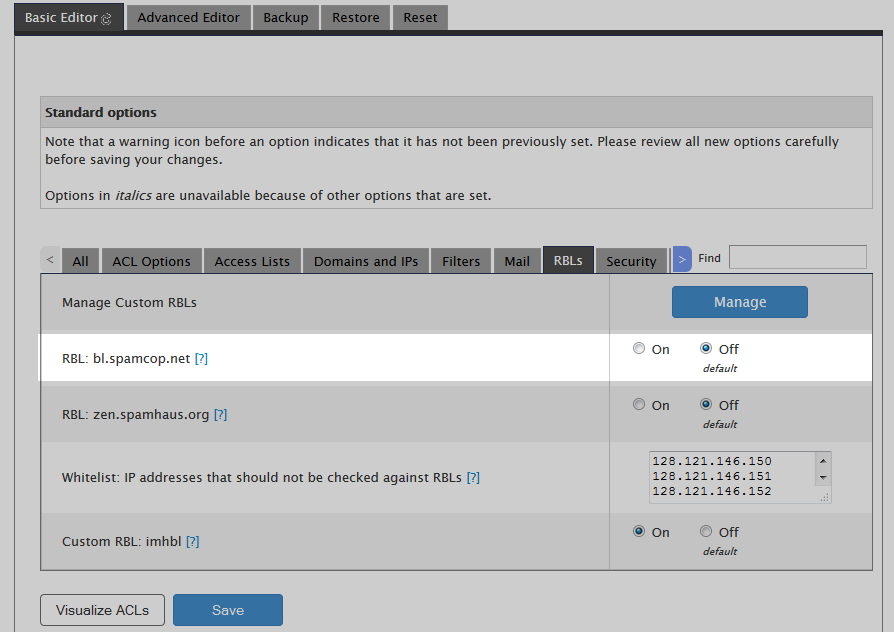
Here you will see the different RBL options. Locate the RBL: bl.spamcop.net option and set it to OFF
- Click on the Save button.
Now that you have disabled the SpamCop RBL all emails sent to your server will be received. You can always return later to re-enable this feature if you wish.