---
title: "HTTP Headers WordPress Plugin for Better Security"
description: "The HTTP Headers WordPress plugin allows WordPress Hosting administrators to create and manage HTTP headers to improve security, privacy, and performance for visitors without needing to manually edit..."
url: https://www.inmotionhosting.com/support/edu/wordpress/plugins/http-headers-security/
date: 2020-09-29
modified: 2023-10-13
author: "InMotion Hosting Contributor"
image: https://www.inmotionhosting.com/support/wp-content/uploads/2020/09/http-headers-wordpress-plugin.jpg
categories: ["WordPress Plugins"]
type: post
lang: en
---

# HTTP Headers WordPress Plugin for Better Security

![HTTP Headers - WordPress security plugin](https://www.inmotionhosting.com/support/wp-content/uploads/2020/09/wordpress-http-headers-1024x538.jpg)

The HTTP Headers WordPress plugin allows [WordPress Hosting](https://www.inmotionhosting.com/wordpress-hosting) administrators to create and manage HTTP headers to improve security, privacy, and performance for visitors without needing to manually edit the .htaccess file. This is useful for:

- Mitigating the possibility of making syntax mistakes within the .htaccess file which render the website inaccessible with an [500 error](https://www.inmotionhosting.com/support/website/error-numbers/500-internal-server-error/)
- Environments where you're unable to access raw server files via cPanel, FTP, or Secure Shell (SSH)
- Learning rarely discussed methods to help improve user experience (UX)

In this article, we'll discuss the most popular HTTP security headers available within the HTTP Headers WordPress plugin that can help you provide better security and privacy for visitors.

- [Install HTTP Headers WordPress Plugin](#install) wp:list /wp:list
  - [HTTP Strict Transport Security (HSTS)](#hsts)
  - [Referrer Policy](#refer)
  - [X-Frame-Options](#xframe)
- [Content Security Policy (CSP)](#csp) wp:list /wp:list
  - [Enable CSP](#enable-csp)
  - [CSP Report-Only](#report)
- [Permissions Policy](#permissions) wp:list /wp:list
  - [WordPress Security Tips](#tips)

## Install HTTP Headers WordPress Plugin

1. Install and activate the [HTTP Headers WordPress plugin](https://wordpress.org/plugins/http-headers/) using your WordPress dashboard or WP-CLI.
2. [Log into your WordPress dashboard](https://www.inmotionhosting.com/support/edu/wordpress/logging-into-wordpress-dashboard/).
3. On the left, hover over **Settings** and click **HTTP Headers** to get started.

### HTTP Strict Transport Security (HSTS)

You can add HTTP Strict Transport Security (HSTS) in your .htaccess file to ensure your WordPress content is encrypted when it reaches visitors. This forces web browsers that support HSTS to only load your website using a secure (HTTPS) connection.

You must have a valid paid, or free, SSL certificate installed on your website at all times when HSTS is enabled, or your website will become inaccessible.

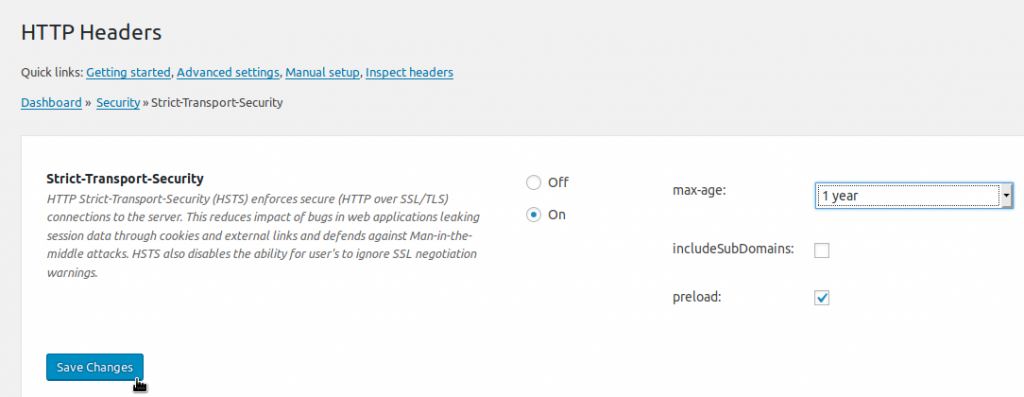
1. On the left, hover over **Settings** and click **HTTP Headers**.
2. Click the **Security **button.
3. Beside **Strict-Transport-Security**, click **Edit**.
4. Select the **On** radio button.
5. Specify the following: **max-age** - How long the header should be active **includeSubDomains** - Whether to apply HSTS to subdomains **preload** - Authorize preload listing (if eligible and desired)
6. Click **Save Changes**.
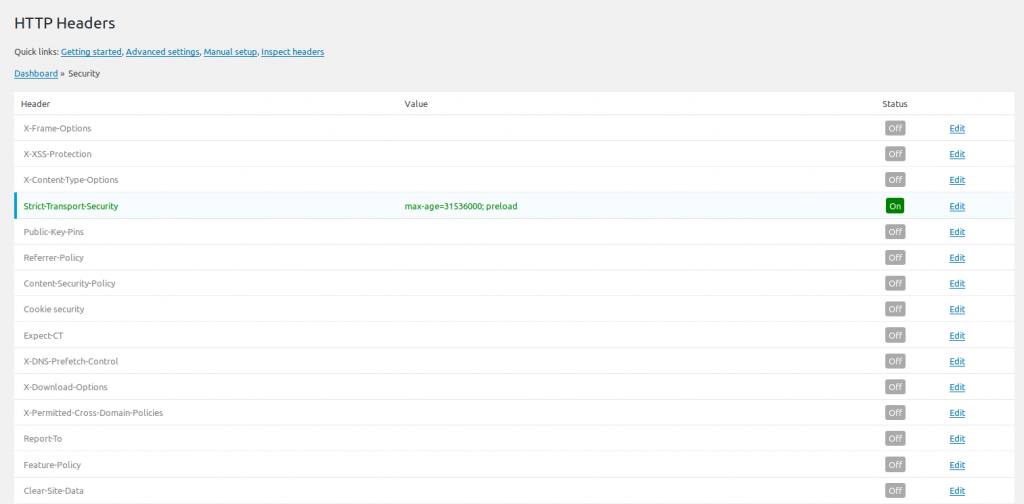
7. Click **Security** at the top to return to the security options.
![Strict-Transport-Security Settings Screen](https://www.inmotionhosting.com/support/wp-content/uploads/2019/10/http-headers-hsts-1024x397.png)

![Review Security Settings Screen](https://www.inmotionhosting.com/support/wp-content/uploads/2019/10/http-headers-hsts-enabled-1024x504.png)

Cloudflare content delivery network (CDN) users can save server resources by enabling HSTS in Cloudflare.

### Referrer Policy

The referrer-policy header controls what information is sent through the `referrer` header with URI requests. This prevents URLs with sensitive information from showing up in web analytics software logs which can be intercepted for cyber attacks later. For example, clicking links on a password reset page could send user credentials within the referrer URL.

1. On the left, hover over **Settings** and click **HTTP Headers**.
2. Click the **Security **button.
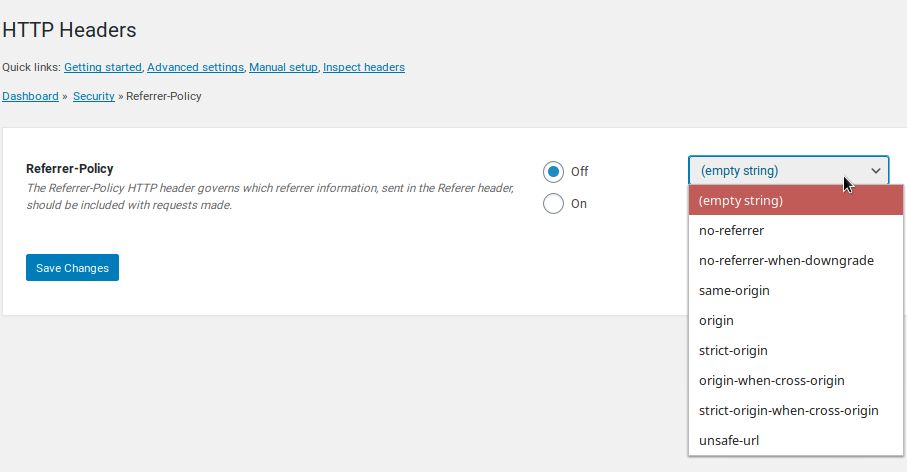
3. Beside **Referrer-Policy**, select **Edit**.
4. Click the **On** button.
5. Choose a policy option from the drop-down menu: **empty string** - No preference **no-referrer** - No referrer info sent **no-referrer-when-downgrade** - Full URL sent unless leaving an HTTPS page for a HTTP page (default behavior if no policy specified) **same-origin** - Only origin (root domain - e.g. example.com instead of example.com/privacy-policy) for within the same site **origin** - Only origin **strict-origin** - Origin only when protocol security level is the same (e.g. HTTPS to HTTPS) **origin-when-cross-origin** - Full URL for within the same site, but only origin for others **strict-origin-when-cross-origin** - Full URL when within site, only origin when protocol security level is the same (e.g. HTTPS to HTTPS), and no info from HTTPS to HTTP **unsafe-url** - Full URL (not recommended)
6. **Save Changes**.
![Referrer-Policy Settings Screen](https://www.inmotionhosting.com/support/wp-content/uploads/2019/12/http-headers-referrer-policy.png)

### X-Frame-Options

X-Frame-Options specifies whether your WordPress website can be displayed within other websites with `<frame>`, `<iframe>, <object>`, or `<embed>` tags. Enabling this feature will create a `Header set X-Frame-Options ""` line within your .htaccess file for security against clickjacking.

1. In the WordPress dashboard, hover over **Settings** and click **HTTP Headers**.
2. Click the **Security **button.
3. Beside **X-Frame-Options**, click **Edit**.
4. Click **On** and specify an option from the drop-down menu: **DENY** - webpages cannot be displayed in a frame **SAMEORIGIN** - webpages can be framed *in the same webpage* **ALLOW-FROM** - webpages can be framed *within the same URI*; doesn't work in newer browsers
5. Click **Save Changes**.
6. Click **Security** at the top to return to the security options. You'll see your specified option on the *X-Frame-Options* line.

![X-Frame-Options Settings Screen](https://www.inmotionhosting.com/support/wp-content/uploads/2019/11/http-headers-x-frame-options.png)

Mozilla recommends using the superseding Content Security Policy `frame-ancestors` attribute instead of X-Frame-Options when possible.

## Content Security Policy (CSP)

The HTTP Headers WordPress plugin makes it easier to configure `content-security-policy` for WordPress hardening. The `Header set Content-Security-Policy` line forces web browsers to only load what's specified within it. Think of CSP as a *code firewall*. No matter what code is in that webpage, the browser is only allowed to load what's specified within your CSP header.

There are two steps to success with CSP: configure Content Security Policy and enable reporting for debugging and proper implementation.

### Enable CSP

1. On the left, hover over **Settings** and click **HTTP Headers**.
2. Click the **Security **button.
3. Beside **Content-Security-Policy**, select **Edit**.
4. Click **On** and specify what can be loaded on your website from where.
5. **Save Changes** at the bottom.

![Content-Security-Policy Settings Screen](https://www.inmotionhosting.com/support/wp-content/uploads/2019/11/http-headers-csp-report-only-self-1-1024x928.png)*Example CSP settings with Report-Only for debugging.*

### CSP Report-Only

The safest way to configure Content Security Policy is to enable **Report-Only** from the top of the screen. This shows elements on the website that wouldn't be loaded if CSP was enabled *and enforced*. You can view this in your web browser.

1. Go to the **Edit** page for Content-Security-Policy.
2. Check **“Report-Only” (for reporting-only purposes)** from the top of the screen.
3. Check **'self'** for any values you want to better secure.
4. **Save Changes** at the bottom.
5. View your website.
6. Open your web browser's **Inspect Element** feature.
7. Check the **Console** tab to see what's being flagged by CSP.
8. Make changes as needed.

Once all errors and warnings are removed, test your site by unchecking the **Report-Only** option.

![Chrome Console Error Messages](https://www.inmotionhosting.com/support/wp-content/uploads/2019/12/http-headers-csp-inspect-element-1024x495.png)

CSP attributes and related tools:

- `require-sri-for` - [Subresource Integrity (SRI) Manager WordPress plugin](https://www.inmotionhosting.com/support/edu/wordpress/subresource-integrity-sri-wordpress/)
- `block-all-mixed-content` and `upgrade-insecure-requests` - [Really Simple SSL WordPress plugin](https://www.inmotionhosting.com/support/edu/wordpress/how-to-install-wp-really-simple-ssl-plugin/)

## Permissions-Policy

Permissions Policy, formally called *Feature Policy*, blocks unnecessary web browser features (e.g. video autoplay, camera, MIDI, and microphone) to enhance user privacy.

1. On the left, hover over **Settings** and click **HTTP Headers**.
2. Click the **Security **button.
3. Beside **Permissions-Policy**, select **Edit**.
4. Click **On**.
5. Check the box for each feature you'll include in the policy, the access list, and external domains as needed: `'none'` - disabled `'self'` - allowed only from same domain `*` - allowed `origin(s)` allowed only from specified domains (separated by a comma)
6. Click **Save Changes**.

![Permissions-Policy Settings Screen](https://www.inmotionhosting.com/support/wp-content/uploads/2020/09/http-headers-permissions-policy-1024x780.png)

### WordPress Security Tips

You can test your website security with third party security scanners, including Observatory.Mozilla.org and SecurityHeaders.com.

If you'd like to keep your WordPress site minimal, you can copy the HTTP headers in your .htaccess file outside of the plugin's configuration section. Then, you can remove the HTTP Headers plugin and keep the settings. However, you'd then need to manually edit the .htaccess file next time you need to make changes.

To further harden WordPress, install Block Bad Queries (BBQ) and a WordPress security suite such as Cerber Security or Wordfence. Then learn how to build a more secure WordPress website with these [free cybersecurity tools](https://www.inmotionhosting.com/blog/8-free-cybersecurity-tools-to-secure-your-server/).
