---
title: "Adding an External Link to the Menu in Movable Type"
description: "In this tutorial, we will show you how to add a link to an external site in your website's menu in Movable Type. For example, you may want a link to have a major search engine. How to Add an..."
url: https://www.inmotionhosting.com/support/edu/movable-type/external-link/
date: 2013-03-08
modified: 2024-03-11
author: "InMotion Hosting Contributor"
categories: ["Movable Type"]
type: post
lang: en
---
# Adding an External Link to the Menu in Movable Type
[](/support/wp-content/uploads/2013/03/movable-type_outside-links.png)
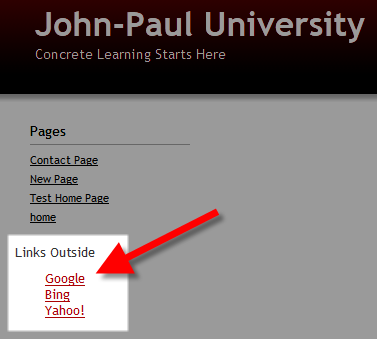
In this tutorial, we will show you how to add a link to an external site in your website’s menu in Movable Type.
For example, you may want a link to have a major search engine.
## How to Add an External Link:
1. [Login to the Movable Type Dashboard](/support/edu/movable-type/moveable-type-admin/).
2. Click the **Design** link, then click **Widgets**.
3. Under the *Widget Templates* option, click the **Create widget template** option.
4. Give the widget a name, then in the body enter the HTML for the links you want. Below is an example: External Links
- Google
](https://google.com">Google
5. Click the **Save** **Changes** button, then click the **Widgets** link in the menu.
6. Under *Widget Sets*, click the click the layout option you want to add the Widget Template you just created to. In my tests I want the links on the left, so I chose **3-column layout – Primary Sidebar**.
7. Drag the Widget you just created to the *Installed Widgets* list on the right. They display in the order listed. Then click the **Save Changes** button. You will then see the widget displayed with the external links.
Congratulations, now you know how to add a link to an external website to your Movable Type site.