---
title: "Editing the Footer Banner module text in Movable Type"
description: "By default the Movable Type site will have their branding at the bottom of the footer. In order to remove the branding from the footer and add your own site copyright information, you will need to..."
url: https://www.inmotionhosting.com/support/edu/movable-type/edit-footer-banner-module/
date: 2013-03-08
modified: 2021-08-16
author: "InMotion Hosting Contributor"
categories: ["Movable Type"]
type: post
lang: en
---
# Editing the Footer Banner module text in Movable Type
[](/support/wp-content/uploads/2013/03/edu_mt_103_edit-footer_edit-footer-1-default-text.gif)
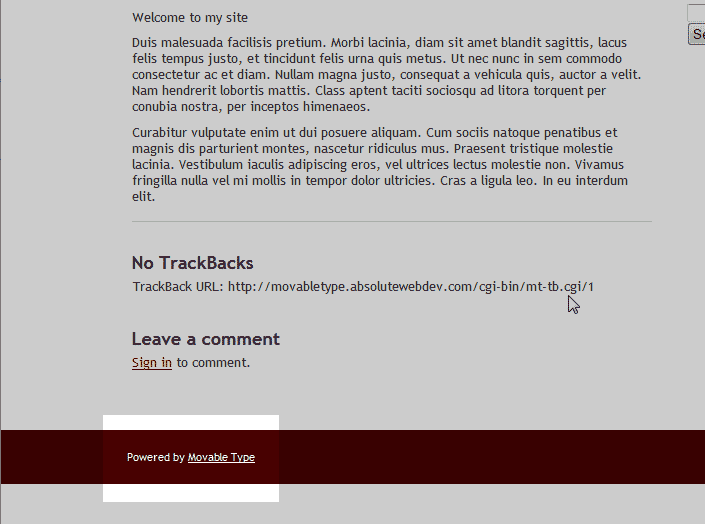
By default the Movable Type site will have their branding at the bottom of the footer. In order to remove the branding from the footer and add your own site copyright information, you will need to edit the Template Modules. Below will explain how to edit the footer in your Movable Type site.
## Steps to edit the footer
1. [Log into your Movable Type Dashboard](/support/edu/movable-type/moveable-type-admin/).
2. [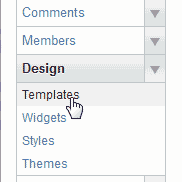](/support/wp-content/uploads/2013/03/edu_mt_103_edit-footer_edit-footer-2-templates.gif) Go to Design and click **Templates**.
3. [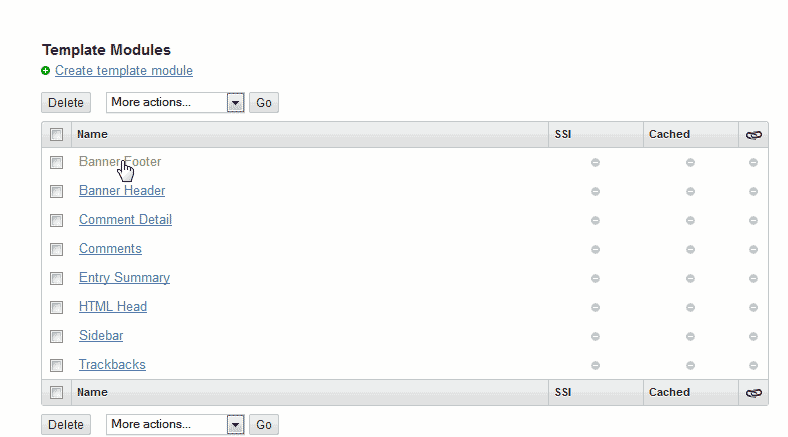](/support/wp-content/uploads/2013/03/edu_mt_103_edit-footer_edit-footer-3-banner-footer.gif) Select **Banner Footer** in the “*Template Modul*e” list.
4. [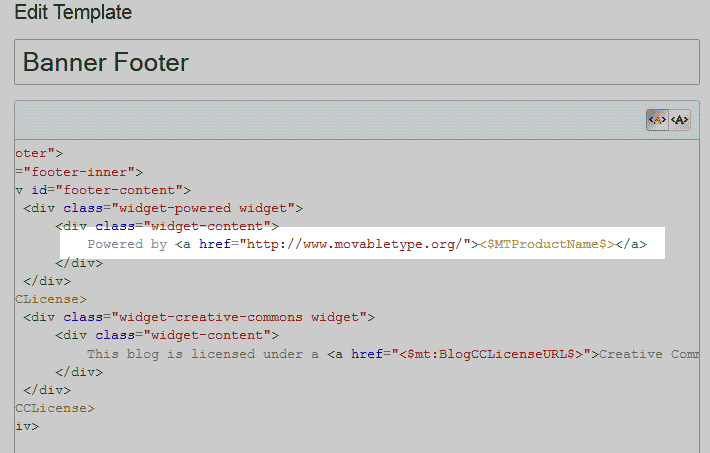](/support/wp-content/uploads/2013/03/edu_mt_103_edit-footer_edit-footer-4-code.gif) Find the code you want to change. In this case its the following code: (See image to the right) Powered by <$MTProductName$> [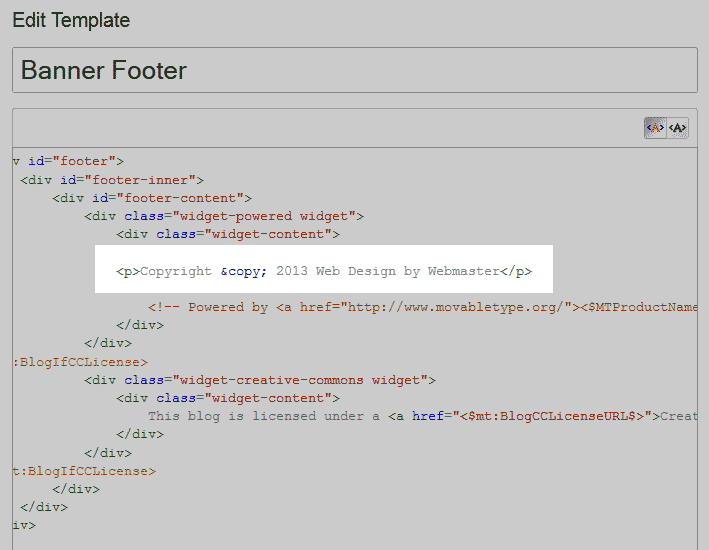](/support/wp-content/uploads/2013/03/edu_mt_103_edit-footer_edit-footer-5-add-new-code.gif) We will [comment this code ](/support/website/comment-php-javascript-html-css-code/)or you can just delete it. Then place you own footer text. The below code is what we will place in this example. Copyright © 2013 Web Design by Webmaster
**Save** the changes.
5. [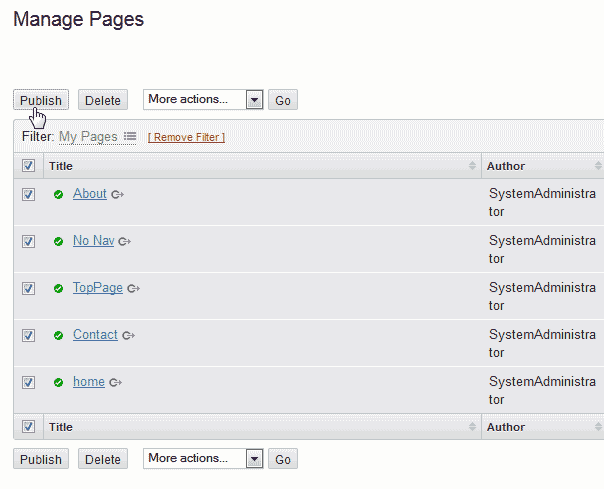](/support/wp-content/uploads/2013/03/edu_mt_103_edit-footer_edit-footer-6-publish.gif) Go to your pages and **publish** them all. [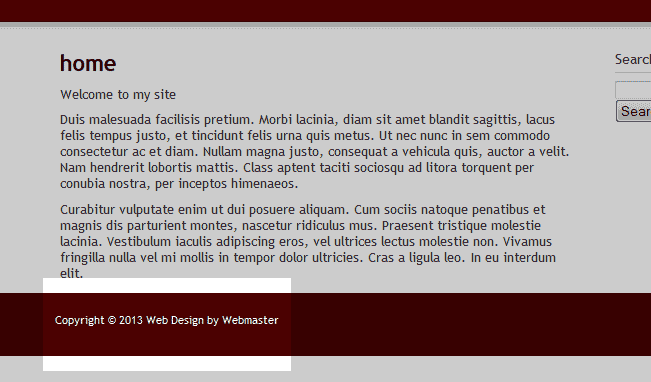](/support/wp-content/uploads/2013/03/edu_mt_103_edit-footer_edit-footer-7-new-footer-text.gif) Now you will have your own copyright text at the bottom of the site.