---
title: "Inserting an image slider in Moodle"
description: "Moodle does not have a built in slider available in the Moodle plugins, so, in order to add a slider, you will need to code it into your page using jQuery. There are many free jQuery plugins you can..."
url: https://www.inmotionhosting.com/support/edu/moodle/image-slider-moodle-jquery/
date: 2013-02-15
modified: 2023-06-19
author: "InMotion Hosting Contributor"
categories: ["Moodle"]
type: post
lang: en
---
# Inserting an image slider in Moodle
Moodle does not have a built in slider available in the Moodle plugins, so, in order to add a slider, you will need to code it into your page using jQuery. There are many free jQuery plugins you can use to get a slider working. In this tutorial we will use the [Simple jQuery slider](https://basic-slider.com/). The jQuery plugin is available at the following url.
`https://github.com/jcobb/basic-jquery-slider/zipball/master`
After you get the plugin zip file named `jcobb-basic-jquery-slider-8ffe118.zip` you will be able to upload the files necessary for the slider to work. Below are the steps to insert the Simple slider in your Moodle site.
**Important!** This tutorial explains how to add the jQuery slider in the AfterBurner theme. The steps are basicaly the same for the other themes as well.
## Adding the Simple jQuery slider to Moodle
1. [Upload the slider zip file](/support/website/how-to-edit-a-file/) to the theme folder. In this case the afterburner theme is in the `/theme/afterburner` directory.
2. [Extract the .zip file](/support/edu/cpanel/compressing-uncompressing-files/) so the files are in the directory like the snapshot to the right.
3. [Edit](/support/website/how-to-edit-a-file/) the following files in your Moodle theme files.`/theme/afterburner/layout/default.php /theme/afterburner/layout/embedded.php` Paste the following code in the head section of your theme files.` ` **Important!** Make sure you make the links in your code go to your server location with the URL. Instead of : `` You will need to reference your files like this: `` Save the changes.
4. [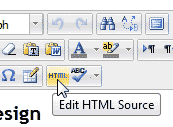](/support/wp-content/uploads/2013/02/edu_moodle_301_add-slider-jquery-3-edit-html.gif) [Log into Moodle.](/support/edu/moodle/moodle-login-administrator/) Edit the page you want the slider to show up on. Click the Edit HTML Source button in the WYSIWYG editor.
5. [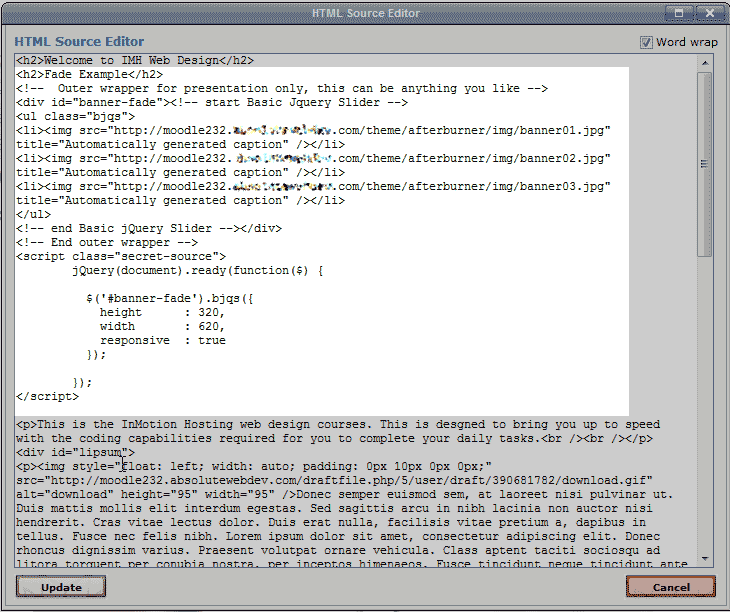](/support/wp-content/uploads/2013/02/edu_moodle_301_add-slider-jquery-4-add-html.gif) Paste the following code into your page where you want the slider to show. `
` **Important!** Make sure you make the links in your code go to your server location with the URL and that your images are stored in the `theme/afterburner/img` folder location. Instead of : `src="img/banner03.jpg"` You will need to reference your files like this: `src="https://example.com/theme/afterburner/img/banner03.jpg"` If not the images will not load. Save the files. [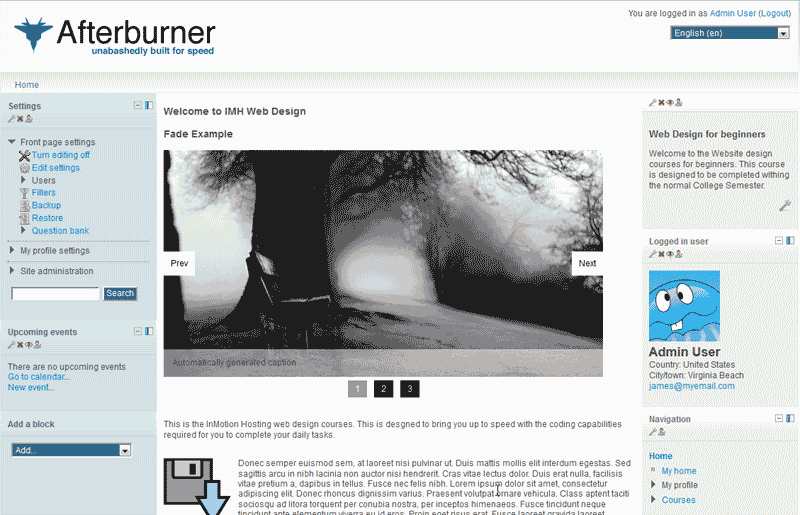](/support/wp-content/uploads/2013/02/edu_moodle_301_add-slider-jquery-6-final-view.gif) Now your Moodle will have a slider with your images on it.


