---
title: "How to format content in MediaWiki"
description: "After you learn how to create and edit pages in MediaWiki, you will want to add and format the content in your wiki site. This article is not an exhaustive resource for formatting content in..."
url: https://www.inmotionhosting.com/support/edu/mediawiki/formatting-text-mediawiki/
date: 2013-01-09
modified: 2021-08-16
author: "InMotion Hosting Contributor"
categories: ["MediaWiki"]
type: post
lang: en
---
# How to format content in MediaWiki
After you learn how to [create](/support/edu/mediawiki/create-edit-delete-pages/) and [edit](/support/edu/mediawiki/edit-format-mediawiki-content/) pages in MediaWiki, you will want to add and format the content in your wiki site. This article is not an exhaustive resource for formatting content in MediaWiki and will only touch on the basic functions like bold, headline, and numbering the text.
## Wiki format editing functions
Editing a MediaWiki site is much different than your standard CMS program. Wiki code is designed specifically to use special characters format text in the content. The following section will explain the formatting options available in MediaWiki and what their functions are.
1. [Log into MediaWiki](/support/edu/mediawiki/login-username-password/)
2. [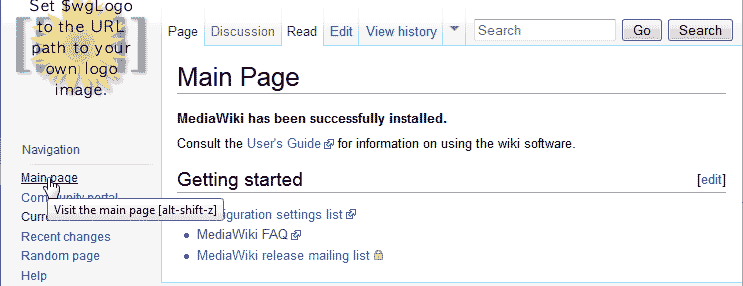](/support/wp-content/uploads/2013/01/edu_mediawiki_101_create-edit-pages_default-main-page-mediawiki.gif)**Click** the **Main Page **link. The Default Main Page will look like the snapshot to the right. Clicking the edit button will load the Edit capabilities. **Click Edit**. The following table will explain what code and what each formatting option is used for. MediaWiki Formatting Options Bold [](/support/wp-content/uploads/2013/01/edu_mediawiki_101_create-edit-pages_button_bold.png)Bolds text. **Code syntax:** '''Bold text''' Italic [](/support/wp-content/uploads/2013/01/edu_mediawiki_101_create-edit-pages_button_italic.png)Makes Text Italic. **Code syntax:** ''Italic text'' Internal Link [](/support/wp-content/uploads/2013/01/edu_mediawiki_101_create-edit-pages_button_link.png)Creates pages and links to internal pages. **Code syntax:** [] External link [](/support/wp-content/uploads/2013/01/edu_mediawiki_101_create-edit-pages_button_extlink.png)External Link. Must contain the https:// prefix. **Code syntax:** Level 2 Headline [](/support/wp-content/uploads/2013/01/edu_mediawiki_101_create-edit-pages_button_headline.png)Separates sections and labels as a Header. **Code syntax:** == Headline text == Ignore Wiki Formatting [](/support/wp-content/uploads/2013/01/edu_mediawiki_101_create-edit-pages_button_nowiki.png)Negates any code that may contain Wiki formatting. **Code syntax:** Insert non-formatted text here Signature [](/support/wp-content/uploads/2013/01/edu_mediawiki_101_create-edit-pages_button_sig.png)Adds Your signature with timestamp to your talk. **Code syntax:** --~~~~ Horizontal line [](/support/wp-content/uploads/2013/01/edu_mediawiki_101_create-edit-pages_button_hr.png)Adds a Horizontal line to separate content MediaWiki says to use this sparingly. **Code syntax:** ----
## Bolding and Headlining text in MediaWiki
1. [Log into MediaWiki](/support/edu/mediawiki/login-username-password/).
2. **Select the page** you want to add content to or create a new page and edit the content.
3. [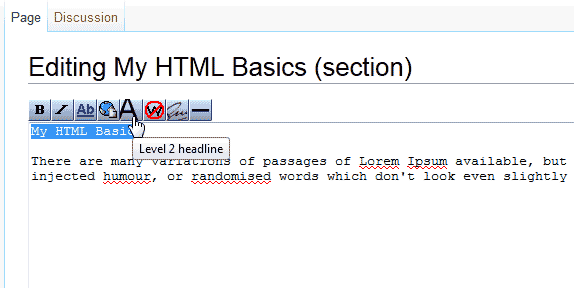](/support/wp-content/uploads/2013/01/edu_mediawiki_102_formatting-content_format-text-mediawiki-1-headline.gif)**Enter text** for the headline. **Highlight** the text and **click the Level 2 Headline**icon. MediaWiki will render that text as a headline.
4. [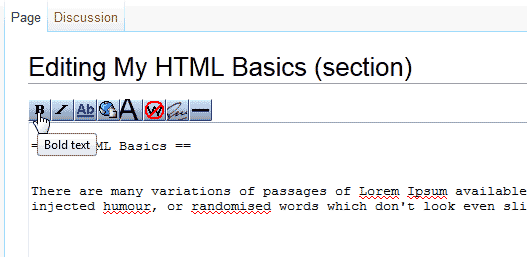](/support/wp-content/uploads/2013/01/edu_mediawiki_102_formatting-content_format-text-mediawiki-2-bold-text.gif)**Add text** and **highlight text** to make the text bold. **Click the Bold Icon**in the editor. This text will now be bolded. [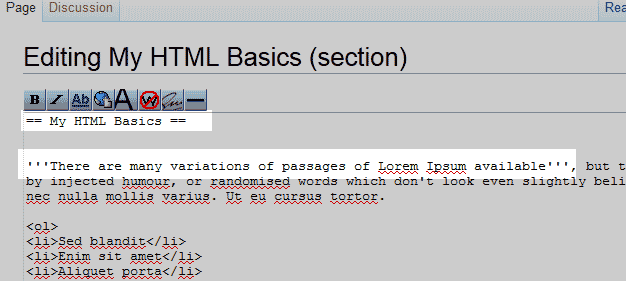](/support/wp-content/uploads/2013/01/edu_mediawiki_102_formatting-content_format-text-mediawiki-3-bold-headline-view.gif)The code for the bold and headline will look like the image to the right. [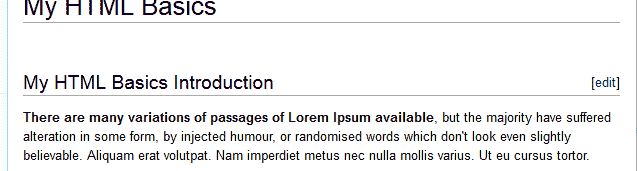](/support/wp-content/uploads/2013/01/edu_mediawiki_102_formatting-content_format-text-mediawiki-4-users-view.gif)The view the user will see looks like the snapshot to the right.
## How to make a numbered list
1. [Log into MediaWiki](/support/edu/mediawiki/login-username-password/) and select the page to add the numbered list to.
2. [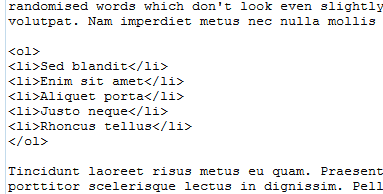](/support/wp-content/uploads/2013/01/edu_mediawiki_102_formatting-content_format-text-mediawiki-5-ordered-list.gif)MediaWiki does not have a bulleted or numbered list code in the editor so the HTML code will need to be used. **Add the following code to your page.** **For a numbered list add the following:** - First
- Second
- Third
- Forth
- Fifth
**For a bulleted list add the following:** - First
- Second
- Third
- Forth
- Fifth
Just change the First, Second, Third, etc. with your bulleted or numbered points.
3. [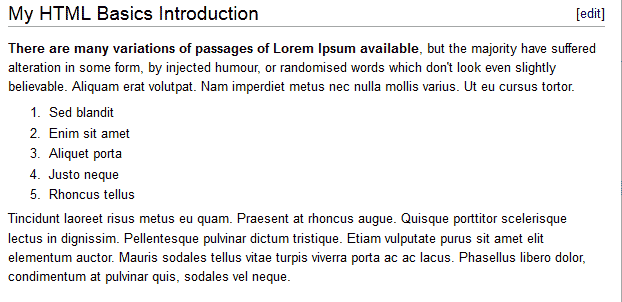](/support/wp-content/uploads/2013/01/edu_mediawiki_102_formatting-content_format-text-mediawiki-6-user-list-view.gif)**Save the page** and the numbered list will look like the snapshot to the right..
## How to create subsections in a wiki page
1. [Log into MediaWiki](/support/edu/mediawiki/login-username-password/) and navigate to the page you want to add a subsection to.
2. [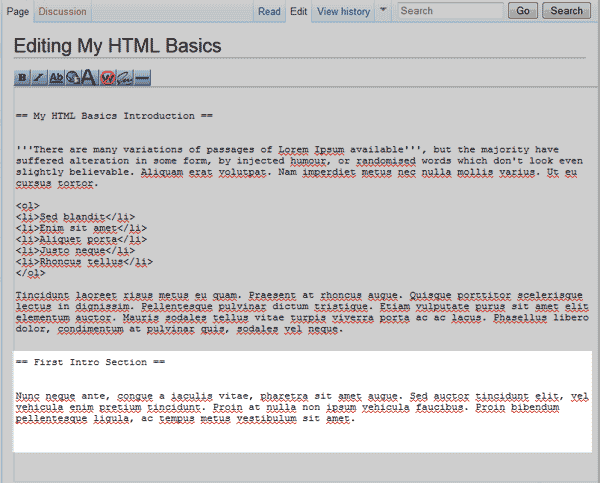](/support/wp-content/uploads/2013/01/edu_mediawiki_102_formatting-content_format-text-mediawiki-7-add-section.gif)**Enter the text** for your subsection and **apply the Level 2 Heading to it**. Add text below the second header you created for the subsection.
3. [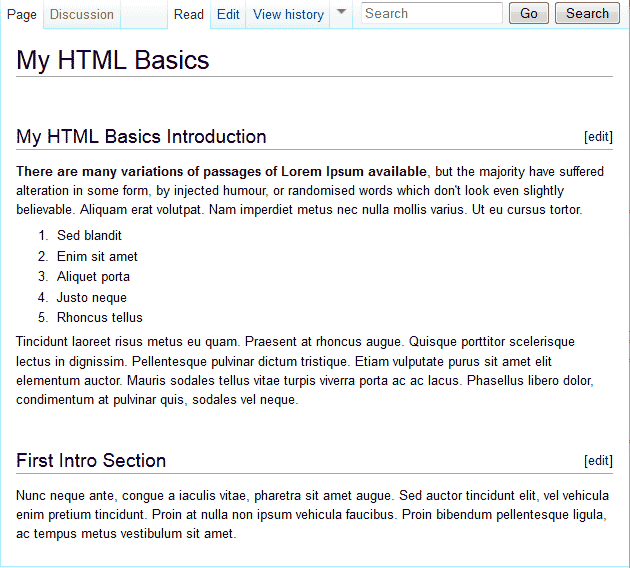](/support/wp-content/uploads/2013/01/edu_mediawiki_102_formatting-content_format-text-mediawiki-8-added-action-preview.gif)**Save the page **and you will see a second section with sub content in the page. See image to the right.