---
title: "How to Edit HTML Code in cPanel"
description: "It's inevitable that you will have to edit HTML code for your website. Maybe you need to update the path for an image or change the paragraph text on your website, for example. If you have minor..."
url: https://www.inmotionhosting.com/support/edu/cpanel/file-manager-code-editor/
date: 2021-08-11
modified: 2025-12-31
author: "InMotion Hosting Contributor"
categories: ["cPanel"]
type: post
lang: en
---
# How to Edit HTML Code in cPanel

It’s inevitable that you will have to edit HTML code for your website. Maybe you need to update the path for an image or change the paragraph text on your website, for example. If you have minor changes to make that can be done quickly, you can use the HTML Editor in the cPanel File Manager to change the code. This is called “*Editing on the fly*“, which is changing the files of the source website while it’s live. Let’s go to the File Manager and see how this cPanel code editor works.
**Important!** Editing the code in a file on the server can break your website if you do not know what you are doing. Because the file is being used by the live website, we always recommend editing a backup copy of the file instead of the files on the server. Make a backup copy of the file before editing it by right-clicking the file, selecting the **Copy** option, then entering a new file location. You can also edit a file using [FTP](https://www.inmotionhosting.com/support/website/ftp/getting-started-guide/), or [create a clone of your site for testing using Softaculous](https://www.inmotionhosting.com/support/product-guides/softaculous/cloning-your-site/).
## Edit HTML Code in cPanel
1. [Login to your cPanel](https://www.inmotionhosting.com/support/edu/cpanel/how-to-log-into-cpanel/).
2. Go to the [File Manager](https://www.inmotionhosting.com/support/edu/cpanel/using-file-manager-in-cpanel/) in the *Files* section.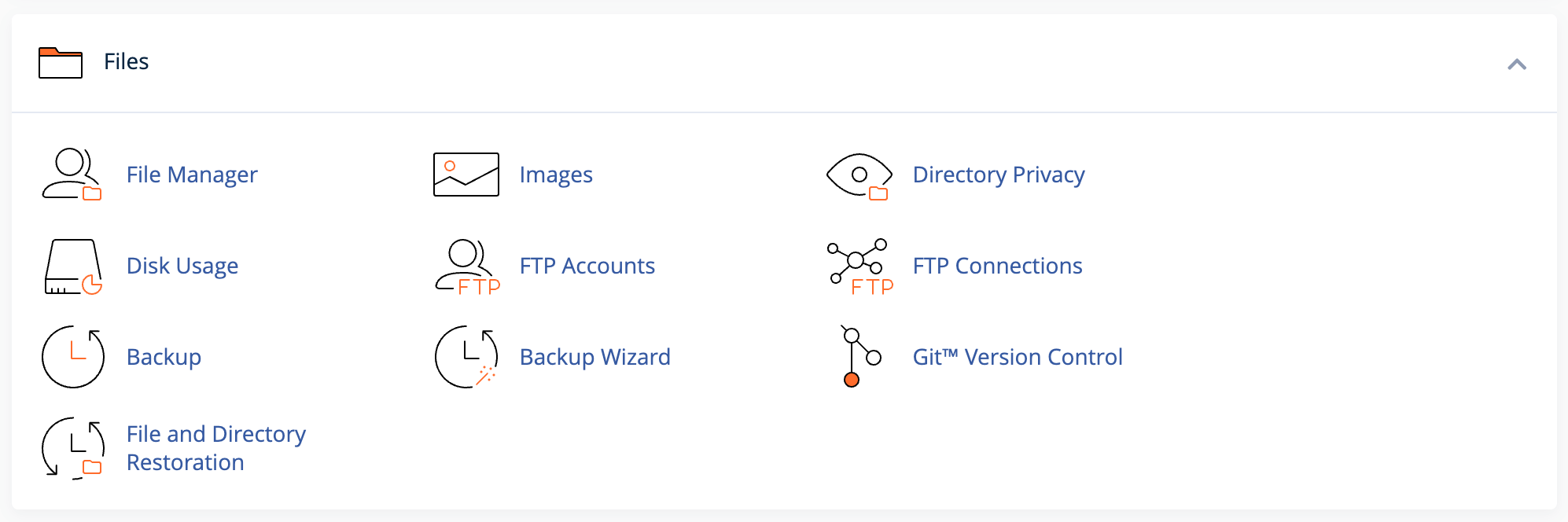
3. Navigate to the HTML page you want to edit. 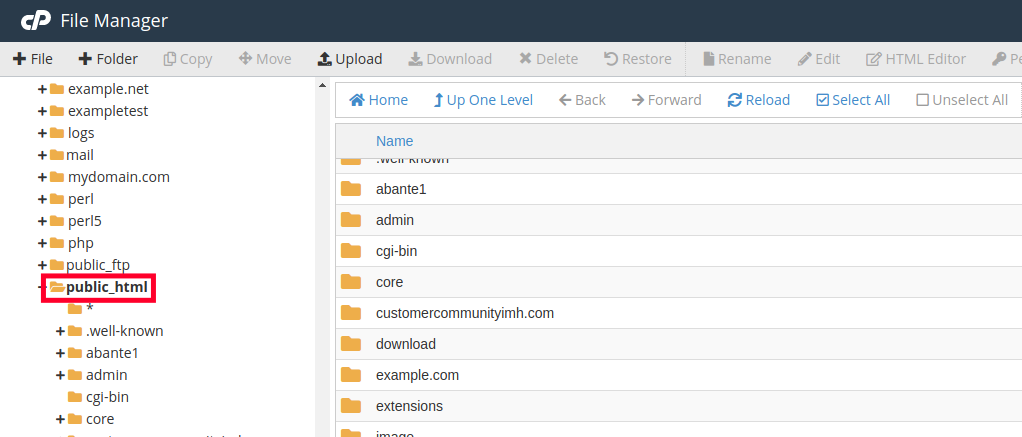
4. Right-click the file and choose the HTML Edit option. You can also select the file and click the **HTML Editor** link on top. 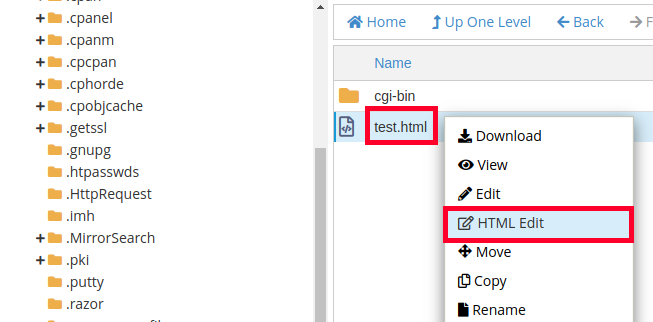
5. Now you should see the HTML Editor interface. You can make changes to the page using the *visual* editor and top toolbar.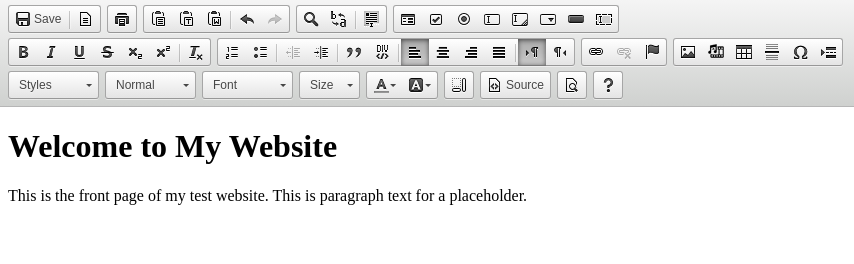
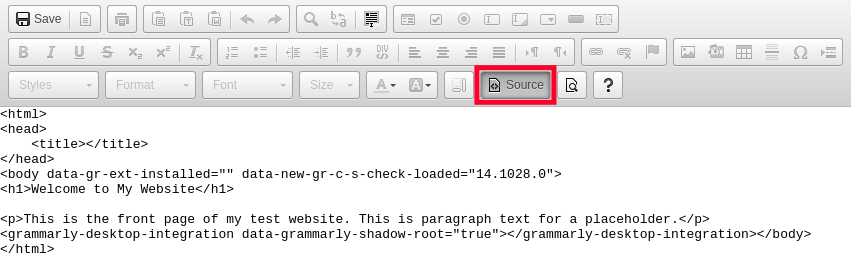
6. You can also click the **Source** button to add code or change code in your file.
7. If you see a pop-up message, read the warning then click the **Edit** button.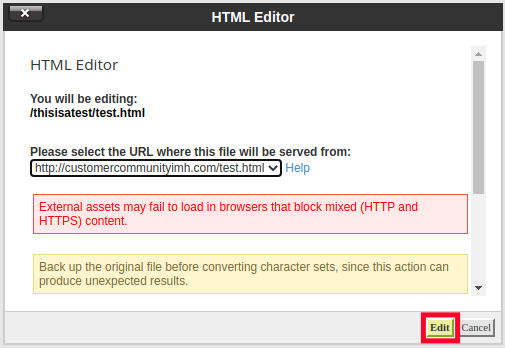
8. When you are done making the changes, you can click **Save** on the top left.
## HTML Editor Features
Now that you know how to use the HTML editor in the cPanel File Manager, we will go over the features that are included.
| Tool | Description |
| --- | --- |
| Text Editor | This is the actual place where the editing occurs. This is the main view of the HTML Editor. 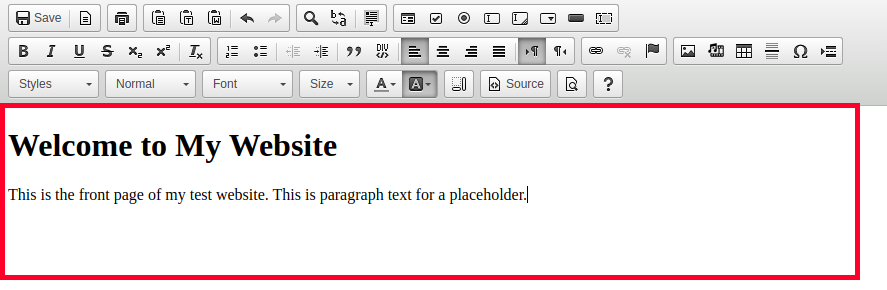 |
| Paste Tools | These tools can be used to insert or paste it into the cPanel code editor. This can save you time when you are copying text from another location or moving text around the page. 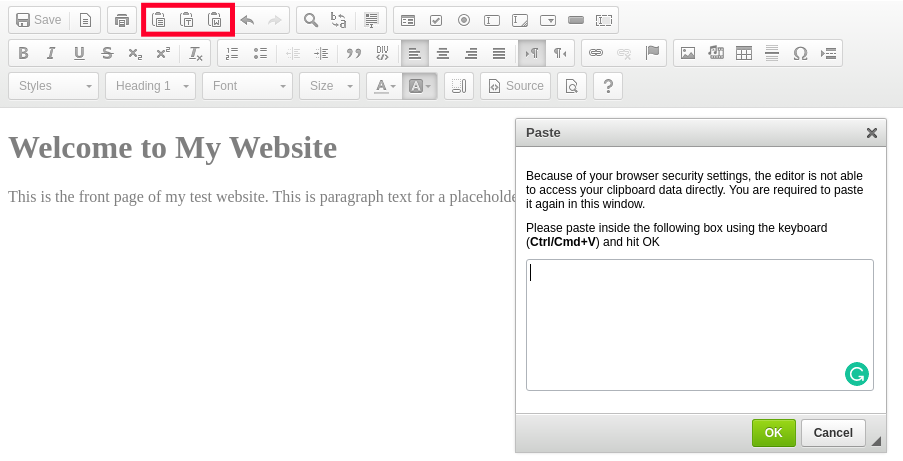 |
| Find & Replace Tools | These buttons can be used for locating specific lines of code or text and replacing them with different text. This is handy for making multiple changes to the same code. 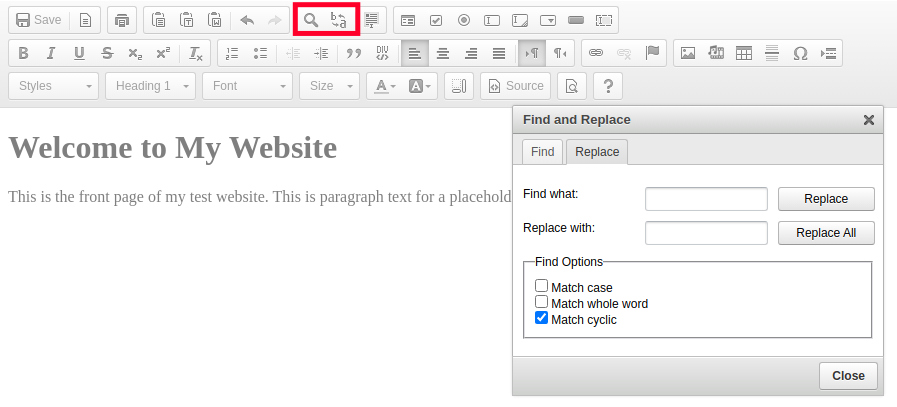 |
| Element Buttons | |
| Text/Styling Tools | The text and styling tools are used for customizing text. For example, you can choose a “Header 1” option to insert a header on the page. Then change the font and size of the paragraph content contained on the page. 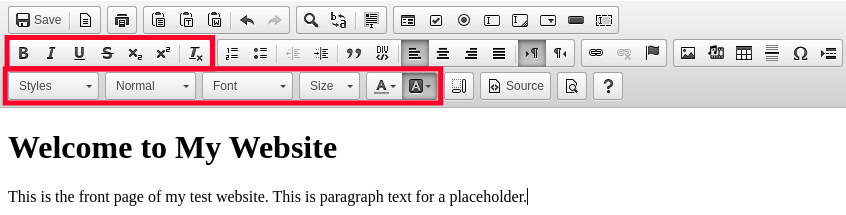 |
| Link/Anchor Buttons | You can use the link button for easily creating hyperlinks to other pages or sites. The Anchor buttons can be used to link to a specific section of a page.  |
| Media/Special Character Buttons | These buttons can help you add components to your web page. For example, you can easily insert images, embed media, add tables, and special characters. 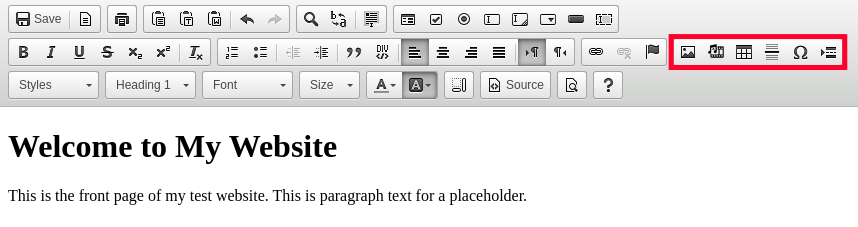 |
| | |
Also, keep in mind that you can click the **Source** button at any time to edit the code directly, without using the toolbar.
Now you know how to edit HTML code in cPanel! You can begin making changes to your website on the fly. Check out our [cPanel Education Channel](https://www.inmotionhosting.com/support/edu/cpanel/) for more helpful tutorials.
**Reliable Shared Hosting for Growing Businesses**
Get the performance your business website demands with NVMe SSD storage, industry-standard cPanel management, and direct access to hosting experts whenever you need assistance.
Free Website Migration 24/7 Human Support 100% Money-Back Guarantee
[Shared Hosting](https://www.inmotionhosting.com/shared-hosting?mktgp=t&irgwc=1&affiliates=5001860&utm_campaign=Jumbotron&utm_source=supportcenter&utm_medium=cta&utm_term=shared-cta2)