In this tutorial we will walk you through the basic steps to creating a Google Analytics account. In the following article, we will show you how to install Google Analytics.
Google Analytics is a free tool offered to webmasters to monitor and provide statistical data on the web traffic coming to your domain. With Google Analytics you can measure your marketing efforts easily.
Visit the link: https://www.google.como/analytics/ and click on the link “Sign Up Now“.

First, you will need to create an account to access Google Analytics with. If you already have a Google Account you do not need to create a new one. You can simply use your existing Google Analytics account to sign into and start using GA.
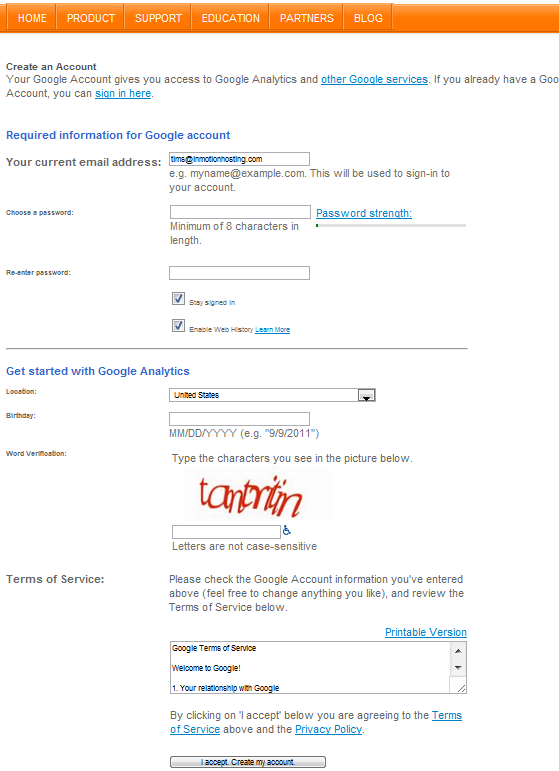
Once you are finished filling in the information, click the button at the bottom labeled ” I accept, Create my account.” Once your account has been created you can then login to your account. You are now asked to verify the account. Google will send you a verification email to ensure the email address you are using is functional. Once you have the email, click on the verification link in that email.
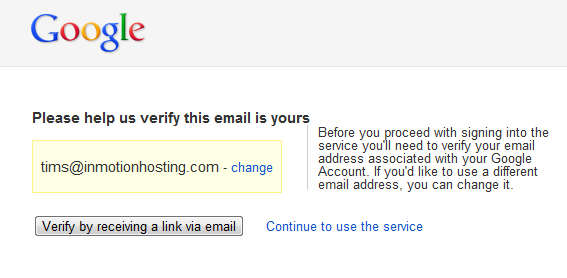
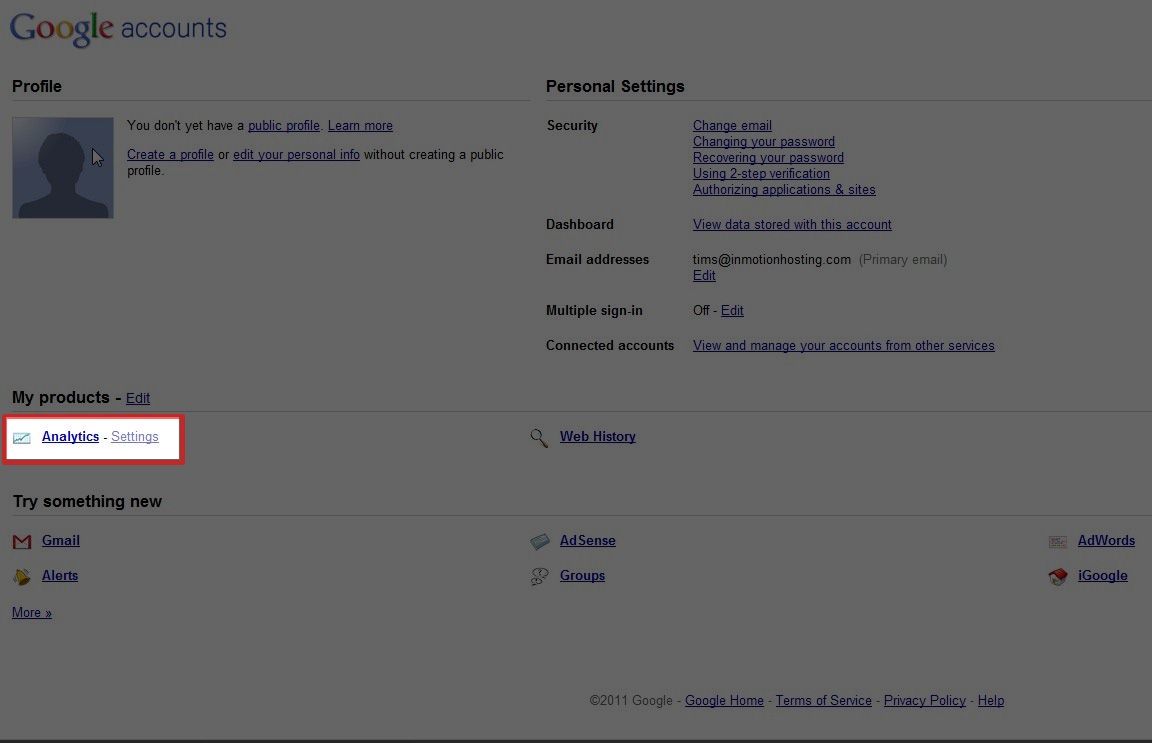
Next, since you have verified your account, you can begin to use it. Once clicking on the click in the verification email you will see the screen below. On this screen you will want to select the Analytics link in the “My Products” section:
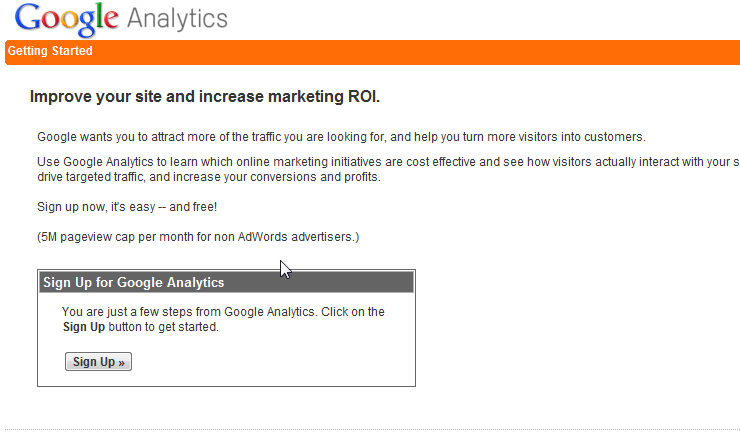
The next screen will prompt you to sign up for Google Analytics. Click the “Sign Up” button.
You will need to fill out some basic information for Google. Once you have filled out the information click “Continue“.
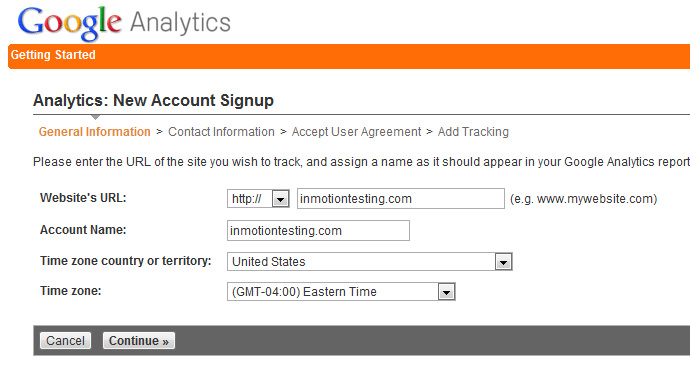
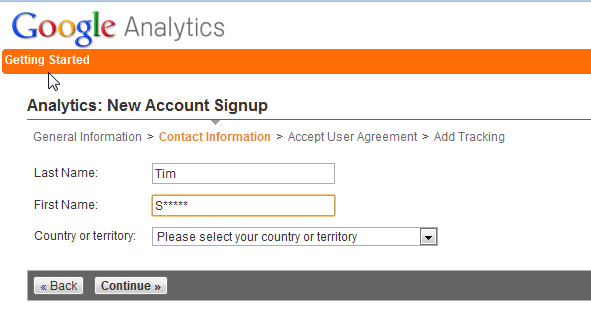
Enter your first and last name as well as the country you are located in:
Now, you have to agree to the Google Analtyics Terms of Service. Read through the document carefully. Please keep in mind InMotion Hosting is not related to Google in any way. We do not offer support outside of this documentation for Google Analytics in any way.
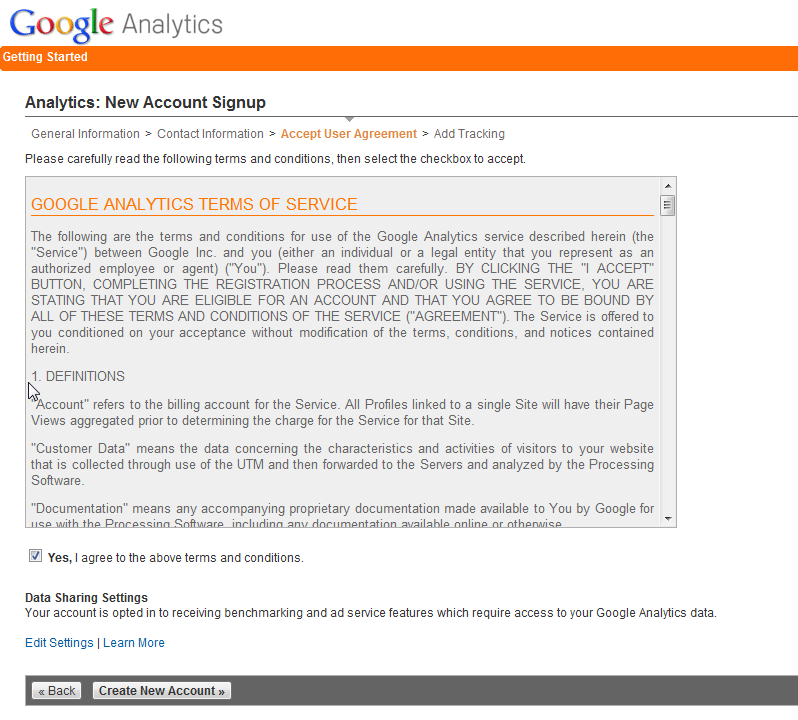
Click on the “Create New Account”. On the next screen Google will provide you with a piece of code to insert into every page on your website your wish to track. If you do not insert the code into your webpages Google cannot provide any data on your visitors. For more information on inserting the Google Analytics code and installing Google Analytics please see our article on Installing Google Analytics.
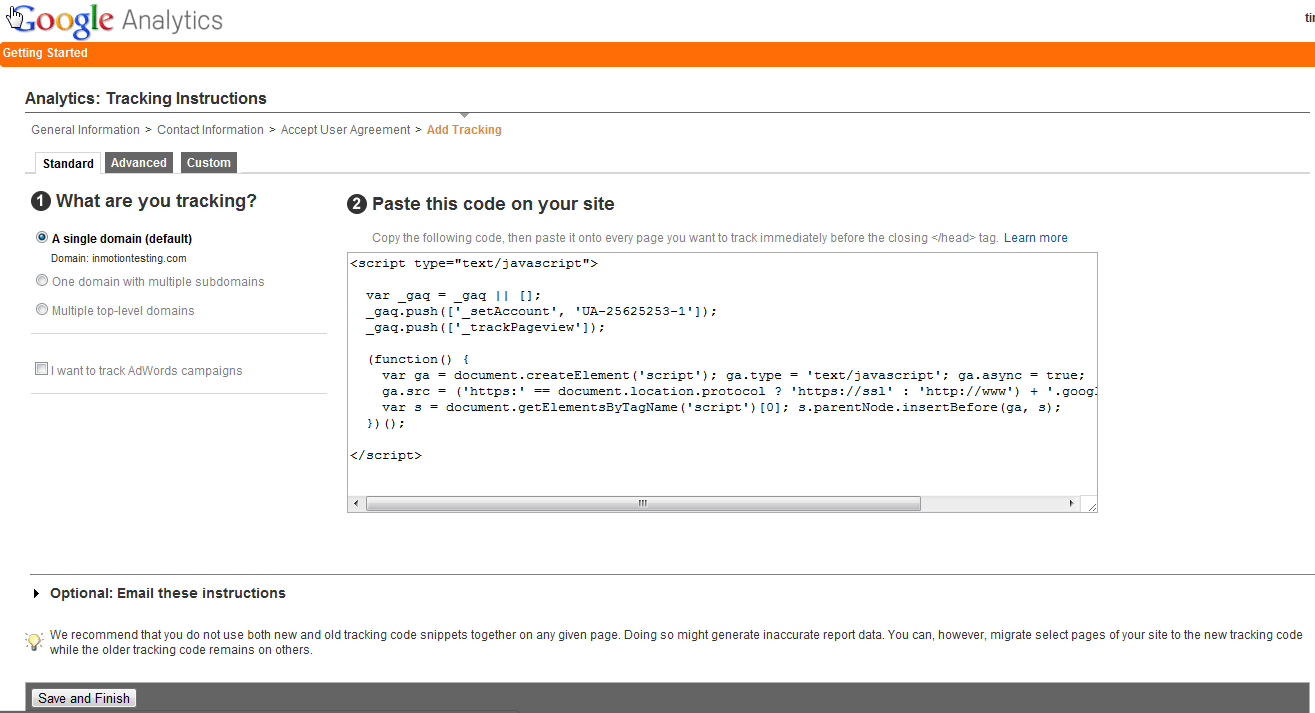
Congratulations! You have now successfully created a Google Analytics Account!



