301: Troubleshooting Publishing with Premium Website Builder

Written By: Tim Sisson
Experience Level: Beginner
Articles labeled as Beginner are those that require basic tasks to be completed, such as making simple configuration changes following a brief set of instructions. If you find yourself needing assistance, our Technical Support Department can generally assist.
Print E-mail:

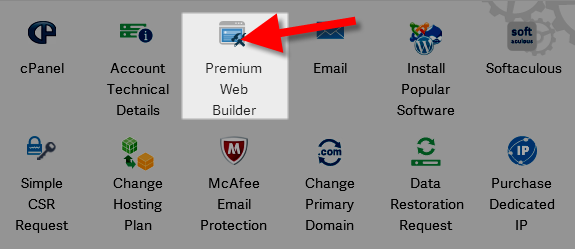
After you have finished creating your website in Premium Website Builder, it's time for you to publish your website. Premium Website Builder is configured when it is installed with your publishing settings already for you. For more information on publishing your website with Premium Website Builder, please read the following article: Publishing your website with Premium Web Builder.

If you have attempted to publish your website and are receiving an error similar to the one below, you may need to troubleshoot your settings to determine why it cannot publish.

the site cannot be published to the specified location.

Common reasons publishing may fail

There are a few reasons that Premium Website Builder may have difficulty publishing. If the domain you are publishing to is not your primary domain and you have not configured it correctly, it may not publish. Also, if you have recently changed your cPanel password you will need to update your password in Premium Website Builder as well.

How to review your publishing settings

If you're having a problem publishing your site, the first thing you'll want to do is review your publishing settings.

To access your admin section of builder select "Go to Admin Panel" in the top right:

PWBPublishing2

Then, click on the "publishing settings" tab:

PWBpublishing3

Your settings should look something similar to the screenshot below:

pwbpublish1

Here is an explanation of what each of these fields mean:

  • Publishing Mode: FTP will always be your selection
  • Host: This will be the domain that your website is uploaded to.  In this example, we have used the temporary URL which is your actual server address.  You can find your server in the Welcome Email you received when you first signed up for InMotion Hosting.  It will be something similar to ecbiz103 or biz108 so the full address would read biz108.inmotionhosting.com if your account is on the server biz108.
  • Port: Always use port 21
  • Login: This is your cPanel username
  • Password: This password is the same password as your cPanel account.  If you have changed your cPanel password, make sure you change it here as well.
  • Working directory: For your primary domain, the working directory will be public_html if you are using the same document root that was created when you first signed up with InMotion Hosting.  If your document root was changed due to a request you made, then the working directory will be your new document root.  If it is an Addon Domain, it will be public_html/youraddondomain.com
  • Web site URL: This will be your actual domain name, in this example we have used the temporary URL which can be found in AMP.  If you are using the temporary URL then it will always start with http://, then your server name, and at the end the ~ symbol (by the "1" on your keyboard) with your cPanel username.

Once you have confirmed the settings are correct, click the "Verify Location" button at the bottom and you will get a message verifying that you are now able to publish. If you are still having publishing errors on your website, please contact support for more assistance in resolving your publishing your settings.


Rating:
 
Please log in to rate this article.
Like this Article?
Notify Me of Updates!
Please login to subscribe to receive notifications when this article is updated.
Prerequisite Articles
None

Comments

Currently no comments

You must log in before commenting.

Need more Help?

Search
Current Customers
Chat:Click to Chat Now
Call:888-321-HOST (4678)
E-mail:support@InMotionHosting.com
Ticket Submit a Support Ticket
Ask the Community!
Get help with your questions from our community of like-minded hosting users and InMotion Hosting Staff.
Not a Customer?
Get web hosting from a company that is here to help. Sign up today!

Follow InMotion Hosting!

 4236 Followers. Follow Us!

Continuing Education

Follow this Education Channel to stay up to date on Premium Website Builder! (what is this?)
If you're familiar with the traditional setup of college courses, then learning through our Education Channels will be a breeze. We begin with an introductory 101 class, and advance all the way up to 300 level classes. Stay up to date on your favorite topics by becoming a fan on facebook and following us on twitter (links in the right sidebar of the page).
  Followers. Follow Us!

Further Your Education!

Subscribe To Other Education Channels!

Everything Email
Website Design
Premium Website Builder
cPanel
WordPress
Using Web Host Manager
OpenCart
Magento Tutorial

Have a Question?

If you need some help, submit your question to our Community!
We guarantee a response within 60 minutes (8am - 5pm EST, Monday - Friday)

Recent Questions